
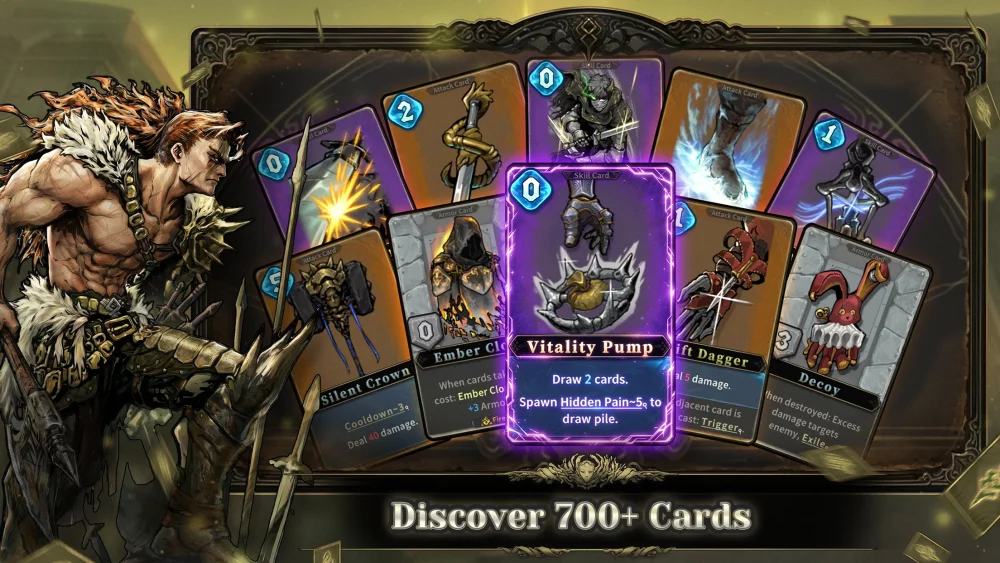
Understanding the UI layout is the first step toward efficient decision-making in Abyssal Soul. Whether you are playing on Android or iOS, the screen is packed with critical data points that dictate your survival. Mastering the interface allows you to process information quickly during intense card-battle encounters.
The Combat HUD Layout
The Abyssal Soul combat screen is divided into specific zones. Recognizing these at a glance prevents misplays and helps you manage your turn economy.
| UI Element | Function | Strategic Importance |
|---|---|---|
| Action Point (AP) Tracker | Displays available energy for the turn. | Determines how many cards you can play; never waste excess AP. |
| Draw/Discard Piles | Visual indicators of your remaining deck. | Essential for tracking which cards are still available for draw. |
| Enemy Intent Icons | Previews next-turn attacks or buffs. | Allows for proactive defensive card usage. |
| Health/Armor Bar | Tracks current survivability. | Monitor closely to decide between offensive or defensive playstyles. |
Vital Interface Tips for Mobile Players
Navigating the touch interface effectively can save you time and prevent accidental card drops.
- Card Previewing: Always tap and hold your cards before playing them. This allows you to verify the card's current text, as many cards scale based on your deck state or previous turn actions.
- Targeting Priority: In multi-enemy encounters, ensure you have clearly selected your target before committing high-damage attacks. The target selection indicator usually highlights the enemy clearly; double-check this to avoid wasting damage on enemies with low health.
- Buff/Debuff Tooltips: Enemies often have icons underneath their HP bars. Tap these icons to understand specific resistances or upcoming status effects that might influence your choice of cards.
Efficiency in the Menu and Map Screens
Outside of combat, the navigation system in Abyssal Soul is designed for rapid progression.
- The Pathing Overview: When viewing the map, always assess the nodes before moving. The interface provides icons representing shops, elites, and standard encounters. Use the map zoom feature if available to plan your route toward the most beneficial rewards rather than simply choosing the closest node.
- Deck Management Access: You can typically view your deck during runs by accessing the menu button in the corner. Periodically checking your deck composition helps you make more informed decisions when choosing new cards from rewards, ensuring you maintain a consistent synergy rather than just picking high-power cards.
- Resource Tracking: Keep an eye on the top-bar resources. If your gold or special currency is displayed, ensure you are tracking it against upcoming shop encounters so you know exactly how much you can afford to spend on deck-thinning services or relic purchases.
Streamlining Your Touch Controls
- Avoid Rapid Tapping: When making decisions during complex turns, slow down. The game rewards methodical play, and the UI is responsive enough that rapid tapping often leads to accidental card usage.
- Visibility Check: Ensure your screen brightness is adjusted for the dark, high-contrast aesthetic of Abyssal Soul. If you find it difficult to read card text, check your device settings to ensure the game resolution is native to your screen, which helps in rendering small UI text clearly.

Free Abyssal Soul Codes
Current active codes and how to redeem them.

Sarah Williams
Sarah specializes in RPG and collection games, explaining team building, character growth, and beginner-friendly ways to avoid expensive early mistakes.
COMMUNITY
Player Comments
141 players commented on this guide.
Good guide for Abyssal Soul players. The strategy part was useful.
The explanation is clear, especially for beginners.
This saved me time in the early game.
I tried this today and it worked better than my old setup.