
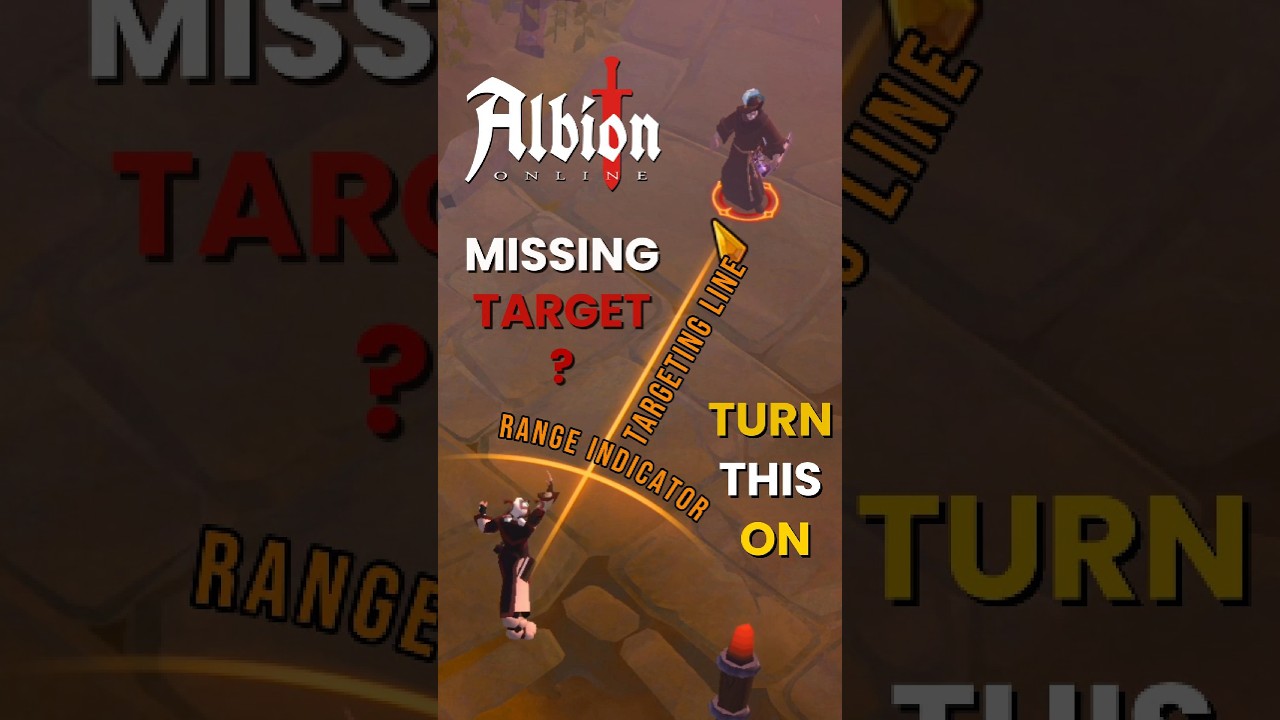
To track opponents reliably and maintain spacing in Albion Online, enable off-screen target indicators, switch your ability casting to Quick Cast on Press, separate movement from auto-attacks using Force Move, and widen your horizontal view with an ultrawide resolution.
These configuration adjustments eliminate input delays and prevent target loss during PvP skirmishes, Corrupted Dungeons, and open-world roaming.
Enable Off-Screen Target Indicators
Losing visual sight of an enemy during combat forces you to guess their pathing or glance away at the minimap. Enabling the off-screen target indicator in the interface menu creates a dynamic border marker on your screen edge that points directly to your currently targeted opponent whenever they reposition outside your camera view.
This edge marker provides two critical pieces of data:
- Direction: Shows the exact vector of the target, allowing skillshot weapons like bows, frost staves, and cursed staves to immediately align directional spells without panning the camera.
- Proximity: Reflects the approximate distance of the target, helping melee players track escaping opponents through invisibility spells like Ambush or movement skills like Shadow Edge.
Adjust Aspect Ratio for Wider Horizontal Vision
Albion Online uses a fixed isometric camera angle where horizontal screen width determines your vision range. Setting your display resolution to a 21:9 aspect ratio—either on an ultrawide monitor or via a custom letterboxed window on a standard 16:9 monitor—expands your field of view horizontally. This extra vision reveals hostile red nametags, dismount circles, and approaching gankers earlier.
| Screen Setting | Horizontal Vision Field | Tactical Advantage | Trade-Off / Limitation |
|---|---|---|---|
| Standard 16:9 Fullscreen | Baseline field of view | Large character models; standard UI scale | Narrower flanks; delayed detection of approaching players |
| 21:9 Ultrawide or Letterbox | Extended panoramic field | Earlier warnings for gankers, dismounts, and long-range casts | Black bars on standard monitors; smaller overhead health bars |
If you opt for a letterboxed 21:9 resolution on a standard monitor, adjust your mouse sensitivity to compensate for the wider horizontal sweep required to target across the broader display.
Switch to Quick Cast on Press
Default spell casting requires pressing an ability key and then confirming the target location with a left mouse click. This two-step process introduces mechanical latency that hampers stutter-stepping and kiting.
To optimize reaction speeds, configure your spell casting in the game settings:
- Quick Cast on Press: Triggers directional skills and ground-targeted abilities at your cursor position the instant the hotkey is depressed. This setting provides zero-latency activation, which is critical for emergency defensive skills such as Cleric Robe's Everlasting Spirit, Cleric Cowl's Ice Block, and Sword's Parry Strike.
- Quick Cast on Release: Displays targeting reticles while the key is held down and fires upon release. This serves as an intermediate option for learning the ranges of abilities like Frost Nova or Bow of Badon's Raging Storm, though it remains slower than casting on press.
Separate Movement Commands from Attacks
Using right-click for both movement and attacking creates misclicks in dense fights. Clicking an enemy player, neutral mob, or harvestable resource stops your character to initiate an auto-attack, breaking your kiting distance.
Resolve this by assigning separate keys in your control settings:
- Force Move: Bind this command to an accessible input, such as the spacebar or an extra mouse thumb button. Holding Force Move forces your character to walk toward the cursor without interacting with any game entities, preventing accidental attack stops.
- Attack-Move: Bind this to a dedicated key for fluid stutter-stepping (orb-walking). Tap Force Move to walk away from a target, tap Attack-Move to fire an auto-attack at your maximum attack range, and immediately input Force Move again to cancel the remaining weapon backswing animation.
Declutter Overhead Nameplates and Retain Cast Bars
Visual clutter obscures important combat animations and ground telegraphs. In the UI settings, turn off non-essential overhead text, such as friendly guild names, minion tags, and floating combat damage numbers.
Ensure enemy health bars, energy meters, and spell cast bars remain fully visible:
- Spell Cast Bars: Prominent cast bars signal the channel windows of high-threat spells like Crossbow Snipe, Glacial Prism, or Cursed Beam, indicating when to walk outside leash range or apply an interrupt.
- Energy Bars: Tracking an opponent's remaining energy informs whether you need to kite defensively or press the offensive against a resource-depleted target.
Free Albion Online Codes
Current active codes and how to redeem them.

James Brown
James focuses on Android gaming on PC, emulator setup, controls, performance tuning, and practical troubleshooting for longer play sessions.
COMMUNITY
Player Comments
88 players commented on this guide.
The explanation is clear, especially for beginners.
Can you add more details about strategy in a future update?
This helped me understand strategy much better.
This guide answered the exact question I had.