
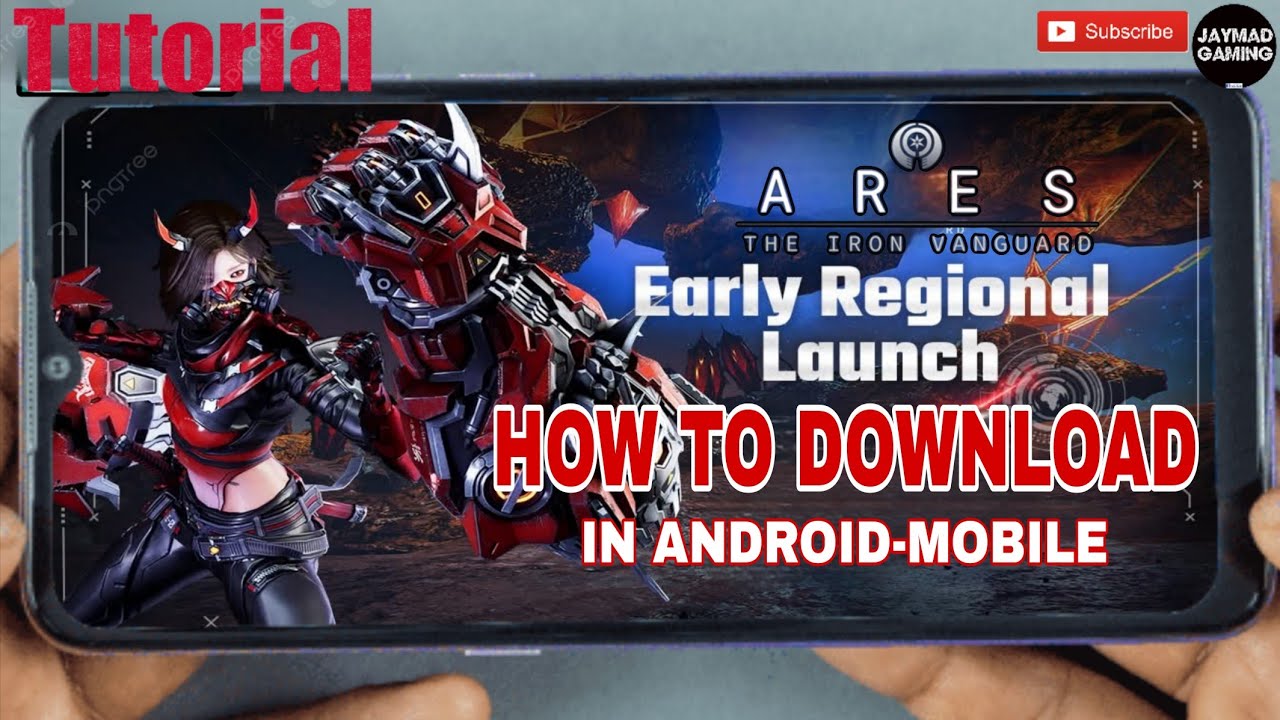
Successfully accessing ARES: THE IRON VANGUARD on mobile requires navigating specific installation protocols to ensure the high-fidelity client runs correctly on your device. As a visually demanding action RPG, this title relies on heavy asset streaming and real-time rendering. This guide provides the authoritative steps to bypass common installation errors, optimize your hardware, and ensure a seamless entry into the battlefield.
Verifying Android Compatibility Requirements
Before initiating the download, you must confirm that your hardware meets the specific technical specifications required to handle the game's advanced graphical engine. ARES: THE IRON VANGUARD features complex particle effects, high-poly suit models, and expansive, seamless environments that can overwhelm mid-range devices.
- Processor (CPU): A modern octa-core chipset is highly recommended. Older chipsets will struggle with the real-time suit-switching mechanics during intense combat.
- Memory (RAM): 6GB of RAM is the recommended baseline. Anything less may lead to stuttering when the game loads new zones or deploys your Mech.
- Storage Space: While the initial download from the app store is relatively small, the "in-game" asset download is massive. Reserve at least 10GB of internal storage to accommodate the initial installation and the subsequent high-resolution texture packs.
- Operating System: Ensure your Android version is up to date, as the game’s security protocols and graphics APIs (like Vulkan support) require recent OS updates to function without crashing.
Executing the Official Installation Process
To ensure your client is secure and compatible with the latest server-side patches, always use official distribution channels like the Google Play Store. Third-party APK mirrors are a common source of "version mismatch" errors, which will prevent you from connecting to the live servers.
- Stable Connection: Use a reliable Wi-Fi network. The initial installation requires a clean handshake with the CDN; cellular data can suffer from packet loss that triggers file corruption.
- Foreground Priority: Keep the app in the foreground during the first download. Many Android versions aggressively throttle background processes, which can cause the installation to stall at 99%.
- Account Sync: Ensure your regional app store settings match the region you intend to play in. Connecting to a server that does not match your store region can lead to "Region Not Supported" errors or latency issues.
Managing Initial Game Asset Downloads
After the core application installs, ARES: THE IRON VANGUARD will prompt a secondary download. This is where the bulk of the game’s high-fidelity assets—including suit textures, sound banks, and world data—are retrieved.
- Avoid Interruptions: Do not let your screen timeout. Adjust your display settings to "Always On" or tap the screen periodically during the download.
- Clear Cache for Speed: If you notice the download progress bar moving at a crawl, close the app, clear the cache for your app store, restart your device, and try again. This forces the CDN to reset your connection and find a more efficient server node.
- Verification: If you receive a "Patching Failed" notification, it is almost always due to a drop in network stability or a lack of storage space. Check your available storage before restarting the patching process.
Handling Common Launch and Access Errors
If the game refuses to launch or closes immediately at the splash screen, the issue is usually related to missing system permissions or aggressive battery management.
- Granting Permissions: Upon the first launch, the game will request access to Storage, Photos, and Media. You must grant these. If you denied them, navigate to Settings > Apps > ARES: THE IRON VANGUARD > Permissions and toggle them to "Allow."
- Disabling Battery Optimization: Many Android devices automatically put high-intensity games into "Power Saving" mode. This can throttle the CPU, causing the game to crash during the loading screen. Go to your system battery settings and set ARES: THE IRON VANGUARD to "Unrestricted" or "High Performance."
- Regional Connectivity: If you are using a VPN, turn it off. The game detects unauthorized connections and may block access to prevent latency-based exploits.
Optimizing Initial Performance Settings
Once you reach the main menu, your primary goal is to balance visual fidelity with thermal management. The game defaults to high settings, which can cause severe overheating on many devices after just 20 minutes of gameplay.
Recommended Performance Tweaks
- Frame Rate Cap: If you are experiencing "thermal throttling" (where the game starts smooth but slows down after a few minutes), lower your FPS cap from 60 to 30 or 45. This keeps your device cooler and provides a consistent experience.
- Shadow and Particle Quality: These are the most resource-intensive settings. If you notice frame drops during Mech deployment or intense combat, drop these settings to "Medium" first.
- Resolution Scaling: If your device has a high-resolution display, the game might be rendering at a level your GPU can't maintain. Lowering the resolution is the most effective way to gain significant FPS without losing the "feel" of the game.
Understanding the "Suit Switching" Demand
ARES: THE IRON VANGUARD is unique because it requires your device to load multiple "Suits" (Engineer, Warlock, Warlord, Hunter) into memory simultaneously to facilitate real-time switching during combat. If you notice a "hitch" or "stutter" the first time you switch suits in a session, it is simply the engine loading the high-resolution assets for that suit into the cache. This usually disappears after the first few minutes of gameplay as the assets remain in your device's RAM.
By following these steps, you ensure that your device is optimized for the rigors of the ARES battlefield. Remember that every time there is a major game update, repeating the cache-clearing process can help prevent the accumulation of "ghost data" that slows down load times and negatively impacts your overall performance.

Free ARES: THE IRON VANGUARD Codes
Current active codes and how to redeem them.

James Brown
James focuses on Android gaming on PC, emulator setup, controls, performance tuning, and practical troubleshooting for longer play sessions.
COMMUNITY
Player Comments
95 players commented on this guide.
I tried this today and it worked better than my old setup.
This helped me understand strategy much better.
The tips are practical and easy to follow.
This saved me time in the early game.