
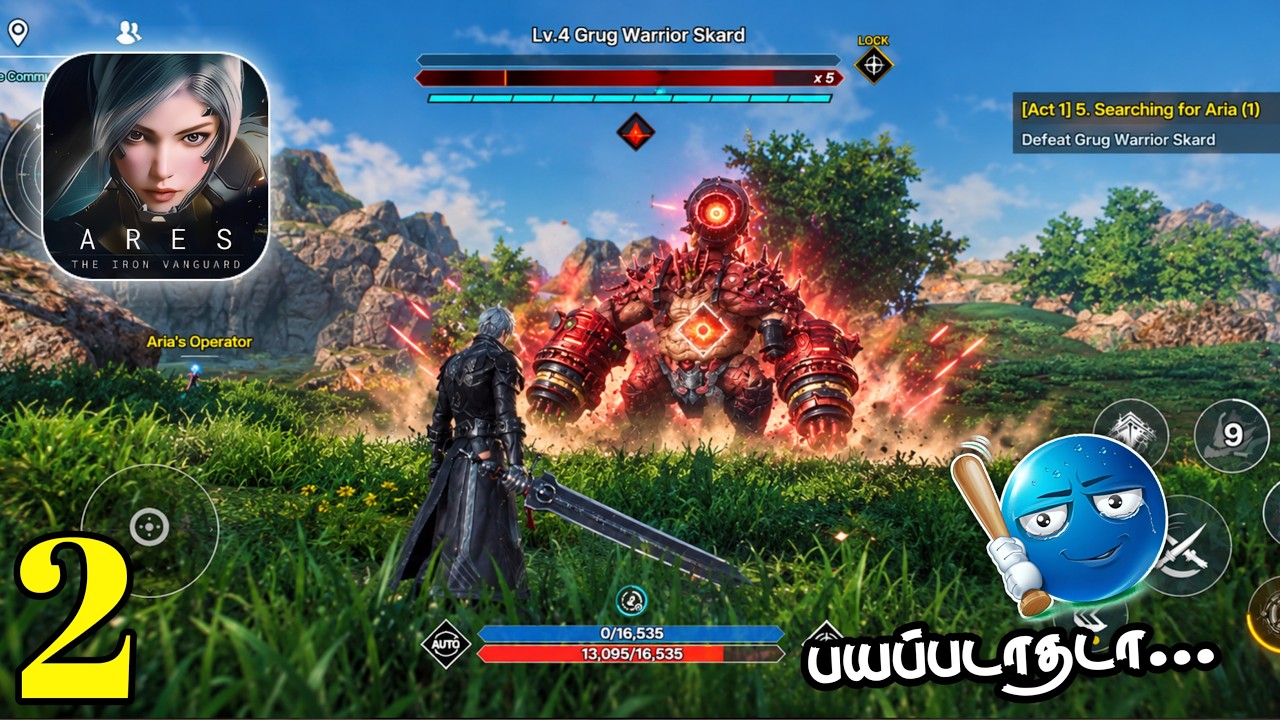
To install and run ARES: THE IRON VANGUARD on Android or iOS, clear at least 5.7 GB of internal storage for the game client, and keep 7 GB to 8 GB of total free space available to handle installation unpacking and temporary cache files.
Storage Requirements and Download Preparation
The primary requirement for downloading ARES: THE IRON VANGUARD is preparing sufficient internal storage space before launching the installer.
| Target Parameter | Requirement / Metric | Recommended Action |
|---|---|---|
| Base Download Size | 5.7 GB | Ensure at least 5.7 GB of available space. |
| Overhead Space | 7.0 GB to 8.0 GB | Leave buffer space for file extraction and patch cache. |
| Download Stability | High-speed Wi-Fi | Avoid mobile data to prevent packet loss and download restarts. |
If your device is close to the storage limit:
- Clear temporary application caches from your device settings.
- Offload or back up high-definition videos and unused media to external storage.
- Verify total available internal space before initiating the download.
Hardware Optimization and Thermal Control
ARES: THE IRON VANGUARD features high-fidelity visual effects and mobile battlefield action that put significant load on graphics processors. Demonstrations of the mobile client (such as footage captured on a OnePlus 15) show smooth performance on modern, high-end hardware, whereas older devices can experience frame rate drops during intense combat scenarios.
To prevent processor throttling and maintain consistent frame rates:
- Disable battery-saver modes: Power-saving features lower CPU and GPU clock speeds, which leads to performance stutter.
- Close background applications: Free up active RAM by closing unnecessary apps before launching the game.
- Prevent thermal build-up: Avoid playing while charging your device, as charging generates additional heat that triggers thermal throttling.
- Play in a cool environment: Ensure proper air circulation around your device during longer play sessions.
Adjusting Graphics Settings for Stability
If combat encounters suffer from lag or low frame rates, lower the processing load through the in-game options:
- Open the system settings menu inside the game client.
- Reduce resolution scaling to lower render pressure on the GPU.
- Turn down post-processing effects to stabilize frame rates during visual-heavy encounters and boss fights.

Free ARES: THE IRON VANGUARD Codes
Current active codes and how to redeem them.

Emily Johnson
Emily writes practical mobile strategy guides with a focus on resource planning, base progression, and the early decisions that shape a long-term account.
COMMUNITY
Player Comments
137 players commented on this guide.
This saved me time in the early game.
I wish I had read this before upgrading the wrong thing.
I tried this today and it worked better than my old setup.
This helped me understand strategy much better.