
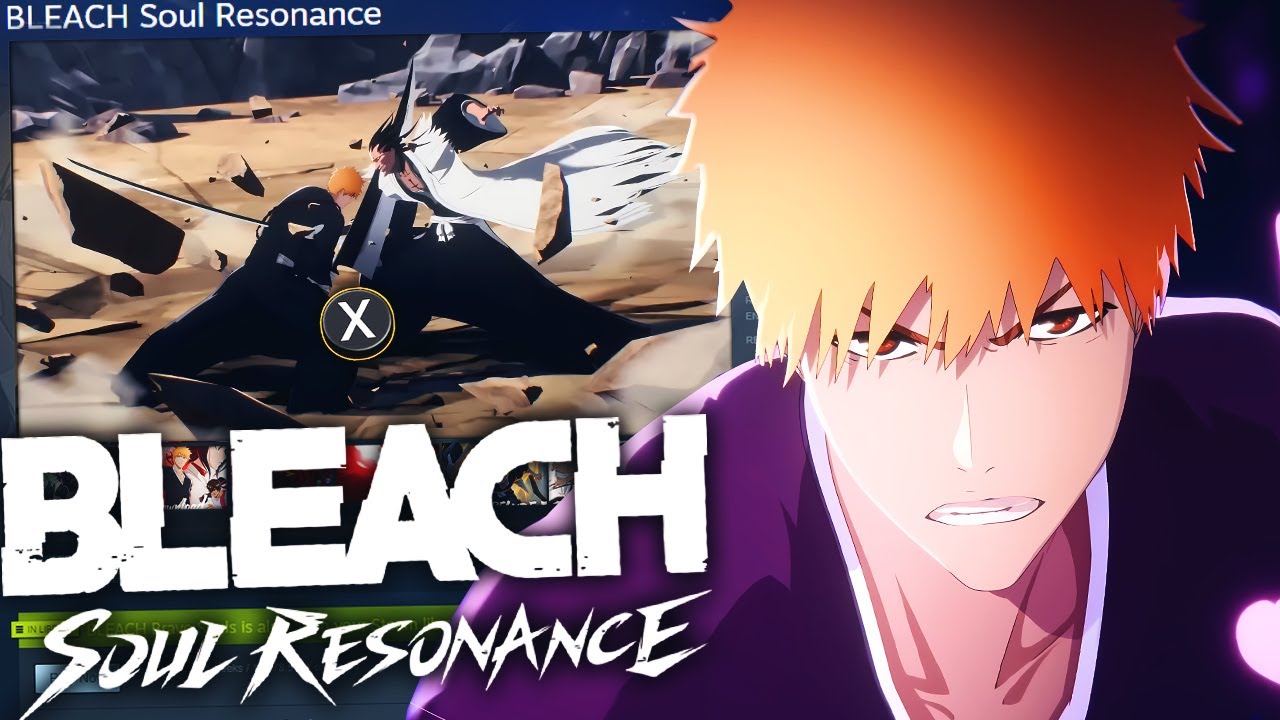
Transitioning to PC is the most effective way to elevate your gameplay in BLEACH Soul Resonance. By moving away from mobile hardware limitations, you gain access to superior display fidelity, stable high-frame-rate rendering, and precise input control. This guide breaks down the technical requirements and strategic configurations necessary to transform your PC into the ultimate platform for dominating the Soul Society.
Why PC is the Superior Platform for BLEACH Soul Resonance
BLEACH Soul Resonance features high-octane, action-oriented combat that demands rapid-fire inputs and precise timing. Mobile touchscreens often suffer from "input ghosting" or physical fatigue during prolonged play sessions. Playing on PC solves these issues by providing:
- Tactile Feedback: Physical keys allow for "muscle memory" development, which is essential for executing perfect dodge-counters and complex ability chains.
- Visual Clarity: Playing on a monitor allows you to track enemy animations and telegraphs more clearly, reducing the likelihood of taking unnecessary chip damage during boss encounters.
- Thermal Stability: Sustained gaming on a mobile device can lead to thermal throttling, causing your FPS to drop exactly when you need it most. PC hardware maintains consistent performance throughout intense raids.
Step-by-Step Emulator Setup for Maximum Performance
The core of your PC experience relies on your Android emulator (such as BlueStacks, LDPlayer, or MuMu Player). To ensure the game runs without stuttering:
- Enable Virtualization (VT): Enter your BIOS/UEFI settings and ensure "Virtualization Technology" is set to "Enabled." This is non-negotiable; without it, the emulator will struggle to emulate the mobile environment, leading to massive input lag.
- Resource Allocation: In the emulator’s settings, navigate to the "Performance" or "Engine" tab. Allocate at least 4 CPU cores and 6GB of RAM. BLEACH Soul Resonance is resource-heavy during particle-intensive ultimate sequences; giving the instance extra headroom prevents frame drops.
- Graphics Backend Selection: Toggle between DirectX and OpenGL. Generally, DirectX provides better performance on Windows machines, but if you encounter texture flickering or graphical artifacts, switch to the Vulkan or OpenGL engine.
- High FPS Mode: Always toggle "High Frame Rate" to 120 FPS or higher within the emulator settings, then ensure the in-game settings are set to the highest possible cap to minimize latency.
Mastering Combat Through Keymapping
The combat in BLEACH Soul Resonance is built on timing. Mapping your keys effectively is the difference between a clumsy playstyle and a professional, fluid rotation.
- Movement: Stick to the standard WASD configuration. It is the most intuitive for side-scrolling or top-down action titles.
- Skill Rotations: Assign your core abilities to keys surrounding WASD (e.g., E, R, F, G). Keep your most frequently used dash or dodge on a side mouse button (MB4 or MB5) so you can dodge while simultaneously aiming or repositioning with your movement keys.
- Ultimate Ability: Map your Ultimate to a dedicated key like "Spacebar" or "Shift." You want this to be accessible without interrupting your primary combo flow.
- The "Combo" Philosophy: Focus on grouping your skill buttons in a logical sequence based on your character’s cooldowns. If a character requires a specific order of operations to trigger a "Soul Resonance" state, ensure those keys are physically adjacent so your fingers can "roll" across the keys in a single motion.
Fine-Tuning Graphics for Competitive Advantage
While high-resolution graphics look beautiful, they can occasionally obscure critical enemy indicators. To gain a competitive edge:
- Anti-Aliasing and Shadows: If you are chasing a 120 FPS experience, prioritize turning down post-processing effects and high-quality shadows. These features create "visual noise" that can hide incoming enemy attacks.
- Resolution Scaling: Use a native resolution that matches your monitor. Running the game at an odd aspect ratio can cause UI elements to stretch, potentially making the dodge-window indicators harder to read.
- Cache Management: Emulators can accumulate "junk" data over time, leading to stuttering. Get into the habit of clearing the emulator’s cache once a week to keep the engine snappy and responsive.
Managing Your Account Safely
While macros can technically automate repetitive tasks like daily resource farming or menu navigation, you must exercise extreme caution.
- The Golden Rule: Macros should only be used for menu navigation (e.g., "Collect All" buttons, navigating to shop menus, or starting a stage you have already cleared).
- Avoid Combat Automation: Never use macros to perform combat rotations. Anti-cheat systems in high-fidelity action games detect the unnaturally consistent timing of macro-driven inputs. Using software to automate gameplay will result in a permanent ban. Stick to the "human" experience for combat to ensure your account remains in good standing.
Troubleshooting Common Issues
If you encounter "black screens" or sudden crashes, try these three steps:
- Update Graphics Drivers: Ensure your NVIDIA or AMD drivers are on the latest branch.
- Disable "ASTC Texture" in Emulator: If you see white boxes or missing textures, turn off ASTC texture decoding in the emulator’s graphics settings.
- Check Background Processes: Close resource-heavy apps like Chrome or video rendering software before launching the game to ensure the emulator has exclusive access to your GPU’s VRAM.
By following these technical configurations, you move beyond the limitations of mobile gaming and unlock the full potential of BLEACH Soul Resonance. Master your controls, optimize your frames, and you will find that the highest levels of competitive play become significantly more achievable on PC.

Free BLEACH Soul Resonance Codes
Current active codes and how to redeem them.

Emily Johnson
Emily writes practical mobile strategy guides with a focus on resource planning, base progression, and the early decisions that shape a long-term account.
COMMUNITY
Player Comments
137 players commented on this guide.
Can you add more details about strategy in a future update?
The tips are practical and easy to follow.
I wish I had read this before upgrading the wrong thing.
This saved me time in the early game.