
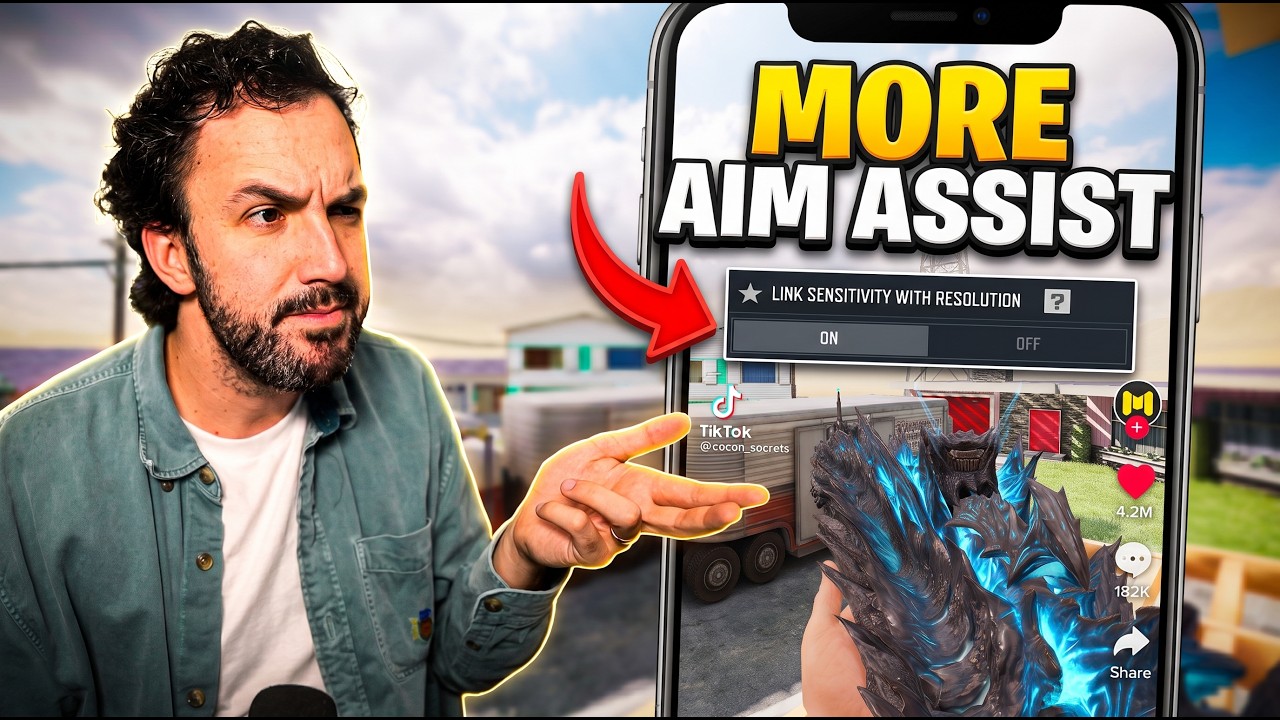
Viral Call of Duty®: Mobile settings claiming zero recoil and instant movement often degrade your actual control. While settings like fixed trigger perspective and reduced screen shake deliver genuine mechanical benefits, maxing out sprint sensitivity or forcing a wide field of view can harm target tracking and close-range gunfights. Configure each setting based on your device display size and finger layout, then verify your adjustments in the Practice Range.
Sync FOV to ADS: Weighing Visual Recoil Against Target Size
Enabling "Sync FOV to ADS" does not alter your weapon's physical recoil pattern, but it prevents the camera from zooming in when you aim down sights. Retaining your base Field of View (FOV) keeps the gun model smaller on screen, which significantly reduces perceived visual kick during sustained firing.
Your hardware dictates whether this setting is beneficial:
- Tablets and Large Displays: Turn On. The larger screen area keeps distant player models sharp and recognizable even without camera zoom, allowing you to benefit from minimal visual shake.
- Phones: Keep Off or test carefully. On smaller screens, maintaining a wide FOV causes distant enemies to shrink into tiny clusters of pixels, making it difficult to spot opponents behind head-glitch cover at long ranges.
Sprint Sensitivity and Always Sprint: Balancing Speed and Precision
Social media setups frequently recommend setting Sprint Sensitivity to 100 to maximize slide fluidity. However, pushing this slider to 100 removes analog walking entirely. Any slight push of the movement stick triggers an immediate sprint, which exposes your character to sprint-to-fire delays and prevents silent creeping around corners.
To balance mobility with tactical control:
- Sprint Sensitivity: Set between 75 and 85. This range lets a gentle stick tilt keep you in a silent walk while a deliberate flick initiates a full sprint.
- Always Sprint: Keep Off. Separating your sprint input from standard movement preserves tight hip-fire spread when peeking tight corners with shotguns and submachine guns.
Right Fire Button Fixed Perspective
The default Call of Duty®: Mobile controls allow your right fire button to rotate the camera while pressed. For players who tap or hold the button firmly, minor thumb twitches inadvertently drag the crosshair away from targets during high-recoil sprays.
Turning Right Fire Button for Fixed Perspective to On locks the trigger in place so that finger pressure does not turn the camera. This ensures your tracking is handled solely by your aiming thumb or gyroscope. Keep this setting On if you play using a multi-finger claw grip or gyroscope. If you use a simple two-thumb layout and rely on your firing thumb to aim while shooting, leave this setting Off.
Screen Shake and Visual Performance
Hidden settings cannot remove incoming hit flinch, as flinch is determined entirely by weapon attachments and perks like Toughness. However, adjusting camera shake and display settings eliminates visual clutter during intense firefights.
Apply the following visual adjustments in your graphics menu:
- Screen Shake Intensity: Set to the Minimum (0–20%) to eliminate camera distortion from nearby explosions, thermite, and continuous fire.
- Graphic Quality: Set to Low to reduce thermal throttling, remove distracting shadows, and declutter player sightlines.
- Frame Rate: Set to Max or Ultra to reduce input latency and maintain smooth tracking.
- Realistic Scope: Set to Off to prevent blurred peripheral vision and frame drops when aiming.
- Damage Numbers: Set to On with medium opacity to confirm hit registration through smoke and partial penetration walls.
Settings Comparison and Recommendations
| Setting | Viral Claim | Actual Effect | Recommended Setup |
|---|---|---|---|
| Sync FOV to ADS | Eliminates weapon recoil | Reduces visual barrel bounce but shrinks distant targets | On for tablets; Off for standard phones |
| Sprint Sensitivity | Unlocks instant slide-cancels | Triggers instant sprint; removes walking and adds fire delay | 75–85 |
| Right Fire Fixed Perspective | Grants automatic aim tracking | Disables camera rotation on trigger to stop accidental drift | On for claw/gyro; Off for two-thumb aiming |
| Screen Shake Intensity | Deletes incoming bullet flinch | Removes visual distortion from explosions and weapon kick | Minimum (0–20%) |
| Graphic Quality | High graphics reveal targets faster | Causes thermal drops and adds visual clutter | Low graphics with Max/Ultra frame rate |
After applying these adjustments, spend a few minutes tracking moving targets across multiple distances in the Practice Range to adapt your muscle memory before queuing into Ranked Multiplayer.

Free Call of Duty®: Mobile Codes
Current active codes and how to redeem them.

Michael Smith
Michael covers live-service games, events, reward systems, and efficient daily routines, turning frequent updates into clear actions for players.
COMMUNITY
Player Comments
77 players commented on this guide.
The explanation is clear, especially for beginners.
The tips are practical and easy to follow.
Nice guide. I am checking the other Call of Duty®: Mobile articles next.
This helped me understand strategy much better.