
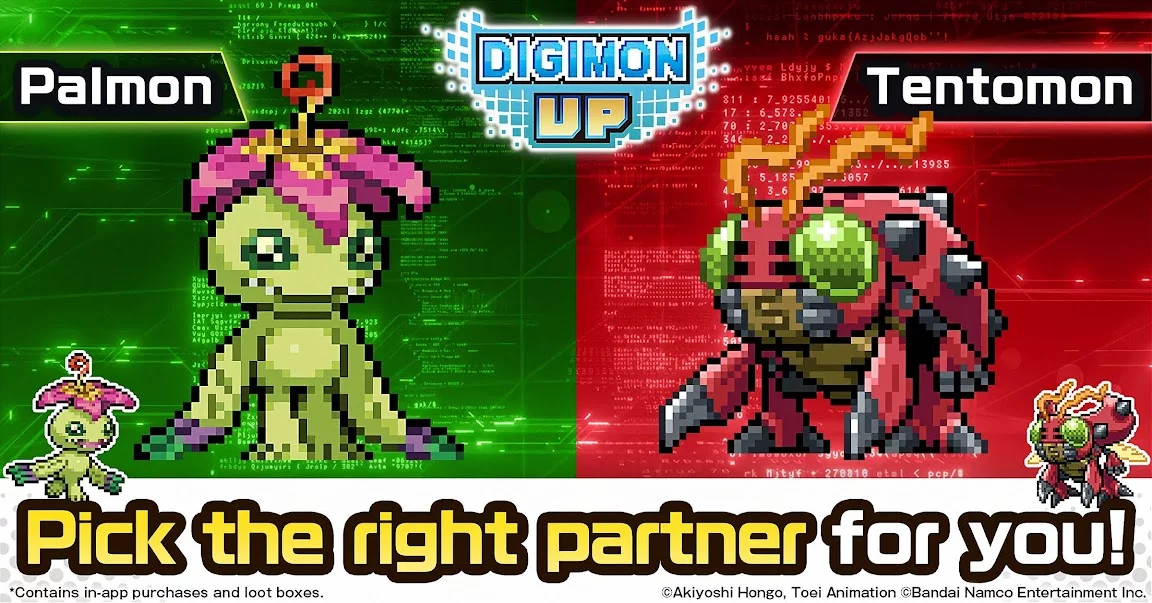
Optimizing your DIGIMON UP desktop display ensures that your active Digimon partners remain visible and accessible, which is essential for monitoring growth and combat readiness. By managing the UI layout, players can clear visual clutter and focus on the most important metrics, such as evolution progress and current resource counts. Understanding these settings is vital for maintaining a clean workspace while tracking the progression of your primary Digimon team during daily tasks.
Customizing the Desktop Layout
The primary benefit of adjusting your desktop display in DIGIMON UP is the ability to maintain a clear view of your evolution progress without navigating through multiple sub-menus. You can pin your current partner to the main screen, allowing you to track stat changes in real-time as you engage in training or combat loops.
- Pinning Partners: Select your preferred Digimon to occupy the central desktop slot for quick access to evolution requirements.
- UI Transparency: Adjust the opacity of overlay menus to ensure that vital combat stats are visible without obscuring your primary Digimon character model.
- Notification Filters: Disable unnecessary system pop-ups to keep your desktop clean, focusing only on critical event alerts or evolution readiness notifications.
Managing Active Partner Visibility
Keeping your team visible on the main UI serves as a constant reminder of which Digimon requires immediate attention or feeding. If your desktop feels overcrowded, prioritize the display of your highest-rank Digimon to streamline your workflow.
| Feature | Function | Recommended Priority |
|---|---|---|
| Main Partner View | Displays current Digimon for growth tracking | High |
| Stat Overlay | Shows active CP and growth modifiers | Medium |
| Quick-Train Link | Shortcut to the training terminal | High |
| Event Tracker | Displays remaining time on active banners | Low |
Streamlining Interface Navigation
Beyond the desktop display, the overall interface can be configured to favor speed during repetitive tasks like farming or evolution training. If you are aiming for high-level progression, reducing the number of clicks required to reach the training screen is a key efficiency strategy.
- Menu Shortcuts: Utilize the customizable shortcut bar at the bottom of the interface to jump directly to your most used menus, such as the Evolution Tree or the Gacha terminal.
- Asset Loading: If you experience performance drops on the desktop, consider lowering the character resolution setting in the display menu to keep the frame rate stable during prolonged sessions.
- Layout Saving: Always verify your UI changes by navigating away from the home screen and returning to ensure that your preferred layout persists between game sessions.
Free DIGIMON UP Codes
Current active codes and how to redeem them.

Sarah Williams
Sarah specializes in RPG and collection games, explaining team building, character growth, and beginner-friendly ways to avoid expensive early mistakes.
COMMUNITY
Player Comments
145 players commented on this guide.
Good guide for DIGIMON UP players. The strategy part was useful.
I tried this today and it worked better than my old setup.
This guide answered the exact question I had.
I wish I had read this before upgrading the wrong thing.