
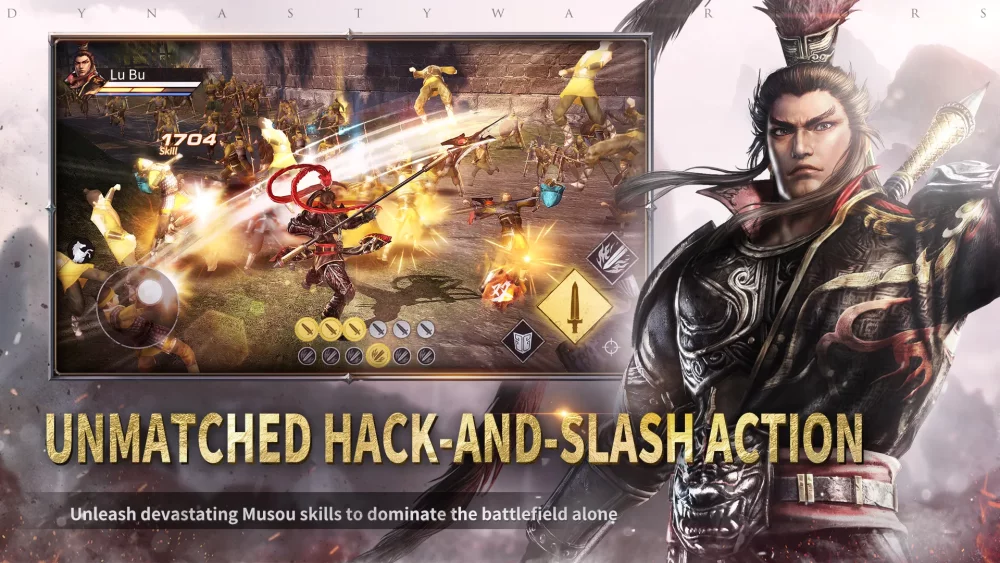
For players experiencing lag, desync, or connection instability in Dynasty Warriors:Overlords, the network environment is often the primary bottleneck. Because this title relies on real-time synchronization for combat and co-op encounters, maintaining a stable connection is vital for executing combos and avoiding input delays.
This guide covers how to troubleshoot connectivity issues and optimize your settings to ensure a smooth experience.
Common Connectivity Symptoms
If you are struggling with performance, you may notice the following in-game behaviors:
- Input Latency: Delay between pressing an attack button and the commander executing the move.
- Rubber-banding: Characters snapping back to previous positions during movement.
- Combo Interruption: Ability animations failing to trigger or chaining incorrectly due to synchronization drops.
- Loading Stalls: Extended hang-ups when transitioning between maps or entering combat instances.
Practical Troubleshooting Steps
1. Prioritize Wi-Fi over Mobile Data
While Dynasty Warriors:Overlords is designed for mobile devices, high-fidelity combat requires a steady stream of data. If possible, avoid switching between cellular towers while playing, as the hand-off process often causes momentary packet loss.
- Stable Wi-Fi: Always preferred for long sessions or challenging stages.
- 5G/4G Stability: If using mobile data, ensure you have a full signal strength indicator. Avoid playing in areas with fluctuating signal (e.g., moving vehicles or elevators).
2. Manage Background Applications
Background apps can consume bandwidth and RAM, leading to stuttering that mimics network lag. Before launching the game:
- Close video streaming apps (YouTube, Netflix, Twitch).
- Disable automatic cloud backups (Google Photos, iCloud) that may trigger background uploads.
- Ensure no large game updates or system patches are downloading in the background.
3. Adjust In-Game Graphic Settings
Sometimes, the issue isn't the network, but the device struggling to process the visual intensity alongside the server data. If you notice stuttering during intense combat:
- Navigate to Settings > Graphics.
- Lower the Frame Rate or Resolution to reduce the processing load on your device.
- Reducing particle effects can also help keep the game responsive during high-action sequences, effectively lowering the amount of data the device needs to sync during chaotic moments.
Network Troubleshooting Table
| Issue | Potential Cause | Recommended Fix |
|---|---|---|
| High Latency | Distance to server/Router load | Use a 5GHz Wi-Fi band or move closer to the router. |
| Frequent Disconnects | Unstable Cellular Signal | Toggle Airplane Mode on and off to reset your network handshake. |
| Visual Stuttering | Device Overheating/CPU Throttle | Lower graphics settings and remove thick phone cases. |
| Sync Errors | DNS Issues | Try switching your device DNS to a public provider (e.g., Google or Cloudflare). |
When to Contact Support
If you have verified that your internet speed is stable and your device is updated, but you still encounter persistent "Connection Lost" or "Server Busy" errors, you may be experiencing a localized issue with the regional server.
In these cases, check the official Dynasty Warriors:Overlords social media channels for maintenance announcements before submitting a ticket. Include your device model, current operating system version, and a description of the specific error code to speed up the support process.

Free Dynasty Warriors:Overlords Codes
Current active codes and how to redeem them.

Sarah Williams
Sarah specializes in RPG and collection games, explaining team building, character growth, and beginner-friendly ways to avoid expensive early mistakes.
COMMUNITY
Player Comments
104 players commented on this guide.
Nice guide. I am checking the other Dynasty Warriors:Overlords articles next.
This helped me understand strategy much better.
The tips are practical and easy to follow.
I tried this today and it worked better than my old setup.