
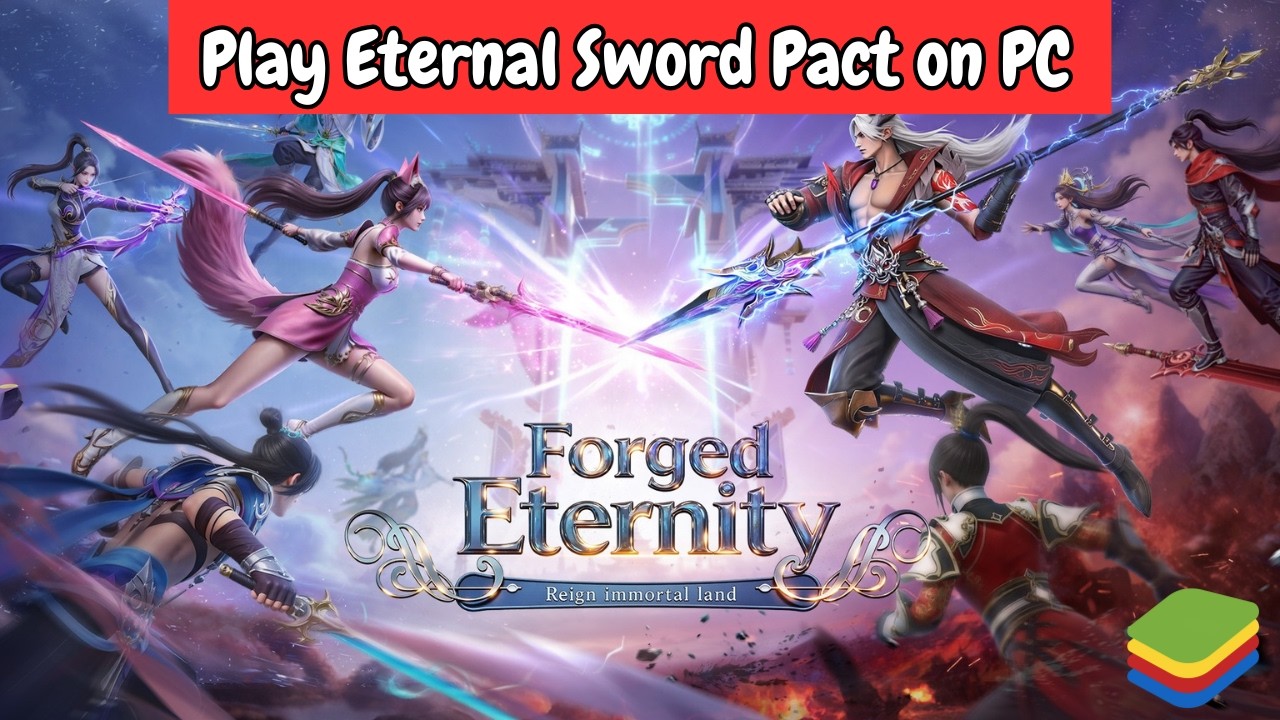
To play Eternal Sword Pact on PC, run the game on a 64-bit instance of BlueStacks 5 with at least four CPU cores and 4 GB of RAM allocated. Using a desktop emulator removes mobile battery drain and touch latency while providing physical keyboard bindings for movement, evasion, and skill combos.
Installing Eternal Sword Pact on BlueStacks 5
A 64-bit Android architecture is required to avoid crashes and memory leaks during large alliance raids and map transitions. Standard 32-bit Nougat instances are unstable with modern 3D ARPG assets.
- Verify Virtualization: Open your PC's BIOS settings and confirm that hardware virtualization (VT-x or AMD-V) is enabled. Virtualization is necessary to prevent severe frame stuttering.
- Download BlueStacks 5: Install the latest BlueStacks 5 client from the official emulator website.
- Create a 64-Bit Instance: Open the BlueStacks Multi-Instance Manager, click Instance in the lower-left corner, select Fresh Instance, and choose either Pie 64-bit or Android 11.
- Log In to Google Play: Start the new instance, open the Google Play Store, and log in with your Google account.
- Install the Game: Search for Eternal Sword Pact and select Install. If the game is not accessible in your regional Play Store, drag and drop a verified APK or XAPK file directly onto the BlueStacks home screen to install it.
- Download Resource Patches: Open the game and complete all in-game asset and patch downloads before adjusting combat settings.
Recommended Engine and Graphics Settings
Configure the emulator engine before entering demanding content. Click the gear icon on the right sidebar to open the BlueStacks Settings menu, apply the following values, and restart the instance:
| Setting | Recommended Option | Purpose |
|---|---|---|
| CPU Allocation | High (4 Cores) | Prevents frame drops in crowded zones and world events |
| Memory Allocation | High (4 GB or higher) | Stops out-of-memory crashes during extended farming |
| Performance Mode | High Performance | Prioritizes sustained framerate over system power saving |
| Frame Rate | 60 FPS (Enable High FPS) | Smooths combat animations and telegraph indicators |
| Graphics Engine Mode | Compatibility | Maintains rendering stability across GPU architectures |
| Graphics Renderer | DirectX or Vulkan | DirectX provides stability; Vulkan lowers CPU overhead |
| Interface Renderer | Auto | Prevents menu and inventory UI flickering |
| ASTC Textures | Hardware Decoding | Offloads texture decompression to the dedicated GPU |
After restarting BlueStacks, open the in-game settings menu in Eternal Sword Pact. Set graphics quality to High and framerate to Ultra or High. Installing the emulator on a solid-state drive (SSD) also significantly reduces loading screens between zones.
Action RPG Keymapping Setup
Touch controls make reacting to boss telegraphs and area-of-effect (AoE) markers difficult. Press Ctrl + Shift + A to launch the Advanced Keymapping Editor overlay, then map inputs to match standard PC action RPG controls:
- Movement: Drag the D-pad widget over the virtual on-screen thumbstick and assign standard W, A, S, D keys.
- Basic Attack: Place a Tap Spot over the primary attack icon and bind it to Spacebar or Left Mouse Click.
- Class Skills: Place tap spots over each active skill button. Use a cluster like Q, E, R, F, and C to keep abilities within reach of your movement fingers.
- Dodge / Dash: Bind the evade action to Shift or the Right Mouse Button for rapid evasion during boss telegraphs.
- Ultimate / Burst: Bind your ultimate ability to V or 1 to prevent accidental triggers during basic mob clearing.
- Automation and Menus: Map auto-battle toggle to Tab and the quest tracker to T.
Lower the On-Screen Control Opacity slider in the right sidebar toward 0% once your layout is memorized to remove HUD clutter.
Multi-Instance Farming Configuration
Eternal Sword Pact includes daily alliance tasks and team dungeons that benefit from running alternate accounts alongside your main character. Press Ctrl + Shift + 8 to open the Multi-Instance Manager:
- Clone Existing Instances: After fully updating and keymapping your primary instance, use the Clone Instance feature instead of creating a fresh setup. This copies all downloaded game data and keybinds without repeating the setup process.
- Enable Eco Mode: Press Ctrl + Shift + F on background farming windows. Eco Mode drops background frame rates to between 1 and 5 FPS, cutting processor and GPU usage while characters auto-clear daily content.
- Use Input Sync: Press Ctrl + Shift + 9 to activate Multi-Instance Sync. Actions performed on the primary window mirror across all synced secondary instances, enabling simultaneous quest progression.
Troubleshooting Freezes and Launch Errors
If the client fails to boot or crashes during gameplay, apply these fixes:
- Black Screen on Launch: Switch your Graphics Renderer setting between DirectX and OpenGL in the BlueStacks engine settings, then restart the instance. Verify that your NVIDIA or AMD display drivers are up to date.
- Corrupted Patch Assets: If a patch update stalls, navigate inside BlueStacks to System Apps > Settings > Apps > Eternal Sword Pact > Storage and select Clear Cache. Avoid selecting "Clear Data" unless your account is linked to a permanent login method, as local guest profiles will be erased.
- Windows Hyper-V Conflicts: If running Windows 11, launch BlueStacks as an Administrator to ensure emulator processes receive adequate virtualization priority.

Free Eternal Sword Pact Codes
Current active codes and how to redeem them.

Michael Smith
Michael covers live-service games, events, reward systems, and efficient daily routines, turning frequent updates into clear actions for players.
COMMUNITY
Player Comments
86 players commented on this guide.
Good guide for Eternal Sword Pact players. The strategy part was useful.
This saved me time in the early game.
I tried this today and it worked better than my old setup.
This helped me understand strategy much better.