
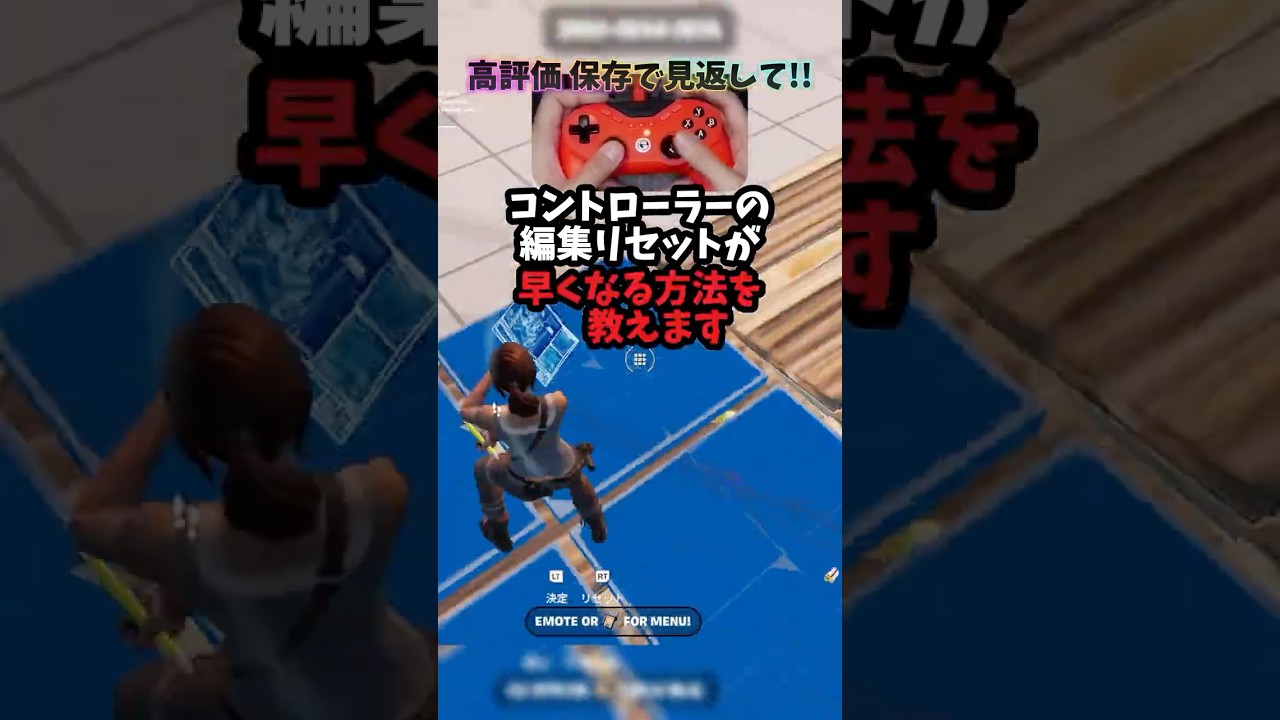
To reset building edits at near-instant speeds on a controller in Fortnite, remap your edit reset command to an upper shoulder button or paddle and set Confirm Edit on Release to Both. Standard controller presets rely on a Right Stick (R3) click, which creates input lag and knocks your crosshair off target. Moving the reset command to a separate finger eliminates stick deflection and lets you instantly close edited walls during close-quarters combat.
How to Set Up the Fast Reset Duplicate Bind
Fortnite separates controller configuration into distinct layers for combat, building, and editing. Because bindings inside the Edit Controls tab apply only while an edit tile is active, you can reassign an upper shoulder button to reset edits without overriding that button's normal behavior during standard combat or building.
Follow these steps to configure the layout:
- Open the Fortnite Settings menu and navigate to the Wireless Controller (or Controller Mapping) tab.
- Change your controller configuration preset from Builder Pro or default to Custom.
- Under the Combat Controls tab, verify that your primary Edit action is bound to an independent, single-press button (such as Left Stick / L3, the Touchpad, or a rear paddle) rather than a hold-to-edit input.
- Switch to the Edit Controls tab, select Reset, and bind it to L1 / LB (Left Bumper) or L2 / LT (Left Trigger). Confirm that Select remains bound to R2 / RT.
- Switch to the Game Settings (gear icon) tab, scroll down to the Building section, and set Confirm Edit on Release to Both.
- Apply your changes.
| Function | Standard Layout (Builder Pro) | Optimized Custom Layout | Gameplay Benefit |
|---|---|---|---|
| Open Edit | Hold B / Circle or L3 | Single-press L3, Touchpad, or Paddle | Removes hold-time delay |
| Reset Tile | R3 (Right Stick Click) | L1 / LB or L2 / LT | Prevents right-stick fatigue and aim drift |
| Confirm Reset | Dedicated button press | Automatic on release (Setting: Both) | Reduces execution from three inputs to two |
| Aim Control | Interrupted by stick depression | Continuous right-thumb tracking | Keeps crosshairs locked onto targets |
Executing the Fast Reset in Combat
Once configured, resetting a structure requires a fluid two-step input sequence:
- Press your dedicated Edit bind to open the structure's editing grid.
- Tap your newly assigned Reset bumper (L1 / LB) and release.
Because Confirm Edit on Release is set to Both, releasing the reset button confirms the change immediately. Your right thumb remains entirely focused on aiming throughout the interaction.
In box fights, this setup allows you to execute safer right-hand peeks. You can open an edit, bait an opponent into firing a shotgun shot into the open tile, and snap the wall shut instantly by tapping the reset bumper. The incoming pellets hit the rebuilt structure instead of your shields, giving you the advantage while the opponent waits through their weapon's firing cooldown.
Hardware Adjustments and Input Optimization
Different controller hardware components affect how quickly the reset registers:
- Bumpers vs. Triggers: Binding Reset to a digital bumper (L1 / LB) provides faster actuation than an analog trigger (L2 / LT). Bumpers have a shallow, tactile click, whereas analog triggers require pulling through physical travel distance before activating.
- Trigger Deadzones: If you prefer binding Reset to a trigger, lower your trigger deadzones in the controller settings or engage physical trigger stops if your gamepad has them.
- Rear Paddles: If using a controller with rear paddles, map your primary Edit input to a paddle and Reset to a shoulder bumper. Splitting the edit and reset actions between opposite hands creates a clean two-step cadence that approaches mouse-and-keyboard scroll-wheel speeds.

Free Fortnite Codes
Current active codes and how to redeem them.

James Brown
James focuses on Android gaming on PC, emulator setup, controls, performance tuning, and practical troubleshooting for longer play sessions.
COMMUNITY
Player Comments
80 players commented on this guide.
Can you add more details about base building in a future update?
This helped me understand base building much better.
This saved me time in the early game.
The tips are practical and easy to follow.