
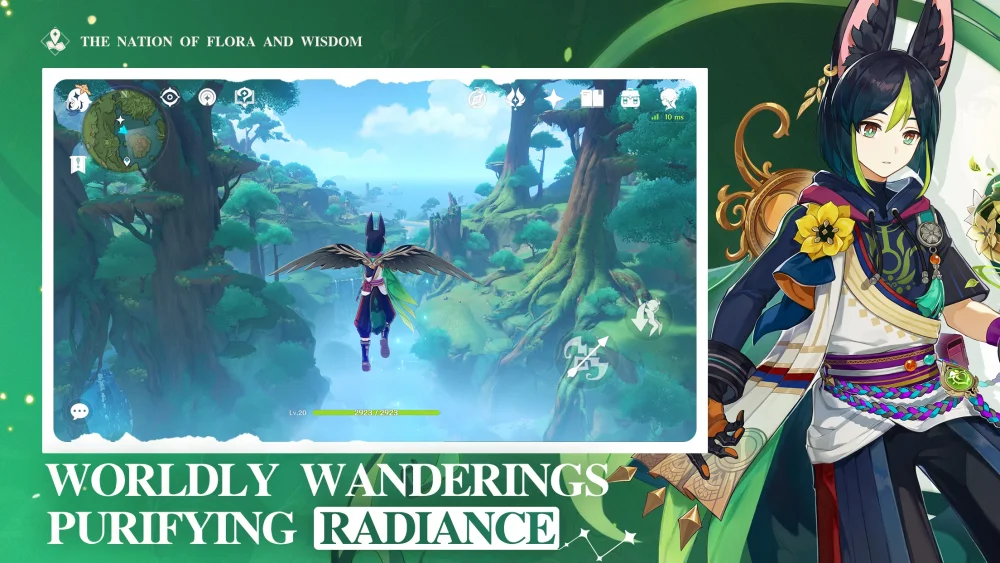
Playing Genshin Impact on PC delivers native display resolutions, extended draw distances, complete foliage coverage, and stable combat frame rates. The mobile version scales down internal rendering, compresses environmental assets, and limits particle density to manage device heat and battery life.
For high-end exploration and demanding combat encounters like the Spiral Abyss, use the PC client for visual fidelity and input stability. When playing on mobile for daily activities, lower demanding visual toggles to prevent thermal throttling.
Resolution and Texture Detail
The PC version allows players to run at native 1080p, 1440p, or 4K display outputs with high anisotropic filtering. High-resolution textures preserve fine details on character outfits, metal trim, and world architecture even during close camera angles.
On mobile devices, setting Render Resolution to "Highest" still relies on sub-native internal rendering that upscales to match the display. This design lowers GPU load, but it introduces edge aliasing and blurs finer details on distant geometry, character accessories, and ground foliage.
Draw Distance and World Geometry
Environmental rendering differs sharply between platforms due to how each client handles level of detail (LOD) and asset streaming:
- Draw Distance: PC hardware renders distant landmarks, cliff geometry, and terrain features across long sightlines, such as looking out from Dragonspine or Qingyun Peak. Mobile builds cull distant assets and replace complex geometry with low-polygon models.
- Foliage Density: Grass clusters and decorative flora render in full volume on PC. Mobile versions reduce vegetation density, leaving open fields looking flatter.
- Asset Pop-In: Fast traversal via sprinting or gliding causes objects, resource nodes, and enemy encampments to pop into view noticeably closer to the player on mobile.
Lighting, Shadows, and Combat Effects
PC hardware runs comprehensive lighting passes, soft shadow mapping, and full particle buffers during combat reactions. Mobile clients strip back secondary reflections and particle lifespans to maintain playable speeds.
| Visual Feature | PC (High / Highest) | Mobile (High Settings) |
|---|---|---|
| Shadow Quality | Dynamic contact shadows with soft penumbra | Harder shadow edges with reduced render range |
| Water Reflections | Screen-space reflections with dynamic light ripple | Simplified texture mapping with static highlights |
| Elemental Particles | Multi-layered bloom, sparks, and persistent field effects | Compressed particle counts and shortened effect duration |
| Ambient Occlusion | Soft ambient shading in clothing folds and terrain crevices | Flat contact shadows with limited depth shading |
During complex elemental reactions—such as Swirl triggered across simultaneous Pyro and Electro fields—the PC client displays full particle volume and text overlays without performance drops. Mobile hardware limits the density and lingering duration of visual effects to prevent sudden frame drops.
Thermal Throttling and Combat Performance
Raw visual settings on mobile directly impact hardware stability over time:
- Thermal Throttling: Flagship mobile devices can maintain 60 FPS initially, but passive cooling forces processors to downclock as heat accumulates after 10 to 15 minutes of continuous play.
- Frame Pacing and Inputs: When thermal limits are reached, mobile frame rates fluctuate. This causes stuttering during camera movement, missed dodge windows, or delayed character swap inputs.
- PC Performance: Active cooling and higher power delivery allow PCs to sustain continuous frame rates at 60 FPS or higher during sustained combat and multi-wave domain fights.
Recommended Settings for Mobile Play
To prevent extreme battery drain and thermal throttling while preserving visual coherence on mobile devices, adjust your in-game settings to these baseline targets:
- Frame Rate: Set to 30 or 45 FPS rather than 60 FPS to prevent hardware from overheating.
- Shadow Quality: Set to Medium or Low to significantly reduce GPU load.
- Motion Blur: Turn completely Off to reduce processing overhead during camera pans.
- Render Resolution: Keep at Medium or High; avoid "Highest" unless playing on short sessions in a cool environment.

Free Genshin Impact Codes
Current active codes and how to redeem them.

Sarah Williams
Sarah specializes in RPG and collection games, explaining team building, character growth, and beginner-friendly ways to avoid expensive early mistakes.
COMMUNITY
Player Comments
90 players commented on this guide.
Nice guide. I am checking the other Genshin Impact articles next.
This guide answered the exact question I had.
The tips are practical and easy to follow.
I tried this today and it worked better than my old setup.