
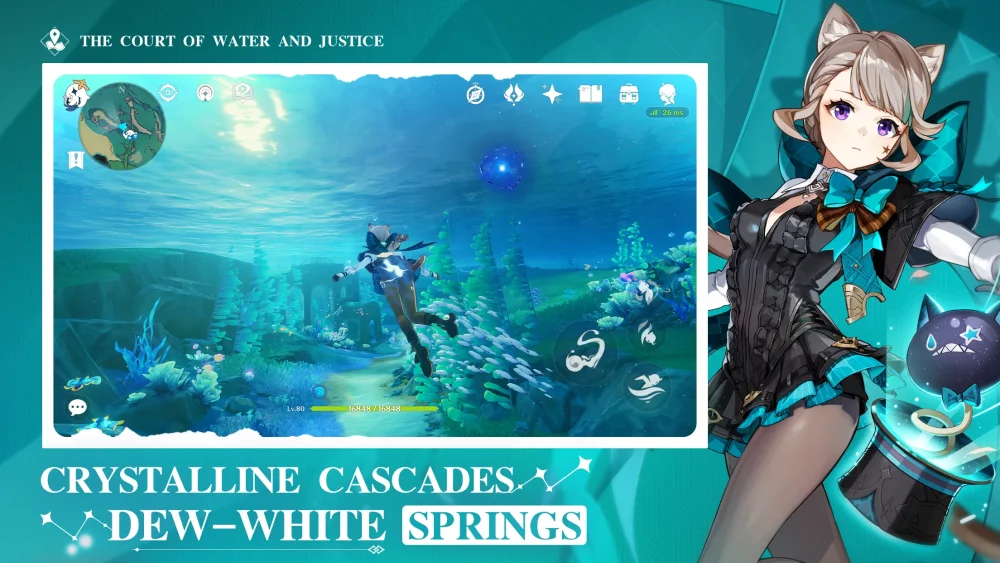
To keep Genshin Impact looking sharp and visually consistent, avoid photorealistic shader packs, ray tracing injectors, and heavy ambient occlusion mods. The game uses a dedicated non-photorealistic rendering pipeline that relies on custom vertex normals and internal lightmaps. Forcing physical lighting over these stylized assets causes blotchy skin, harsh facial shadows, and muddy environments. To improve visual fidelity without breaking character models, adjust your in-game render resolution, native anti-aliasing, and contrast-adaptive sharpening instead.
Non-Photorealistic Rendering vs. Physically Based Shaders
Genshin Impact is engineered around a non-photorealistic rendering (NPR) pipeline designed to emulate 2D Japanese animation rather than real-world optical physics. Modern realistic games utilize physically based rendering (PBR), calculating light bounce, surface roughness, and micro-reflections based on physical material properties. In contrast, HoYoverse artists hand-author character textures, geometry, and lighting interactions to present an illustrated aesthetic in real time.
When an external injector forces realistic lighting or artificial upscaling onto the game, these two rendering models collide. Realistic shaders require geometry that reflects real-world depth and materials calibrated for physical bounce light. Because the assets across Teyvat rely on flat base colors and hand-painted diffuse textures, realistic lighting calculations generate depth and micro-shadows where none were intended, leaving scenes flat, muddy, and visually discordant.
How Realistic Lighting Breaks Anime Facial Normals
Realistic lighting mods distort facial shading because Genshin Impact character models use manually edited vertex normals to maintain an anime aesthetic. A vertex normal is a directional vector that tells the game engine how a surface point should react to incoming light. On a realistic mesh, geometric features like the bridge of the nose and cheekbones cast dynamic, angled shadows as light sources shift.
If an anime face used raw geometric normals, the small polygon nose and flat cheeks would cast jagged, triangular shadows across the face whenever the character turned away from a light source. To prevent this, technical artists manually edit and smooth the facial vertex normals of characters such as the Traveler, Diluc, and Jean, directing the vectors outward in a uniform sphere. This adjustment forces light to wash across the face evenly.
When external shaders or ray tracing tools inject realistic shadow calculations, they read the raw geometric polygon edges instead of the altered normals. This creates harsh, unnatural shadows across the eyes, nose, and jawline.
Cel-Shading Lightmaps vs. Physical Light Falloff
Genshin Impact controls character shading through internal lightmaps and stepped thresholds rather than continuous physical light falloff. To generate the clean boundaries typical of cel animation, custom shaders project light angles onto shadow ramp lookup tables. This process ensures an immediate, crisp transition between lit surfaces and shaded areas.
Facial textures also rely on dedicated lightmap channels embedded within vertex color channels or texture transparency maps to enforce fixed shadow boundaries. External post-processing injectors cannot read these internal lightmap coordinates, forcing them to calculate lighting entirely from depth-buffer data.
| Rendering Element | Native NPR Engine | Injected Realistic Shaders |
|---|---|---|
| Light Calculation | Stepped shadow thresholds and 2D ramp textures | Continuous physical light falloff and photon bouncing |
| Facial Normals | Artificially smoothed, outward-facing vectors | Geometric polygon angles with dynamic cast shadows |
| Shadow Transition | Crisp, stylized boundary line | Soft, noisy gradients causing blotchy skin |
| Material Response | Hand-painted diffuse maps with baked highlights | Forced roughness and metallic reflection estimates |
Because depth-buffer injectors lack access to internal engine instructions, they introduce double shadows, visual ringing around character silhouettes, and flickering artifacts during fast camera motion.
Degradation of Open-World Color Harmony and Readability
Applying photorealistic color grading and heavy screen-space ambient occlusion strips Teyvat of its intentional visual balance. Each region, from the meadows of Mondstadt to the peaks of Liyue, uses a color palette calibrated to keep characters legible against environmental backgrounds across all in-game times of day.
Photorealistic post-processing presets often lower saturation and increase contrast to mimic cinematic camera film, which introduces several visual issues:
- Muddy Foliage: Injected ambient occlusion darkens grass, tree canopies, and building corners, turning stylized greenery into dark, noisy smudges.
- Blown-Out Skyboxes: Realistic exposure simulators overexpose bright cloud highlights while turning shaded mountain ranges nearly black.
- Obscured Outlines: The game's inverted-hull mesh outlines blur into dark injected shadows, obscuring character silhouettes during combat.
Rather than enhancing environmental depth, realistic filters compromise the painterly watercolor style that unifies the game's world.
Recommended Settings for Sharper Visuals
To make Genshin Impact sharper without corrupting character models, optimize the game's native graphics settings and apply subtle driver-level sharpening rather than running post-processing lighting mods.
- Increase In-Game Render Resolution: Raise Render Resolution to 1.1 or 1.5 if your GPU has headroom. Super-sampling cleans up fine geometric edges, weapon details, and distant scenery without altering normal vectors or lightmap shading.
- Select SMAA Anti-Aliasing: Use Subpixel Morphological Anti-Aliasing (SMAA) rather than aggressive temporal anti-aliasing (TAA) or forced spatial upscalers. SMAA preserves clean mesh outlines while avoiding blur and ghosting during character movement.
- Use Subtle Sharpening Filters: If you use external display overlays or driver utilities, enable lightweight filters like AMD CAS or NVIDIA Image Scaling at low values between 15% and 25%. This improves texture clarity without generating halo artifacts around stylized lines.
- Calibrate In-Game Brightness: Adjust the in-game brightness slider until it matches your monitor's dynamic range. This keeps shadow ramp thresholds functioning as intended while preserving natural regional color saturation.

Free Genshin Impact Codes
Current active codes and how to redeem them.

James Brown
James focuses on Android gaming on PC, emulator setup, controls, performance tuning, and practical troubleshooting for longer play sessions.
COMMUNITY
Player Comments
119 players commented on this guide.
This guide answered the exact question I had.
The tips are practical and easy to follow.
Nice guide. I am checking the other Genshin Impact articles next.
This saved me time in the early game.