
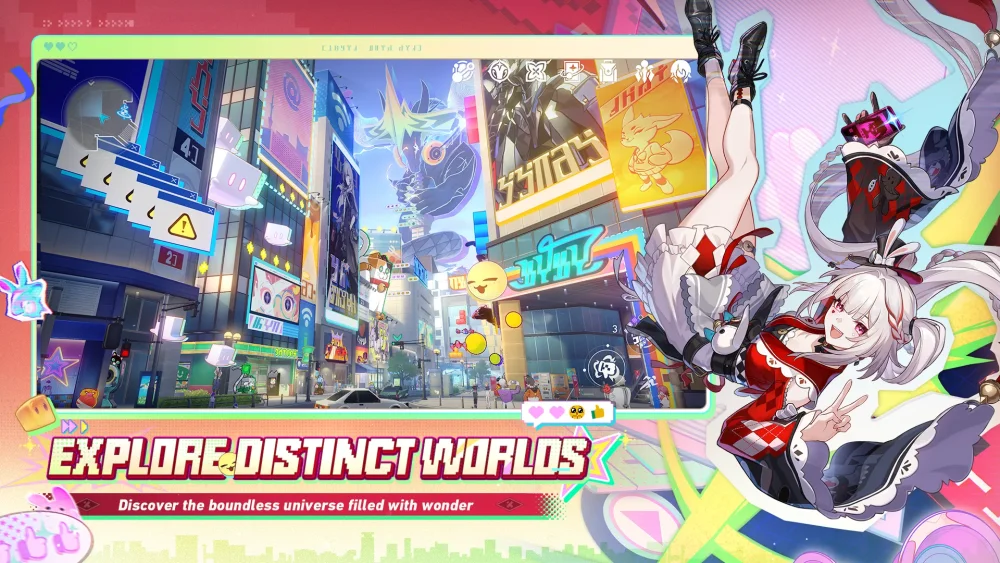
To achieve smooth frame rates in Honkai: Star Rail without turning the game into an unreadable blur, do not drop every visual setting to the lowest "potato" preset. Instead, lower shadows and reflections while keeping Render Quality at native resolution. This preserves clear character models and crisp interface text while eliminating the primary rendering bottlenecks that cause thermal throttling and stutter during combat.
Visual Fidelity: Potato vs. Maxed Settings
Lowest settings maximize performance by cutting complex post-processing and geometry passes, whereas maxed settings display full texture filtering, environmental reflections, and dynamic lighting.
| Graphical Element | Potato Settings (Lowest) | Balanced Settings (Custom) | Maxed Settings (Very High) |
|---|---|---|---|
| Character Models | Blurred textures, aliased edges, disabled physics | Native texture resolution, active clothing physics | Full geometry detail, complete hair and cloth physics |
| Shadows & Lighting | Flat shading, disabled or simple blob shadows | Medium directional shadows, subtle ambient light | Soft real-time dynamic shadows, full ambient occlusion |
| Combat VFX | Reduced particles, flattened glow shaders | Standard particle density, readable telegraphs | Full cinematic trails, screen distortion, bloom |
| Reflections | Disabled, flat matte surfaces | Planar reflections on major glossy surfaces | High-resolution real-time reflections across all materials |
Character and Environmental Detail
On potato graphics, character textures lose anisotropic filtering, making outfit seams and accessories appear muddy. Hair and cloth physics simulations are mostly disabled. At maxed settings, fabric weaves remain distinct, silhouettes are sharp, and hair moves naturally during exploration and combat.
Environmental depth suffers heavily on potato presets. Disabling ambient occlusion and screen-space reflections flattens architectural spaces like the Astral Express Parlor Car and Belobog plazas into dull, uniform surfaces. Shadows on potato settings become simple circular blobs beneath feet or disappear entirely, whereas maxed settings cast soft, accurate shadows from lamps and directional sunlight.
Combat Effects
During turn-based combat, Ultimate abilities for characters such as the Trailblazer, March 7th, and Dan Heng show noticeable downgrades on potato settings. Particle counts are reduced, weapon glow effects flatten, and the distortion shockwaves from Weakness Breaks are omitted. Maxed settings restore high-density particle bursts, luminous elemental trails, and full bloom effects.
The Most Demanding Graphics Toggles
Certain individual settings impact system resources much more than others. Adjusting these specific toggles prevents hardware strain without requiring a global drop to the lowest preset:
- Render Quality: Dictates internal display resolution. Lowering this to 0.6x or 0.8x significantly boosts frame rate, but it causes widespread screen blur. Keeping it at 1.0 matches your screen's native resolution and keeps menus and character outlines sharp.
- Shadow Quality: Dynamic shadow filtering heavily taxes both mobile system-on-chip processors and integrated PC graphics. Setting this to Low or Medium recovers stability in complex hub areas.
- Reflection Quality: Real-time reflections require secondary rendering passes over glossy floors and water. Disabling reflections provides immediate GPU relief with negligible impact on combat visibility.
- Visual Effects Quality: Controls the density of sparks, elemental flares, and ability impact layers. Dropping this to Medium prevents micro-stutter when executing multi-target Ultimates while keeping ability cues readable.
Recommended Custom Configuration
If your device struggles with heat or frame drops at higher presets, apply this hybrid setup in the Graphics settings menu:
- Set Render Quality to 1.0: Maintains crisp text and character edges.
- Set Character Quality to High: Preserves model detail and physics with relatively low GPU overhead.
- Set Shadow Quality to Low or Medium: Removes costly dynamic shadow filtering.
- Turn Reflection Quality Off: Eliminates heavy secondary render passes on floors and tiles.
- Set Visual Effects Quality to Medium: Balances visual feedback with stable combat performance.
- Enable TAA (Temporal Anti-Aliasing): Smooths jagged edges without causing major performance loss.
When to Switch Between Presets
Adjusting your visual profile based on your current activity optimizes device temperatures and battery life:
- Use Maxed Settings for Narrative Content: Switch to higher visuals when playing main Trailblaze missions, exploring new zones such as the Xianzhou Luofu, or recording combat highlights. The visual detail enhances the cinematic presentation of key cutscenes and boss battles.
- Use Potato Settings for Automated Farming: Switch to the lowest preset during extended farming sessions. When auto-battling through Calyx material nodes, farming Relic caverns, or clearing repetitive Simulated Universe paths, visual effects add little value. Dropping settings keeps mobile devices cool, saves battery life, and prevents background crashes.

Free Honkai: Star Rail Codes
Current active codes and how to redeem them.

Sarah Williams
Sarah specializes in RPG and collection games, explaining team building, character growth, and beginner-friendly ways to avoid expensive early mistakes.
COMMUNITY
Player Comments
59 players commented on this guide.
I wish I had read this before upgrading the wrong thing.
Can you add more details about heroes in a future update?
Good guide for Honkai: Star Rail players. The heroes part was useful.
This guide answered the exact question I had.