
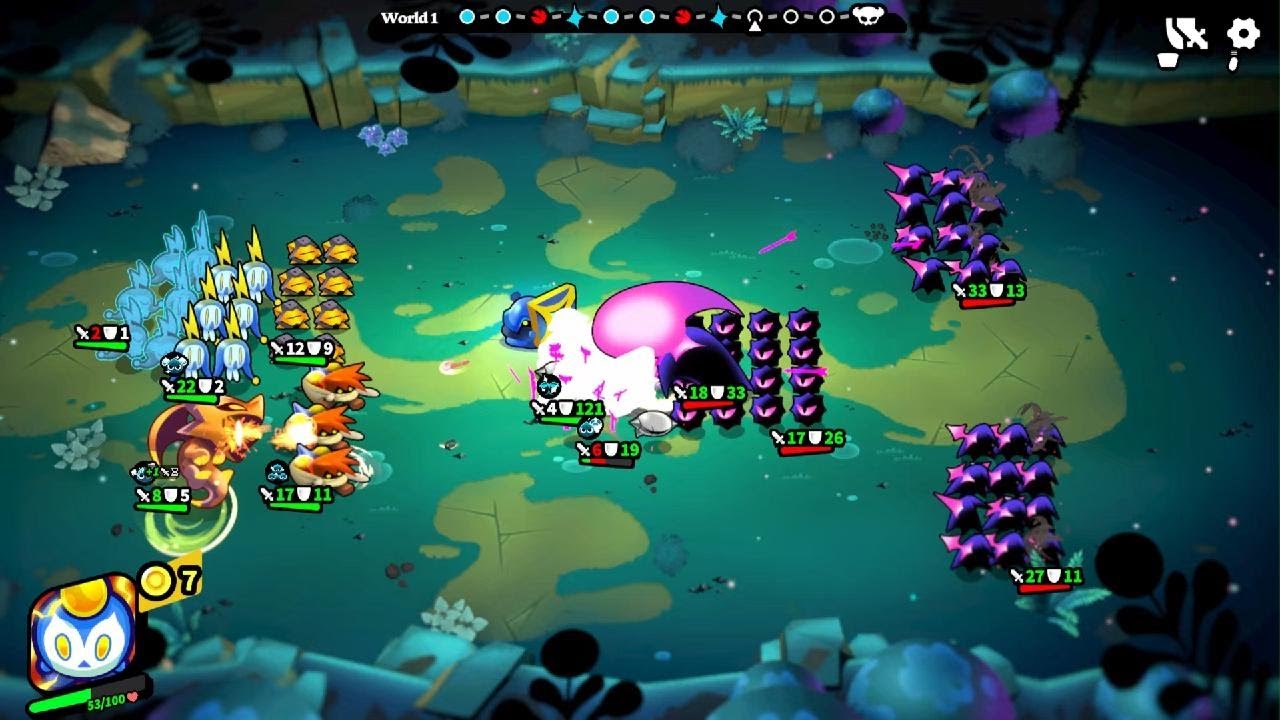
To fix frame rate drops and micro-stuttering during long play sessions in Knightica on PlayStation 5, completely close and restart the game application every three and a half to four hours.
While Knightica performs well during standard play, extended sessions cause performance degradation on PS5. Fully resetting the application clears temporary system memory buildup without losing your active run progress.
Why Stuttering Happens During Long Sessions
Performance degradation in Knightica stems from continuous play rather than specific hardware limitations. As a run progresses through multiple stages, the game engine tracks board states, unit assets, animations, and active synergies. After roughly four hours of uninterrupted runtime, this accumulated data begins to overload allocated system memory.
The early signs of memory degradation include:
- Board Transition Delays: Brief hitches or frame freezes when moving between drafting screens and combat encounters.
- Animation Micro-Stutters: Frame rate drops occurring when several unit abilities trigger simultaneously on screen.
- Input Lag: Minor delays during drafting phases or unit repositioning, which can lead to misclicks during high-stakes turns.
Ignoring these early performance hitches often results in worsening stuttering during complex late-game battles.
Recommended Restart Procedure
Because Knightica automatically saves progression between stages, you can execute a full application restart without forfeiting your run momentum or build composition.
- Monitor your total play time: Track session length using your console's activity tracking or an external timer.
- Complete your current stage: Finish your active battle round or drafting phase near the 3.5-hour mark.
- Verify run saving: Ensure your progress is saved at the stage boundary before backing out.
- Perform a full game closure: Open the PS5 Control Center, highlight Knightica, press the Options button, and select Close App.
- Relaunch the application: Start the game fresh to clear the console's memory cache before continuing your run.
Note: Putting your PS5 into Rest Mode or suspending the game does not clear active application memory. You must choose Close App to reset system resources.
Managing Performance Until Future Updates
Until patch updates address long-session memory allocation, manual application restarts remain the only reliable solution for maintaining a consistent frame rate.
Treating your play sessions as planned blocks rather than continuous marathons ensures high visual fluidity and responsive inputs during late-game stages and Endless Mode pushes. If stuttering reappears after several more hours of play, repeat the full application restart.

Free Knightica Codes
Current active codes and how to redeem them.

Sarah Williams
Sarah specializes in RPG and collection games, explaining team building, character growth, and beginner-friendly ways to avoid expensive early mistakes.
COMMUNITY
Player Comments
83 players commented on this guide.
I wish I had read this before upgrading the wrong thing.
This saved me time in the early game.
Can you add more details about updates in a future update?
This helped me understand updates much better.