
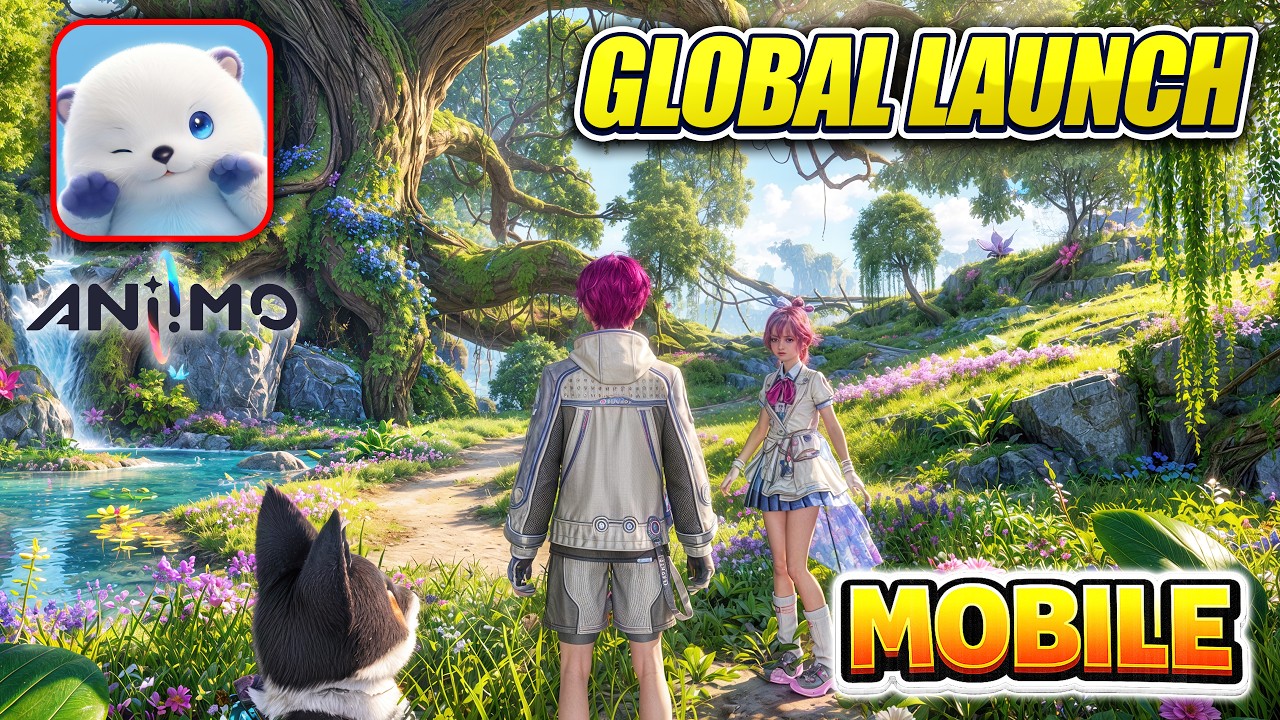
To share your Aniimo progress across iOS, Android, PC, and console, you must log into the same registered account and select the exact same server instance on every device. Because Aniimo uses server-side data management for its open-world online RPG systems, your saved character, quest state, and creature collection are tied directly to your login credentials rather than stored locally on your device.
How Cross-Platform Synchronization Works
Aniimo supports shared progression across mobile, PC, and console platforms, but cross-save functionality requires strict adherence to matching account parameters.
- Account Matching: You must use identical login credentials across all platforms. Registering a guest account on mobile binds progress to that specific device, preventing synchronization with PC or console clients.
- Server Locking: Character data, unlocked inventory, and progression history are bound to the specific regional server or shard selected during initial account creation. Selecting a different server on a secondary device forces the client to start a new profile rather than loading existing progress.
Account Setup and Syncing Steps
To ensure your progress carries over seamlessly when switching devices, set up your profile using the following steps:
- Register a Primary Account: Create a permanent account using your standard credentials on your primary platform instead of using a temporary guest login.
- Note Your Server Region: Record the exact server and region selected on your first login screen.
- Log In on Additional Platforms: Open Aniimo on your secondary platform (such as switching from iOS or Android to PC), enter your primary credentials, and choose the matching server from the server selection menu.
- Verify Collection and Abilities: Check your creature collection and Twine system abilities upon logging in. The Twine system relies on saved creature data to transform your character into collected Aniimo for world traversal and puzzles. If your transformations are unavailable, your client is likely connected to the wrong server or account.
Troubleshooting Progress and Sync Errors
If your quest history, captured Aniimo, or inventory items fail to update after switching devices, use these steps to resolve the desynchronization:
| Issue | Potential Cause | Recommended Action |
|---|---|---|
| Missing creatures or quest steps | Server mismatch | Log out, check the server selection screen, and switch to the exact server used on your main device. |
| Account starts at character creation | Guest profile or alternate login | Log out fully and re-enter your registered account email and password. |
| Recent progress missing after crash | Unstable network connection during save | Close the game on all secondary devices, reopen it on your main device, and complete a server-registered action to force a cloud sync. |
For ongoing synchronization issues, perform a full manual logout on the affected device and sign in again to force the client to clear cached session files and fetch the latest save state from the server.

James Brown
James focuses on Android gaming on PC, emulator setup, controls, performance tuning, and practical troubleshooting for longer play sessions.
COMMUNITY
Player Comments
114 players commented on this guide.
Can you add more details about strategy in a future update?
I wish I had read this before upgrading the wrong thing.
The tips are practical and easy to follow.
Nice guide. I am checking the other HOT articles next.