
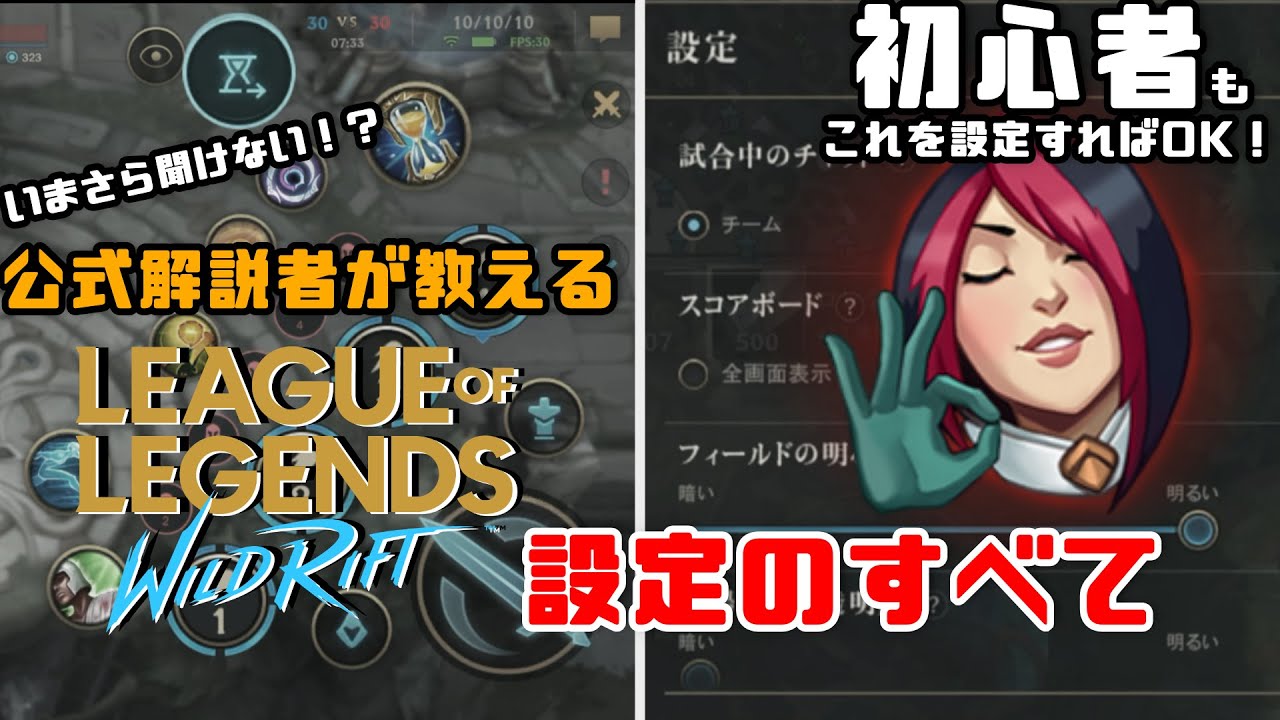
To improve combat control in League of Legends: Wild Rift, switch off default targeting assists that override your inputs. Opening the in-game Settings menu and calibrating your targeting priority, Portrait Lock, auto-pathing behavior, and camera panning prevents accidental turret dives and misdirected abilities during teamfights.
Enable Portrait Lock for Target Priority
Portrait Lock provides a manual override for standard proximity targeting. Leaving this setting off forces the game to guess your target, which frequently directs single-target crowd control and burst spells into tanks rather than high-value carries.
When enabled, Portrait Lock generates small icons for nearby enemy champions next to your attack and ability buttons:
- Engaging a target: Tap a champion's portrait to hard-lock basic attacks and targeted spells onto that specific enemy.
- Breaking the lock: The lock remains active until the champion dies, walks out of vision, or you tap the portrait a second time to cancel.
- Layout recommendation: Set the display order to fixed positions rather than dynamic appearance so muscle memory consistently directs you to the same screen location for each opponent.
Select Low Health (Absolute) Targeting Priority
Default targeting prioritizes Low Health (Percent), which frequently misdirects damage during skirmishes involving champions with different maximum health pools. Switching this to Low Health (Absolute) ensures attacks focus on the opponent with the lowest remaining numerical hit points.
| Priority Setting | In-Game Behavior | Common Risk | Practical Application |
|---|---|---|---|
| Low Health (Absolute) | Targets the enemy with the lowest remaining numerical HP. | May prioritize a low-health support over an equally reachable carry. | Standard competitive play and multi-target teamfights. |
| Low Health (Percent) | Targets the enemy with the lowest percentage of maximum HP. | Attacks a 4,000 HP tank at 30% (1,200 HP) instead of a 1,500 HP carry at 50% (750 HP). | Isolated 1v1 duels or standard minion clearing. |
| Closest | Targets whichever enemy is physically nearest to your champion. | Can be blocked by frontliners peeling for backline targets. | Kiting backward against chasing melee champions. |
For most team compositions, Low Health (Absolute) provides the most reliable execution by prioritizing opponents who can be eliminated in a single rotation.
Disable Force Attack Follow
Force Attack Follow causes your champion to walk toward an out-of-range target whenever you tap the basic attack button. Leaving this setting enabled leads to serious positioning errors, including:
- Walking into skillshots when attempting to pre-buffer an auto-attack.
- Stepping into enemy turret range while trying to harass in lane.
- Wandering into unwarded bushes or choke points near objective pits.
Turning Force Attack Follow off prevents your champion from moving unless you explicitly steer them with the movement joystick. If a target is outside your attack radius, tapping attack produces no movement input, keeping your champion safely in place.
Optimize Dash Direction and Ability Canceling
Fine-tuning your cast controls minimizes wasted inputs during fast mechanical exchanges:
- Dash Moves in Move Direction: Turn this setting on. Tapping a dash ability will immediately propel your champion toward your current movement joystick angle. This eliminates the delay of manually dragging the ability button away from an enemy when retreating.
- Ability Cancel Method: Change the cancel method from the default icon to the alternative distance-based cancel threshold. The default icon requires dragging to a specific screen corner, which can cause accidental cancellations during rapid swipes. Distance canceling requires dragging the spell past a boundary radius to cancel, protecting crucial abilities from misfires.
Configure Camera Pan and Minimap Settings
Restricted camera settings limit visibility around wide angles and long-range encounters. Adjust these interface controls to maintain vision during skirmishes:
- Semi-Lock Camera: Turn on this feature to place a directional toggle on your screen. Adjusting the toggle offsets your camera center slightly ahead of your champion, expanding forward vision when playing from the red side or piloting long-range champions.
- Off-Screen Champion Indicators: Enable these indicators to track the relative positions of nearby opponents outside your camera view.
- Minimap Auto-Pathing: If you frequently misclick the minimap during chaotic fights in the upper-left quadrant of your screen, disable minimap auto-pathing to prevent unintended cross-map movements.

Free League of Legends: Wild Rift Codes
Current active codes and how to redeem them.

Emily Johnson
Emily writes practical mobile strategy guides with a focus on resource planning, base progression, and the early decisions that shape a long-term account.
COMMUNITY
Player Comments
132 players commented on this guide.
Nice guide. I am checking the other League of Legends: Wild Rift articles next.
The explanation is clear, especially for beginners.
Can you add more details about strategy in a future update?
Good guide for League of Legends: Wild Rift players. The strategy part was useful.