
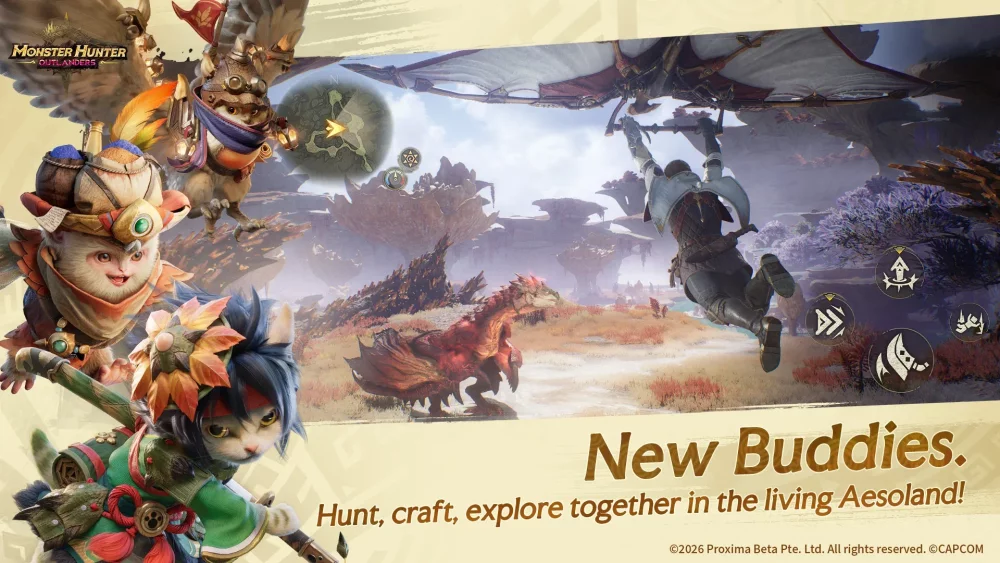
To optimize your mobile combat setup in Monster Hunter Outlanders, open the settings menu to separate camera sensitivity for your weapon type, group core actions near your primary thumb, scale vital status bars for peripheral viewing, and reduce screen-cluttering particle effects. Adjusting these settings early prevents touch-input errors during high-stakes monster encounters.
Configuring Camera and Aim Sensitivity
Default camera responsiveness in Monster Hunter Outlanders can feel sluggish when tracking fast-moving monsters across varied terrain. To fix camera lag, adjust the Camera Follow and Manual Aim parameters independently based on your equipped weapon category.
- Melee Weapon Setup: Set camera sensitivity higher. This allows you to re-center your view quickly when a monster lunges past your character, keeping hitboxes in frame.
- Ranged Weapon Setup: Lower manual aim sensitivity. Reducing sensitivity gives you finer reticle control when targeting specific monster weak points.
- Testing Area: Apply sensitivity tweaks in the training area to calibrate control speed before entering an open-world hunt.
| Setting Category | Recommended Adjustment | Primary Gameplay Function |
|---|---|---|
| Melee Camera Sensitivity | Higher sensitivity | Tracks fast-moving monsters during close-quarters combat |
| Ranged Manual Aim | Lower sensitivity | Increases reticle precision when aiming at weak points |
| Primary Action Buttons | Grouped near right thumb | Minimizes finger movement distance to speed up reaction times |
| Health & Stamina Gauges | Scaled up for peripheral sight | Avoids taking eyes off the center screen during fight telegraphs |
| Graphics & Particle Effects | Reduced bloom and intensity | Maintains line-of-sight on monster hitboxes and attack animations |
Customizing HUD Layout for Ergonomics
Screen space is limited on mobile displays. Monitoring health bars, stamina gauges, mini-maps, and skill cooldowns far from the center of the screen can cause delayed reactions to monster attacks.
- Group Main Combat Controls: Place your primary attack button and dodge roll icon within easy, natural reach of your right thumb.
- Reposition Skill Icons: Move character skill icons away from the center of the screen so they do not block your view of monster attack telegraphs.
- Clear the Margins: Shift non-essential UI icons and mini-map elements toward the outer corners of the HUD.
- Scale Health and Stamina Bars: Increase the display scale of your status bars so you can check health and stamina peripherally without looking away from combat action.
Managing Contextual Buttons and Visual Clarity
Monster Hunter Outlanders uses dynamic context switching between exploration and combat modes. The Interact button changes functions automatically, serving as a gathering or mounting prompt during traversal and shifting to hunter actions or item usage in battle. If you accidentally trigger resource gathering during a hunt, remap the interact prompt to a less prominent area of your screen layout.
Excessive visual clutter can also hide critical boss animations. If combat particle effects obscure monster attacks:
- Lower Effect Intensity and turn down bloom in the graphics menu.
- Adjust Camera Zoom outward to widen your field of view during boss fights.
- Reduce environmental particle density to keep monster hitboxes clearly visible.

Free Monster Hunter Outlanders Codes
Current active codes and how to redeem them.

Emily Johnson
Emily writes practical mobile strategy guides with a focus on resource planning, base progression, and the early decisions that shape a long-term account.
COMMUNITY
Player Comments
89 players commented on this guide.
I wish I had read this before upgrading the wrong thing.
This saved me time in the early game.
This helped me understand strategy much better.
Nice guide. I am checking the other Monster Hunter Outlanders articles next.