
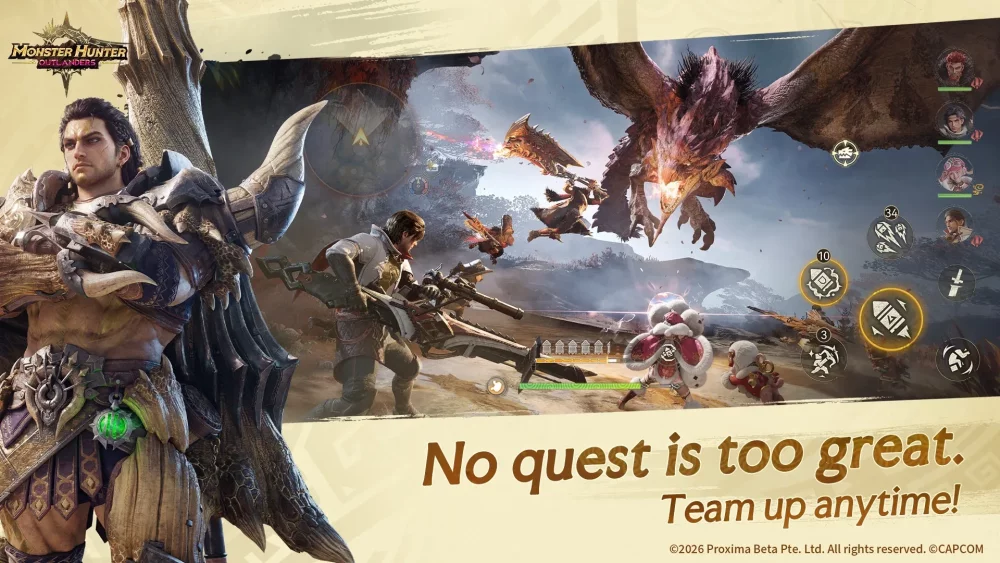
To play Monster Hunter Outlanders on a television or monitor with a gamepad, pair a compatible Bluetooth controller to your iOS device and mirror video output using a wireless HDMI transmitter and receiver kit. This setup creates a console-style hunting environment without running long display cables across the room.
Required Hardware Components
The setup relies on three pieces of hardware to offload screen output and physical inputs from your handheld device:
| Component | Function | Connection Method |
|---|---|---|
| iOS Device | Runs the game and processes inputs | Handheld host running the mobile app |
| Wireless HDMI Kit | Broadcasts video and audio to an external screen | Transmitter via USB-C or Lightning; receiver via HDMI |
| Bluetooth Gamepad | Controls movement, combat actions, and camera | Native Bluetooth pairing directly to iOS |
Modern iPhones and iPads with USB-C ports can power compact wireless transmitters directly. Devices equipped with Lightning ports require an official Apple Lightning to Digital AV adapter to output HDMI video into the transmitter. The receiver plugs into an available HDMI port on your monitor or TV and requires power from an external USB port or wall adapter. Supported controllers include standard Bluetooth gamepads such as the PlayStation DualSense, Xbox Wireless Controller, and MFi-certified pads.
How to Connect the Wireless Display and Controller
Connect your hardware in the following sequence to ensure Monster Hunter Outlanders recognizes the controller mappings and maintains a stable video feed:
- Pair your gamepad: Open iOS Settings, select Bluetooth, and pair your controller. Confirm the device displays as "Connected."
- Power the display receiver: Insert the HDMI receiver stick into an input port on your television or monitor. Plug its USB power lead into a powered port and switch your screen to that HDMI input.
- Attach the video transmitter: Connect the wireless transmitter to your iOS device. The transmitter and receiver will link automatically and mirror your phone's screen.
- Launch Monster Hunter Outlanders: Open the game and verify that your screen fills the monitor's native aspect ratio correctly.
- Position the device: Place your iPhone or iPad on a desk stand in an unobstructed line of sight with the receiver to minimize signal interference.
Gamepad Controls and Menu Limitations
Monster Hunter Outlanders features native iOS gamepad support, automatically mapping touch controls to standard console layouts. The left analog stick moves your hunter, while the right stick controls camera orientation. Combat inputs—including light attacks, heavy attacks, evasive dodges, and weapon-specific skills—map directly to the face buttons and shoulder bumpers. Precision weapons like the Bow, Heavy Bowgun, and Greatsword benefit substantially from physical sticks and triggers for tracking targets and charging attacks.
A key operational limitation involves non-combat interface navigation. While traversal, gathering, and weapon combat function seamlessly via gamepad, certain sub-menus, event screens, and dialog prompts still require direct touch input. Keeping your iOS device on a nearby stand allows you to tap through interface menus without disrupting your play session.
Managing Display Latency in Combat
Because the gamepad connects directly to your iOS device via Bluetooth, input registration remains instantaneous. However, wireless HDMI kits introduce a few milliseconds of visual broadcast latency while encoding and transmitting the video feed.
For general exploration, resource collection, and routine hunts, this visual delay is barely noticeable. During fast-paced hunts with tight evasion windows, players must read monster telegraphs early rather than dodging at the final frame of an attack animation.
To minimize latency and maintain performance:
- Enable Game Mode on your TV or monitor to disable post-processing filters that add display lag.
- Ensure the transmitter and receiver operate along an unobstructed line of sight on a 5GHz wireless band to prevent frame drops.
- Position the transmitter securely so connection ports do not loosen during movement.
Wireless HDMI vs. Wired Connection
Deciding between a wireless setup and a standard wired connection depends on your room layout and responsiveness requirements.
| Feature | Wireless HDMI Kit | Wired HDMI Cable |
|---|---|---|
| Display Latency | Low to moderate visual lag | Minimal to zero visual lag |
| Player Mobility | High; sit anywhere within signal range | Restricted by the physical cable length |
| Power Pass-Through | Requires a multi-port hub for charging | Readily supported via official AV adapters |
Running Monster Hunter Outlanders while broadcasting high-definition video demands significant battery power and generates heat. To prevent frame throttling or device shutdowns during extended play, use an adapter or hub equipped with USB Power Delivery pass-through to keep your iOS device charged.

Free Monster Hunter Outlanders Codes
Current active codes and how to redeem them.

Sarah Williams
Sarah specializes in RPG and collection games, explaining team building, character growth, and beginner-friendly ways to avoid expensive early mistakes.
COMMUNITY
Player Comments
54 players commented on this guide.
Nice guide. I am checking the other Monster Hunter Outlanders articles next.
The tips are practical and easy to follow.
This helped me understand strategy much better.
Good guide for Monster Hunter Outlanders players. The strategy part was useful.