
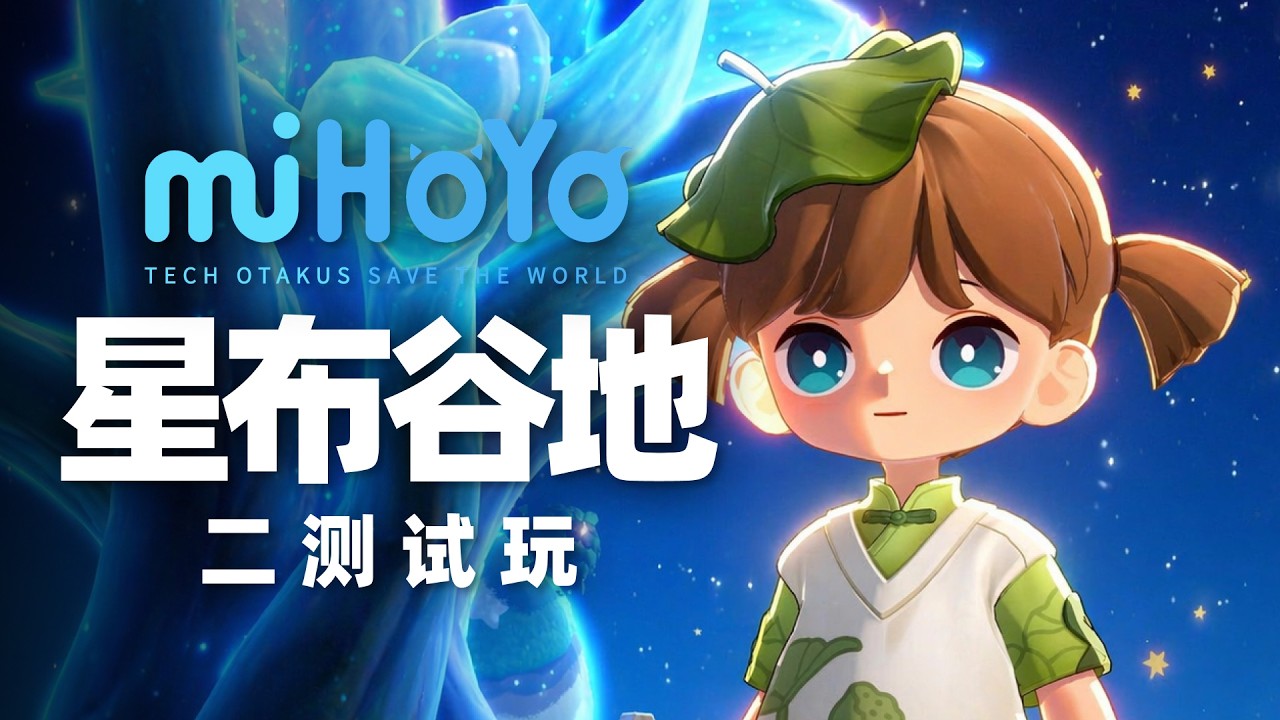
To truly appreciate the vibrant, cozy, and highly detailed world of Petit Planet, players must look beyond the default settings. As a title characterized by its lush aesthetic and deep social-simulation elements, Petit Planet demands a balance between technical performance and sensory immersion. Whether you are navigating dense terraformed landscapes or engaging in nuanced character-driven quests, fine-tuning your graphical and audio configuration is the key to mastering the game.
This guide provides an expert breakdown of how to optimize your settings, leverage environmental soundscapes, and manage hardware performance to ensure your experience in Petit Planet remains fluid and rewarding.
Fine-Tuning Visual Fidelity for Peak Performance
Petit Planet utilizes a high-fidelity art style where lighting, shadow depth, and texture resolution work in tandem to create a "living" world. However, these assets can be demanding on hardware. To achieve the best balance between visual splendor and a consistent frame rate, follow these strategies:
- The Baseline Approach: Start with the "High" preset to establish your hardware’s limit. If you notice frame drops during rapid camera movement or when traversing high-density zones (such as central hubs), immediately toggle "Shadow Quality" to "Medium." Shadows are often the most resource-intensive graphical element and yield the least impact on the immediate "cozy" feel of the game when scaled down.
- Anti-Aliasing and Post-Processing: Petit Planet relies on soft, rounded edges to maintain its aesthetic. Ensure Anti-Aliasing is set to at least 2x to prevent "shimmering" on foliage. If your hardware allows, keep "Post-Processing" enabled; this setting governs the bloom and atmospheric lighting that give the game its signature warmth.
- Resolution Scaling: If you are playing on a device with a high-resolution display, consider setting your internal resolution scale to 90% before lowering individual graphical settings. This maintains the clarity of UI elements while significantly reducing the load on your GPU.
Decoding NPC Audio Cues and Vocal Feedback
In Petit Planet, sound design is a critical gameplay mechanic rather than just background noise. NPC interactions are fully voiced, and the vocal delivery often contains essential information that text boxes might gloss over.
Why Listening Matters
The voice acting in Petit Planet is designed to reflect character personality and emotional states. A character’s tone can indicate whether a request is urgent, trivial, or part of a hidden side-quest. If you are rushing through dialogue, you are likely missing the "emotional signature" that helps you prioritize your task list.
Optimization Steps
- Audio Balancing: Open the Settings menu and navigate to the "Audio" tab. Set your "Voice" channel to 100% while reducing "BGM" (Background Music) to 60-70%. This ensures that even in crowded areas, you can clearly hear the specific vocal cues of nearby NPCs.
- Proximity Awareness: The game features localized audio. As you move closer to an NPC, the volume and clarity of their voice will shift. Use this to gauge your proximity to quest-givers without keeping the minimap open at all times.
- Dialogue Context: Pay attention to the "breathing" or "sighing" sounds integrated into NPC dialogue. These are often used by the developers to signal that a character has reached a significant point in their story arc.
Leveraging Environmental Soundscapes for Exploration
Petit Planet is a world that "speaks" to the player through its environment. Using spatial audio is the most effective way to locate hidden resources and interactable objects that are obscured by the game's rich, dense terrain.
- Stereo Separation: Use high-quality stereo headphones to enable spatial awareness. You should be able to hear the "ping" of a resource node or the distinct sound of flowing water coming from a specific direction (left or right).
- Identifying Wildlife and Objects: Keep an ear out for specific sound signatures. Petit Planet assigns unique acoustic profiles to interactive items. When you hear a chime or a soft metallic click, stop and rotate your camera. These sounds are often the only indicator of a hidden "treasure" or a rare material node tucked behind a rock or tree.
- Ambient Silence: If the environmental music feels repetitive, don’t hesitate to lower the music volume entirely. The ambient soundscape of Petit Planet is meticulously layered; listening to the wind and wildlife can make your exploration sessions feel significantly more immersive and grounded.
Managing Hardware Limitations and Thermal Output
High-fidelity simulation games like Petit Planet are prone to thermal throttling, especially on mobile devices or laptops. When your hardware gets too hot, the CPU and GPU will automatically downclock, leading to frame stutters, audio desync, and "pop-in" textures.
Proactive Thermal Management
- The Power-Saving Trade-off: If you are planning a long session, toggle "Power Saving" mode. This setting intelligently reduces the polygon count of distant, non-essential background assets while keeping your character model and primary interactions at full fidelity. It is a subtle change that can add hours of stable gameplay.
- Background Processes: Always close browser tabs or background applications before launching Petit Planet. The game’s real-time rendering requires significant memory overhead; any competing process will likely result in a noticeable drop in input responsiveness.
- Surface Selection: Always play on a flat, hard surface. Placing your device on soft fabrics like blankets or pillows blocks ventilation, causing the internal fans to work harder and increasing the likelihood of performance drops during critical gameplay moments.
Making the Right Decisions for Your Playstyle
Ultimately, the best settings for Petit Planet depend on whether you prioritize "Visual Fidelity" (best for screenshotting and relaxing) or "Performance" (best for intense gathering and exploration).
- For the Relaxed Player: Max out textures and post-processing, use a controller for smoother camera movement, and focus on the high-quality sound design.
- For the Resource Gatherer: Prioritize a consistent 60 FPS by lowering shadows and bloom. This makes movement, dodging, and precision interaction much easier, allowing you to maximize your resource-gathering efficiency per hour.
By taking control of these technical variables, you stop fighting the game’s requirements and start fully inhabiting the world of Petit Planet. Use these settings as a foundation, then adjust them based on your specific hardware and preference for visual vs. auditory feedback to get the most out of your journey.

Free Petit Planet Codes
Current active codes and how to redeem them.

Sarah Williams
Sarah specializes in RPG and collection games, explaining team building, character growth, and beginner-friendly ways to avoid expensive early mistakes.
COMMUNITY
Player Comments
108 players commented on this guide.
I wish I had read this before upgrading the wrong thing.
I tried this today and it worked better than my old setup.
The explanation is clear, especially for beginners.
This saved me time in the early game.