
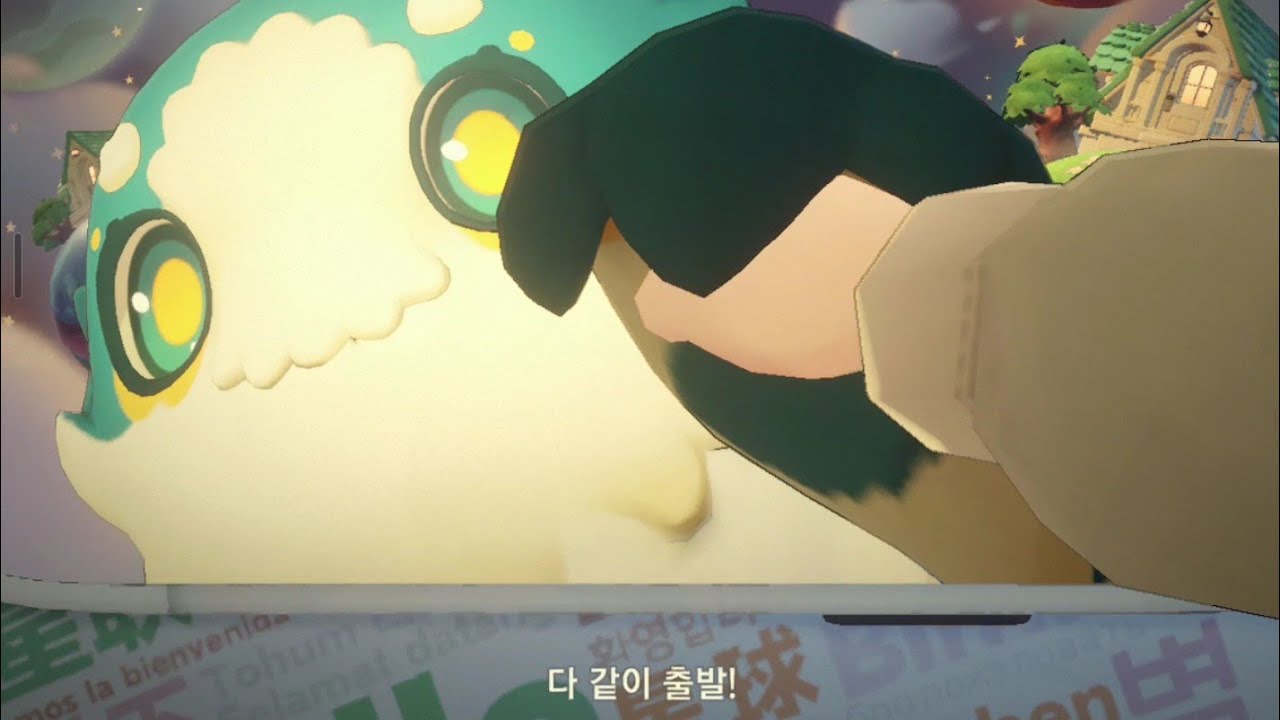
To achieve smooth gameplay and maintain input accuracy in Petit Planet on high-end mobile devices, cap your frame rate to 60 FPS, set UI scaling to "Auto," lower post-processing effects, and clear background applications before launching. These adjustments prevent thermal throttling and reduce input latency during heavy building and terraforming sessions.
Graphics Settings for Frame Stability and Thermal Management
Detailed planetary assets and dense decorating layouts place high demands on mobile hardware, which can cause micro-stuttering and thermal throttling during long play sessions.
- Frame Rate Limit: Set the frame rate cap to 60 FPS rather than attempting to force higher rates. A consistent 60 FPS target stabilizes performance and prevents your processor from generating excessive heat.
- Textures vs. Shadows: Maintain Texture Quality on "High" for clear object rendering, but lower Shadow Resolution to reduce GPU load without sacrificing general visual fidelity.
- Effects and Post-Processing: If you notice frame drops or device warming after 30 to 45 minutes, lower the Bloom and Post-Processing options in the graphics menu. These post-processing effects are the primary drivers of excess heat generation.
- Charging Considerations: Avoid playing while charging your device. Combining thermal output from fast charging with processor rendering will trigger severe system performance throttling.
UI Setup and Touch Precision
Large displays and foldable mobile hardware offer expanded screen real estate, which improves object selection when properly configured.
| Feature | Recommended Setting | Operational Benefit |
|---|---|---|
| UI Scaling | Auto | Prevents menu overlap on non-standard screen aspect ratios. |
| Radial Menu Layout | Main tools in menu corners | Reduces thumb travel distance for faster tool switching during building loops. |
| System Sensitivity | Standard touch sensitivity | Ensures reliable touch registration in Edit Mode without skipping inputs. |
To avoid input conflicts while using large mobile screens or foldable devices, do not rest your palms along the display edges. Extra touch contacts can trigger unintentional camera rotation or zoom adjustments while placing items on your grid.
Camera Controls for Base Construction and Exploration
Camera responsiveness directly affects building accuracy on planetary grids. Configure camera sensitivity according to your current gameplay focus:
- Enable Dynamic Camera Mode: Use "Dynamic" mode on wide or foldable screens to maximize your field of view during large construction projects.
- Lower Sensitivity for Decorating: Drag the Camera Sensitivity slider down while placing furniture and small props. Lower sensitivity provides fine control to prevent misaligned objects.
- Increase Sensitivity for Traversal: Raise Camera Sensitivity when moving between different planetary biomes to pan across terrain rapidly.

Free Petit Planet Codes
Current active codes and how to redeem them.

Michael Smith
Michael covers live-service games, events, reward systems, and efficient daily routines, turning frequent updates into clear actions for players.
COMMUNITY
Player Comments
146 players commented on this guide.
This helped me understand strategy much better.
Nice guide. I am checking the other Petit Planet articles next.
I tried this today and it worked better than my old setup.
Good guide for Petit Planet players. The strategy part was useful.