
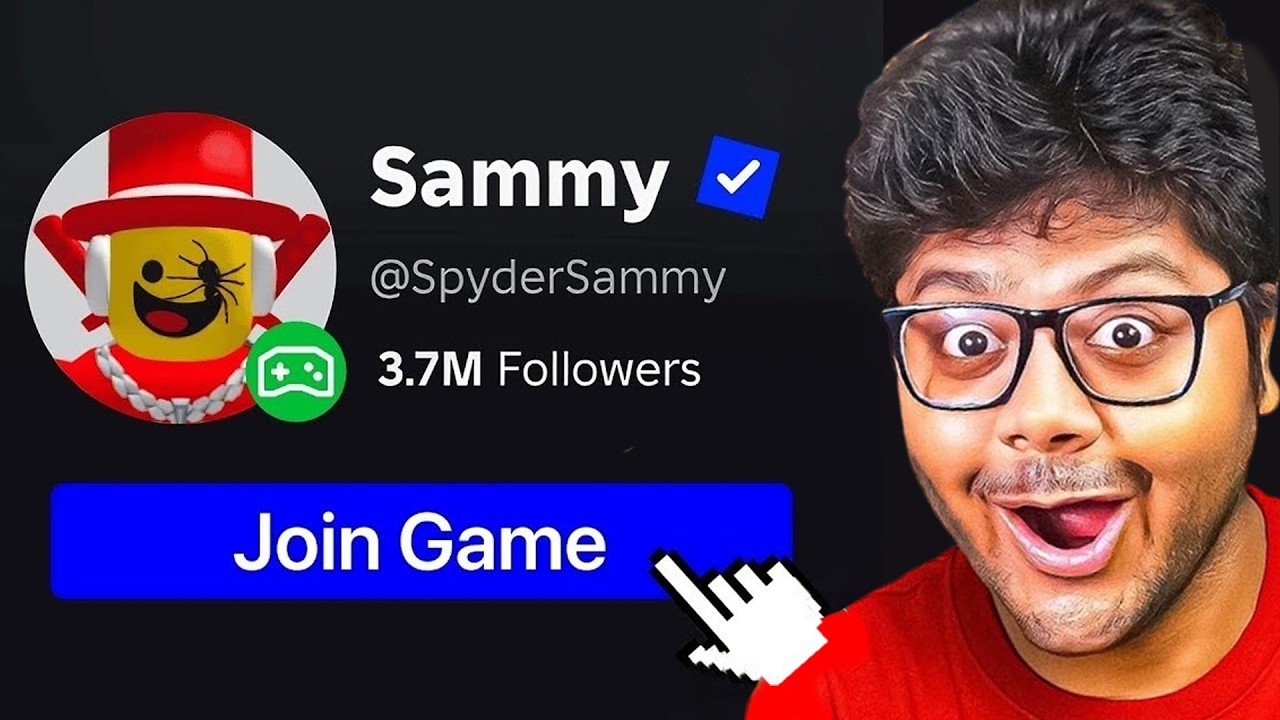
Joining a specific player in Roblox can be a cumbersome process when relying solely on the native website interface. Often, the "Servers" tab is cluttered, and searching for a friend’s active session requires multiple clicks and manual filtering. The RoPro browser extension is the industry-standard tool for Roblox power users, designed to inject a convenient "Join" button directly onto player profiles, effectively bypassing the tedious steps required to locate an open server.
How the RoPro Extension Works
RoPro functions as a browser-side enhancement that modifies how the Roblox website displays information. By integrating directly into the DOM (Document Object Model) of the Roblox player profile page, it reads the target player's current status and cross-references it with the game’s server list.
When you navigate to a user's profile, RoPro queries the platform to determine if the player is in a public, joinable experience. If the session is accessible, the extension adds a high-visibility button, allowing you to bypass the manual "Servers" tab navigation. It is important to understand that RoPro is not "hacking" or "exploiting" the game; it is an automation layer that performs the same request your browser would make if you clicked "Join" through the standard menus.
Step-by-Step: Installing and Using RoPro
To begin using this tool, follow these steps to ensure a secure and functional setup:
- Installation: Visit the official Chrome Web Store or the extension store for your browser (Brave, Edge, and Opera are supported). Search for "RoPro" and ensure the developer is verified. Click "Add to Chrome."
- Authentication: Once installed, the extension will ask for permission to access your Roblox session data. This is required for the extension to "see" the games you are permitted to join.
- Activation: Refresh your Roblox tab. When visiting a player’s profile, you will now see an enhanced layout. Look for the "Join" button typically located near the "Chat" or "Follow" buttons.
- Executing the Join: Click the button. Your browser will trigger the Roblox game client protocol, attempting to launch the game and place you into the exact server as the target player.
Understanding Privacy and Technical Limitations
While RoPro is a powerful utility, it is bound by the strict architecture of the Roblox platform. It cannot force a connection if the target player has taken specific security precautions.
- Privacy Settings: If a player has set their "Who can join me in experiences" setting to "No one" or "Friends only" (and you are not on their friend list), the RoPro button will remain inactive or grayed out. The extension cannot override server-side privacy rules.
- Server Capacity: If the game server is full (e.g., a 10/10 capacity server), the join request will fail. RoPro does not have the ability to force-join a full server, as that is a hard limit set by the game developer.
- Private Servers: If the player is inside a private server (VIP server) or an experience that requires an invite, RoPro will not be able to bypass these restrictions.
Why Use RoPro Over the Standard Interface?
For active community members and social players, the manual method of joining is inefficient. Without RoPro, you must:
- Navigate to the game page.
- Click the "Servers" tab.
- Scroll through dozens of instances to find your friend’s name.
RoPro eliminates these steps, saving significant time, especially when trying to join a game that has hundreds of active servers. It also provides additional features such as "Trade Value" calculators and "Profile Themes," making it a comprehensive tool for daily Roblox navigation.
Crucial Security Considerations for Roblox Players
Because you are granting a third-party extension access to your browser data, you must maintain high security standards:
- Avoid Phishing: Only install RoPro from official, verified browser stores. Never download
.crxfiles or "modded" versions of RoPro from third-party websites or Discord servers; these are often designed to steal your session cookies, which can lead to account theft. - API Updates: Roblox frequently updates its website code. If the "Join" button suddenly stops working, it is likely because Roblox changed the underlying structure of the profile page. Usually, the RoPro developer releases an update within 24–48 hours. If the button is broken, do not attempt to "fix" it by reinstalling; simply wait for the extension to auto-update.
- Privacy Awareness: Remember that if you use RoPro to join others, your own privacy settings still apply to your account. If you wish to remain hidden, ensure your own "Who can join me" settings are set to "No one."
Troubleshooting Common Issues
If the "Join" button is not appearing on a user’s profile, check the following:
- Conflicting Extensions: Other Roblox extensions (like BTRoblox or Roblox+) may sometimes conflict with RoPro. Try disabling other extensions to see if the button reappears.
- Browser Cache: Clear your browser cache and cookies, then log back into Roblox.
- Account Restrictions: Ensure your account is not "Child" restricted by Roblox’s parental control features, as some third-party integrations are blocked on restricted accounts.
By utilizing RoPro responsibly, you can significantly enhance your social experience on Roblox, making it easier to connect with friends and participate in the vast array of experiences the platform offers. Always prioritize account safety, keep your browser updated, and respect the privacy settings of other players to ensure a positive experience for everyone in the community.

Free Roblox Codes
Current active codes and how to redeem them.

James Brown
James focuses on Android gaming on PC, emulator setup, controls, performance tuning, and practical troubleshooting for longer play sessions.
COMMUNITY
Player Comments
31 players commented on this guide.
Can you add more details about strategy in a future update?
This saved me time in the early game.
This helped me understand strategy much better.
I tried this today and it worked better than my old setup.