
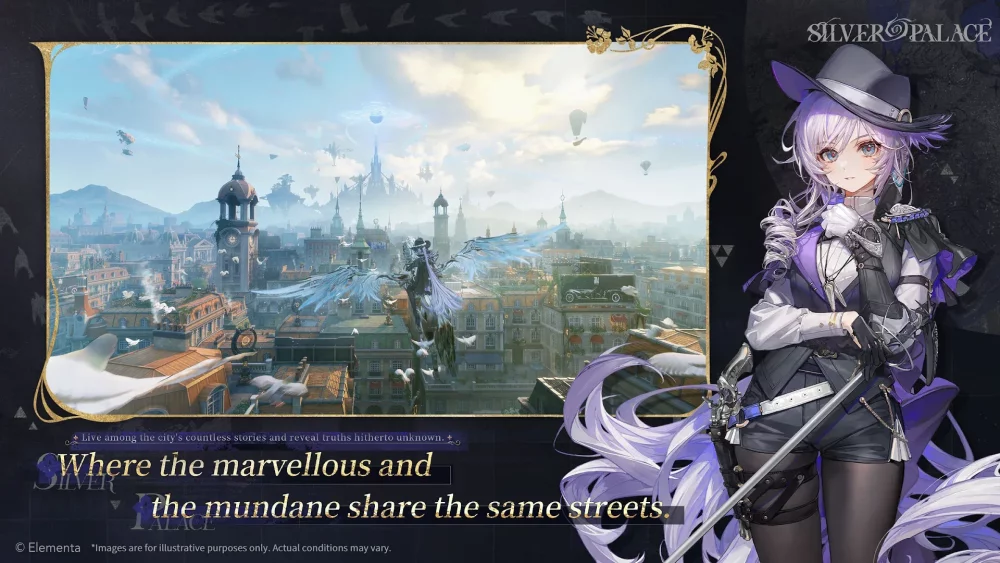
To complete the SilverPalace Dichotomy Test sequence, wait for the full interface animation to render before making a selection, identify functional keywords in binary dialogue choices, and use lighting and environmental cues to determine the correct path.
Decoding Dichotomy Test Interface Prompts
The Dichotomy Test triggers during key story sequences, pausing non-essential background animations and presenting a binary choice interface.
To process these prompts accurately:
- Identify Functional Keywords: Look past flavor text to find functional verbs and keywords, as these indicate the mechanical consequences of a decision rather than just character dialogue.
- Distinguish UI Palette Colors: The interface uses distinct color palettes to separate dialogue flavor text from actionable progression choices.
- Track Highlighted Text: Watch for highlighted text during story dialogue, which serves as the primary visual signal that the game is transitioning into a Dichotomy Test phase.
Reading Environmental Cues Before Selecting
The environment surrounding a test trigger often provides visual context for the choices presented. Analyze the immediate area before committing to an answer.
- Active Lighting: Scenes dominated by bright or warm light sources generally align with direct or confrontational choices. Cold or blue-toned lighting typically correlates with calculated choices.
- Shadow Density: High-contrast shadow areas surrounding the trigger point indicate cautious or investigative decision paths.
- Proximity Objects: Take note of items your character interacts with immediately prior to the test trigger, as these objects frequently point toward the intended choice for your active objective.
Managing Input Timing and Visual Settings
Rapidly clicking through prompts can lead to accidental inputs or missed context during critical narrative checkpoints.
- Wait for Full Animations: Let the decision UI fully render before making your input. Premature inputs can lead to accidental selections before the full prompt is readable.
- Use Settings to Reduce Clutter: If dense background visuals distract from the interface text, enable depth-of-field options in your settings menu to soften the background and keep choice boxes clear.
- Utilize Pause-and-Check: If you need extra time to analyze text during high-stakes sequences, open your map or settings menu immediately after the prompt appears to freeze the scene and evaluate your options without time pressure.

Free SilverPalace Codes
Current active codes and how to redeem them.

James Brown
James focuses on Android gaming on PC, emulator setup, controls, performance tuning, and practical troubleshooting for longer play sessions.
COMMUNITY
Player Comments
27 players commented on this guide.
The tips are practical and easy to follow.
Good guide for SilverPalace players. The strategy part was useful.
Nice guide. I am checking the other SilverPalace articles next.
This saved me time in the early game.