
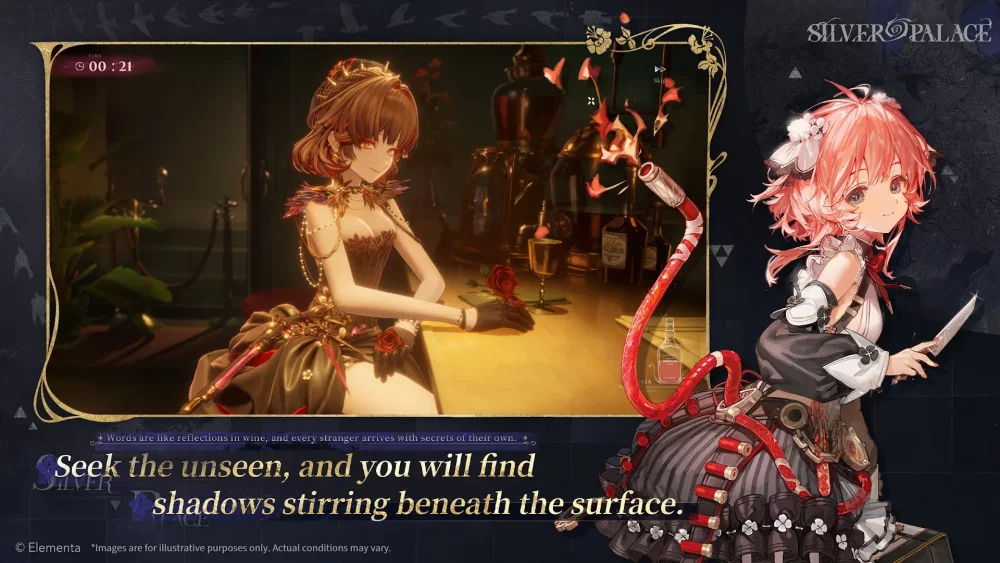
To achieve the best visual experience in SilverPalace, players must strike a precise balance between high-fidelity character rendering and stable frame rates. As a game that blends intricate Victorian-inspired aesthetics with complex match-3 combat, visual clarity is not just about beauty—it is about ensuring that you can identify key evidence and combat cues without stuttering. To get the most out of your experience, prioritize "High-Quality Rendering" for character models while selectively tuning post-processing effects like Bloom and reflections to maintain a consistent 60 FPS.
Configuring Character Rendering and Fidelity
The visual core of SilverPalace lies in its character models. Developers have invested significant effort into the textures and ornamentations of characters like Cinderella and LeCoco, and the game’s engine is designed to showcase these details through high-resolution assets.
If you want to maintain the intended artistic vision, you should prioritize the "High-Quality Rendering" toggle. This setting forces the game to apply advanced edge smoothing and deeper shadow maps to your active characters.
- Why it matters: On lower-end configurations, textures may appear "muddy," losing the fine details on character outfits. High-quality rendering preserves these textures, which is essential for appreciating the game's art style.
- The Trade-off: Enabling this feature significantly increases GPU load. If you notice your device overheating, keep this enabled but lower your "Resolution Scale" slightly to compensate, rather than sacrificing character fidelity.
Leveraging Dynamic Idle Animations
The idle animation system in SilverPalace is more than cosmetic; it communicates character state and mood, providing subtle cues that enrich the narrative. These animations have seen a massive upgrade in recent builds, featuring more nuanced movements and frame-interpolation.
To experience these at their peak, navigate to your settings and ensure "Animation Quality" is set to "Ultra." If you experience micro-stutters, it is often due to the high-poly count of these models competing with background environmental assets.
- Pro Tip: If you see stuttering, look at your "Environmental Detail" setting first. Lowering background clutter resolution will free up enough headroom to keep your character animations fluid without losing the high-fidelity look of your hero models.
Navigating the Character Viewer for Aesthetic Analysis
The Character Viewer is an underutilized, high-value tool for any SilverPalace player. Beyond just looking at your favorite detectives, it serves as a controlled "stress test" environment. Use this mode to fine-tune your monitor or mobile screen’s brightness and contrast.
When using the viewer, focus on these three diagnostic checks:
- Lighting Interaction: Rotate the character to observe how light reflects off metallic surfaces or lace. If the highlights look "blown out" or too dark, adjust your "Brightness" and "Gamma" sliders until you see a natural gradient.
- Model Clipping: Switch through various outfits. If you notice clipping or graphical hitches in the viewer, your device’s current hardware configuration may be struggling with high-detail assets, and you should consider a slight reduction in "Shadow Quality."
- Facial Expression Rendering: The latest version of SilverPalace features enhanced facial expressions. If these look stiff, ensure "High-Quality Rendering" is active, as these expressions are tied to the character model’s mesh complexity.
Balancing Performance and Visual Immersion
A major challenge in SilverPalace is maintaining visual fidelity during intense investigation stages. In dense city maps or complex match-3 battlefields, the screen can become cluttered.
Recommended Performance Adjustments
- Disable Real-Time Reflections: If you are playing on a mobile device or a laptop without a dedicated GPU, disabling real-time reflections is the single most effective way to gain 10–15 extra frames per second. You will lose some mirror-like surfaces, but the gain in input responsiveness is vital for timing your combat abilities.
- Manage Bloom and Post-Processing: While high bloom adds a "dreamy" atmosphere, it can make it difficult to spot hidden clues or text-based evidence during investigations. If you find yourself squinting to read game text, turn "Bloom" down to "Medium" or "Low."
- Frame Rate Priority: Always target 60 FPS over 30 FPS. In a game that combines puzzle mechanics with real-time abilities, input lag caused by a low frame rate can lead to missed opportunities in combat.
Expert Strategies for Visual Stability
To ensure your SilverPalace experience remains consistent across long play sessions, follow these expert-tested steps:
- Clear the Cache: Periodically clear your game cache through the system settings. As the game updates with new, higher-fidelity assets, old cached data can cause visual artifacts or "texture popping."
- Monitor Thermal Throttling: If you notice that the game starts smooth but becomes choppy after 30 minutes, your device is likely thermal throttling. Reducing the "Environmental Quality" by one notch will often allow you to keep the "High-Quality Character" setting enabled without hitting that thermal wall.
- Match-3 Visibility: In the match-3 puzzle segments, contrast is king. If the puzzle board feels "busy," consider lowering the "Particle Effects" setting. This makes individual gems and special icons much easier to distinguish, which is crucial for high-level competitive play.
By focusing on these specific settings, you ensure that the artistic vision of SilverPalace remains intact. You aren't just playing a game; you are inspecting a meticulously crafted detective story—and with these optimizations, you’ll be able to see every detail exactly as the developers intended.

Free SilverPalace Codes
Current active codes and how to redeem them.

James Brown
James focuses on Android gaming on PC, emulator setup, controls, performance tuning, and practical troubleshooting for longer play sessions.
COMMUNITY
Player Comments
88 players commented on this guide.
The tips are practical and easy to follow.
This guide answered the exact question I had.
The explanation is clear, especially for beginners.
This saved me time in the early game.