
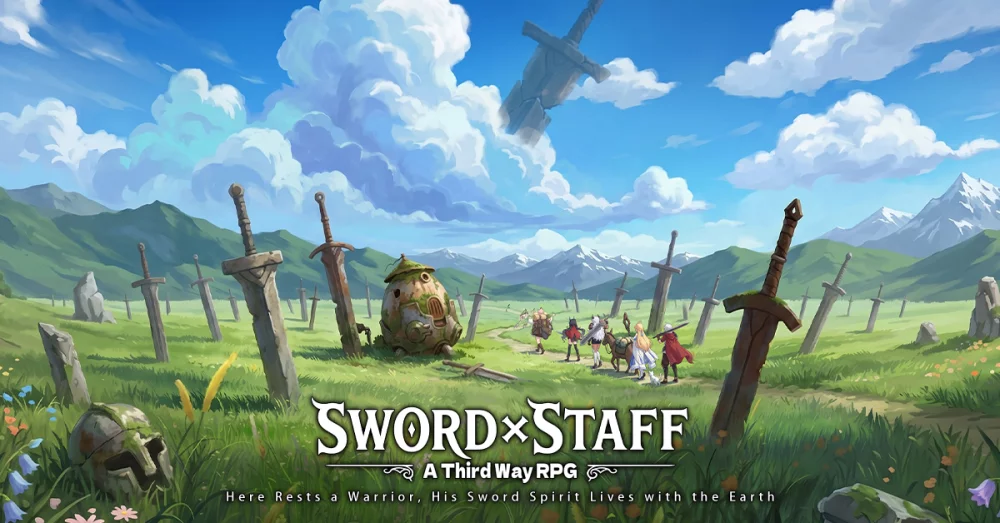
The visual presentation of your home base in Sword x Staff offers more than just a change of scenery. For players looking to personalize their experience and manage their UI effectively, the Home Theme system serves as the primary hub for character display and menu navigation. While the game features a distinct art style that draws inspiration from classic side-scrolling aesthetics, managing your home interface correctly is essential for a clean, efficient progression experience.
Understanding the Home Theme Interface
The home screen in Sword x Staff is the central landing point for all your daily tasks, including checking your idle rewards, accessing the gacha summoning pools, and managing your current party. The Home Theme allows you to toggle between different backgrounds and environmental setups that you unlock as you progress through the game’s various milestones.
Why Theme Customization Matters
- Visual Clarity: Certain themes provide a cleaner layout, making it easier to identify notification badges for finished tasks or ready-to-claim resources.
- Performance Optimization: If you are playing on older mobile hardware, switching to a simpler, less asset-heavy theme can sometimes help stabilize frame rates when navigating the menus.
- Account Personalization: Your selected theme is often what friends or guild members see when they visit your profile, making it a key element of your public-facing account identity.
Tips for Managing Your Home Environment
To make the most of your interface, consider these practical tips for managing your home setup:
- Prioritize Function Over Form: If a new theme makes it difficult to see your "Claim All" buttons or guild notification icons, consider sticking to the default theme until you get used to the interface layout.
- Check for Dynamic Elements: Some themes include moving elements or background music changes. Ensure that these additions do not distract from your daily routine, such as quickly checking your idle chest progress.
- Coordinate with Character Displays: Since your lead character is displayed on the home screen, select a theme that complements their color palette or class aesthetic to create a cohesive look.
How to Switch Your Theme
Changing your theme is a straightforward process, though it is often overlooked by newer players who focus entirely on combat mechanics.
| Step | Action | Description |
|---|---|---|
| 1 | Access Settings | Tap on your profile icon or the main menu gear icon. |
| 2 | Navigate to Display | Look for the 'Interface' or 'Visual' sub-menu. |
| 3 | Theme Selection | Browse through your unlocked themes and select 'Apply'. |
| 4 | Save Changes | Ensure you tap the confirm button to apply the theme across your session. |
Troubleshooting Display Issues
If you find that your chosen theme is not appearing correctly or is causing UI elements to overlap, try the following:
- Clear Cache: Sometimes, new theme assets may not load properly after a game update. Use the "Repair" or "Clear Cache" function in the login screen.
- Check for Updates: Ensure your version of Sword x Staff is fully updated, as developers often fix display bugs related to custom themes in patch cycles.
- Toggle Resolution: If elements appear misaligned, adjusting your screen resolution settings in the options menu can often force the UI to re-render in the correct position for your specific device.
By effectively managing your Home Theme, you can ensure that your Sword x Staff experience remains visually pleasing while maintaining the high level of organizational efficiency required for mid-to-late-game progression.

Free Sword x Staff Codes
Current active codes and how to redeem them.

James Brown
James focuses on Android gaming on PC, emulator setup, controls, performance tuning, and practical troubleshooting for longer play sessions.
COMMUNITY
Player Comments
93 players commented on this guide.
Good guide for Sword x Staff players. The base building part was useful.
Can you add more details about base building in a future update?
I tried this today and it worked better than my old setup.
The explanation is clear, especially for beginners.