
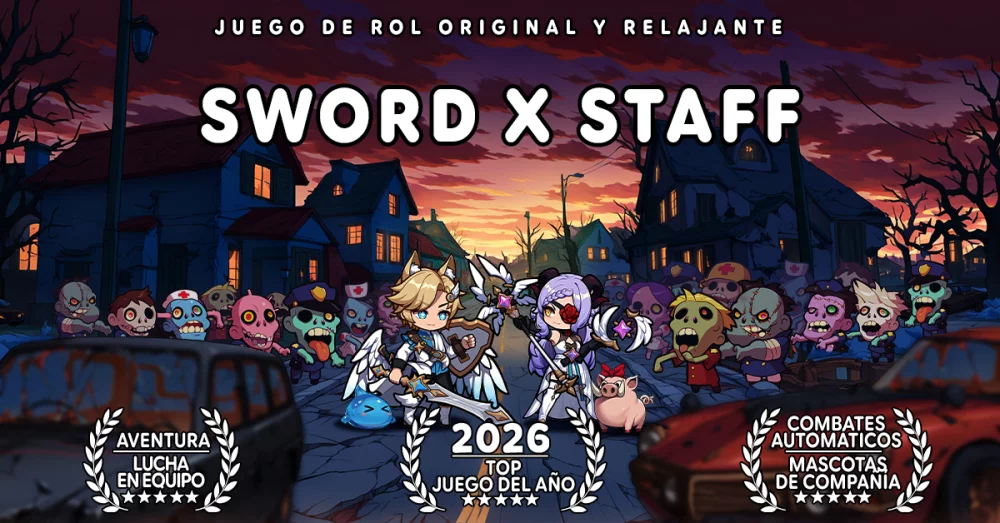
In the world of Sword x Staff, your character’s progression—including hard-earned gear, rare items, and strategic milestones—is tied to your local device installation unless you take proactive steps to secure it. For many players, the realization that their game data is not automatically backed up to the cloud comes only after a device failure or an accidental app deletion.
This guide provides the definitive steps for linking your Sword x Staff account to a secure, permanent service provider. By following these instructions, you ensure that your game identity remains safe, portable, and recoverable, regardless of what happens to your current hardware.
Why Account Binding is Essential for Sword x Staff
Many players mistakenly believe that because they are logged into an App Store or Google Play account, their game progress is automatically synced. However, Sword x Staff uses a specific internal binding system to map your progress to a unique game server ID.
If you do not manually bind your account, your data is stored locally. This means that if you uninstall the app, clear your device cache, or switch to a new phone, your character will effectively vanish. Binding acts as a digital bridge, associating your unique player identity with a stable, external login credential. This process is not merely a backup; it is the fundamental mechanism that allows for cross-device play and account recovery in the event of technical failure.
Step-by-Step: How to Link Your Account
Securing your Sword x Staff account is a quick process, but it must be done with precision to ensure the link is successful. Follow these steps to safeguard your progress:
- Enter the Game: Launch Sword x Staff and reach the main game lobby.
- Access Settings: Tap on your character profile icon or the "Settings" gear icon typically located in the top-right or bottom-right corner of the screen.
- Locate the User Center: Within the settings menu, look for a tab labeled "Account Management," "User Center," or "Link Account."
- Select Your Provider: You will be presented with a list of supported platforms (e.g., Apple ID, Google, Facebook, or Twitter). Choose one that you use consistently and have long-term access to.
- Authenticate: Follow the browser-based prompts to sign in to your chosen provider. Grant the necessary permissions for Sword x Staff to access your account credentials.
- Confirm the Link: Once returned to the game, the button should now display "Linked" or show your associated email address.
Choosing the Best Provider for Your Needs
Not all binding methods are equal. Your choice should depend on your specific device ecosystem and long-term security practices:
- Apple ID (For iOS Users): This is generally the most stable and secure option for iPhone and iPad users. It offers seamless integration and high-level encryption, making it ideal for those who plan to stay within the Apple ecosystem.
- Google/Gmail: The gold standard for cross-platform play. If you ever switch from an iPhone to an Android device, or if you use an emulator on a PC to manage your Sword x Staff resources, a Google account is the most versatile choice.
- Social Media Accounts: While convenient, linking to platforms like Facebook or Twitter carries risks. If your social account is suspended or locked, you may lose access to your game account. Only use these if you have robust multi-factor authentication (MFA) enabled on those platforms.
Pro-Tip: Avoid using secondary or "burner" email addresses. Your game account recovery depends entirely on your ability to verify your identity through your linked service.
Verifying and Maintaining Your Security
After completing the binding process, do not simply exit the game. Verify that the link is functional by checking the "User Center" screen again. If the option to bind still appears, the connection failed.
Additionally, take these two crucial steps to finalize your account security:
- Record Your UID: Locate your unique User ID (UID)—usually found on the loading screen or in the settings menu—and take a screenshot. Store this in a secure, cloud-based note app. If you ever lose access to your linked account, your UID is the only way customer support can identify and restore your character.
- Enable Multi-Factor Authentication (MFA): Ensure that the account you used for binding (your Google or Apple ID) has MFA enabled. A game account is only as secure as the account linked to it.
Common Mistakes to Avoid
- The "Guest" Trap: Never play as a Guest for an extended period. Guest accounts are stored locally and offer zero protection against data corruption. Bind your account immediately upon starting your journey.
- Multiple Links: Some versions of Sword x Staff allow for secondary links. If available, link to two different services (e.g., Apple ID and a secondary email). This provides a fail-safe if one platform experiences a service outage.
- Ignoring Updates: If the game prompts you to update your account information or re-authenticate, do not ignore it. Keeping your credentials updated is vital for maintaining the security bridge.
Troubleshooting Lost Access
If you find yourself unable to log in, do not panic. Use the "Contact Support" button on the Sword x Staff login screen. When submitting a ticket, provide your UID, the date you created the account, the last time you logged in, and the specific service you used for binding.
By taking these proactive steps, you transition from a vulnerable local user to a protected player. Linking your Sword x Staff account is a small, one-time investment of time that prevents the total loss of your progress, allowing you to focus entirely on optimizing your builds and conquering the game’s massive world.

Free Sword x Staff Codes
Current active codes and how to redeem them.

Emily Johnson
Emily writes practical mobile strategy guides with a focus on resource planning, base progression, and the early decisions that shape a long-term account.
COMMUNITY
Player Comments
152 players commented on this guide.
This saved me time in the early game.
Can you add more details about heroes in a future update?
I tried this today and it worked better than my old setup.
This guide answered the exact question I had.