
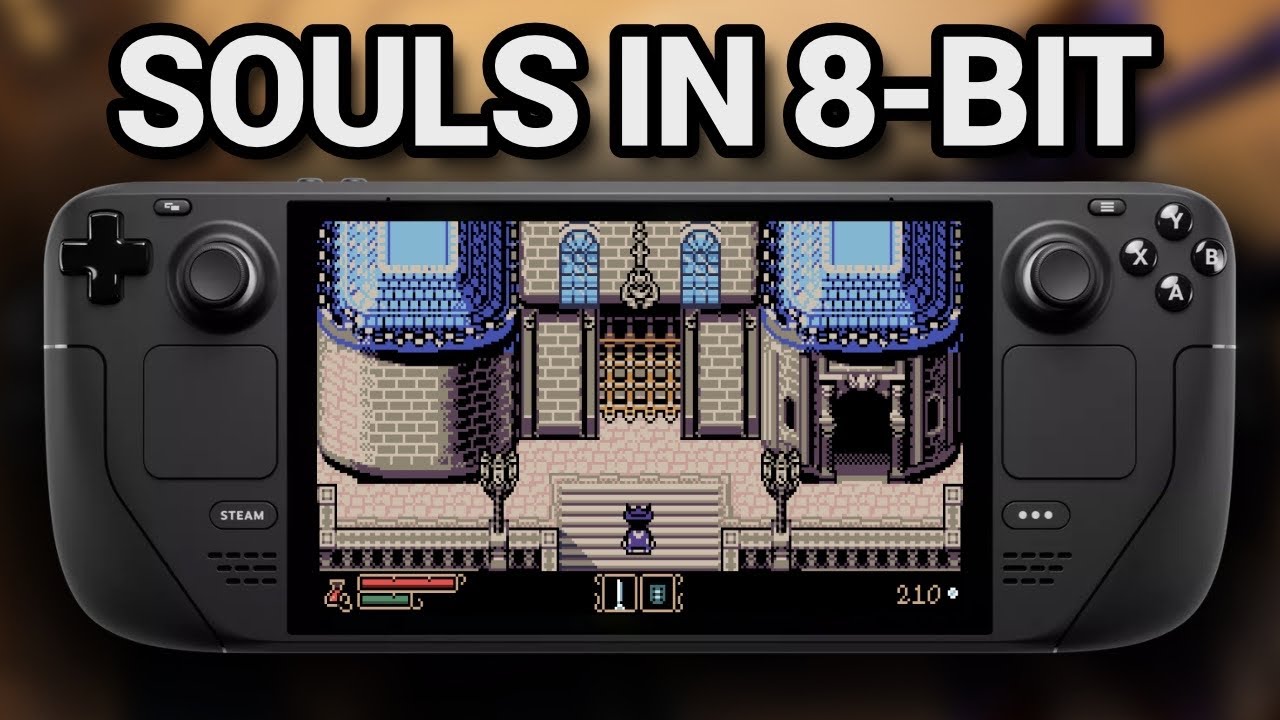
To run Tearscape smoothly on Steam Deck, set the handheld's frame rate limit to 40 or 45 FPS, apply an 8W–10W TDP limit, and map dodge and healing actions to the rear grip buttons. Capping the frame rate resolves micro-stutters during heavy visual effects while keeping inputs responsive for parries and dodges.
Display and Performance Settings
Running Tearscape at an uncapped frame rate causes erratic frame pacing and stutters during action sequences. Lock your frame rate and adjust power settings through the Steam Deck Quick Access Menu:
| Setting | Recommended Value | Target Effect |
|---|---|---|
| Frame Rate Limit | 40 or 45 FPS | Eliminates frame pacing stutters during intense combat. |
| TDP Limit | 8W – 10W | Prevents GPU overheating and thermal downclocking. |
| Scaling Filter | FSR (FidelityFX Super Resolution) | Sharpens the image when running at lower internal resolutions. |
| Display Profile | Pro | Preserves contrast and visual cues in dark environments. |
If dark areas conceal enemy silhouettes or hazards, adjust in-game gamma in tandem with screen brightness instead of maxing out display brightness, which washes out shadow detail.
Control Layout and Button Rebinding
Standard handheld controller layouts require taking your thumb off the right analog stick to dodge or use items. Mapping key combat inputs to the rear grip buttons keeps camera control active while maneuvering around bosses.
- Rear Grip Buttons: Map dodge roll and healing item inputs to the back grip buttons so movement, camera control, and recovery remain simultaneous.
- Right Trackpad: Enable Trackpad as Mouse or Joystick with high sensitivity to perform rapid 180-degree camera turns toward incoming targets.
- Consumables: Keep health items bound to a dedicated back button to prevent breaking your dodge rhythm during boss attack sequences.
Interface and Compatibility Troubleshooting
If UI text appears small or the game encounters launch issues, apply these system adjustments:
- Enable Integer Scaling: Open the Steam Deck display settings and toggle Integer Scaling to On. This sharpens user interface elements and pixel graphics without adding GPU overhead.
- Force Proton Experimental: If Tearscape freezes on launch or fails to synchronize save data, open game properties in Steam, go to Compatibility, check Force the use of a specific Steam Play compatibility tool, and select Proton Experimental.

Free Tearscape Codes
Current active codes and how to redeem them.

Emily Johnson
Emily writes practical mobile strategy guides with a focus on resource planning, base progression, and the early decisions that shape a long-term account.
COMMUNITY
Player Comments
57 players commented on this guide.
I tried this today and it worked better than my old setup.
Nice guide. I am checking the other Tearscape articles next.
Can you add more details about strategy in a future update?
This saved me time in the early game.