
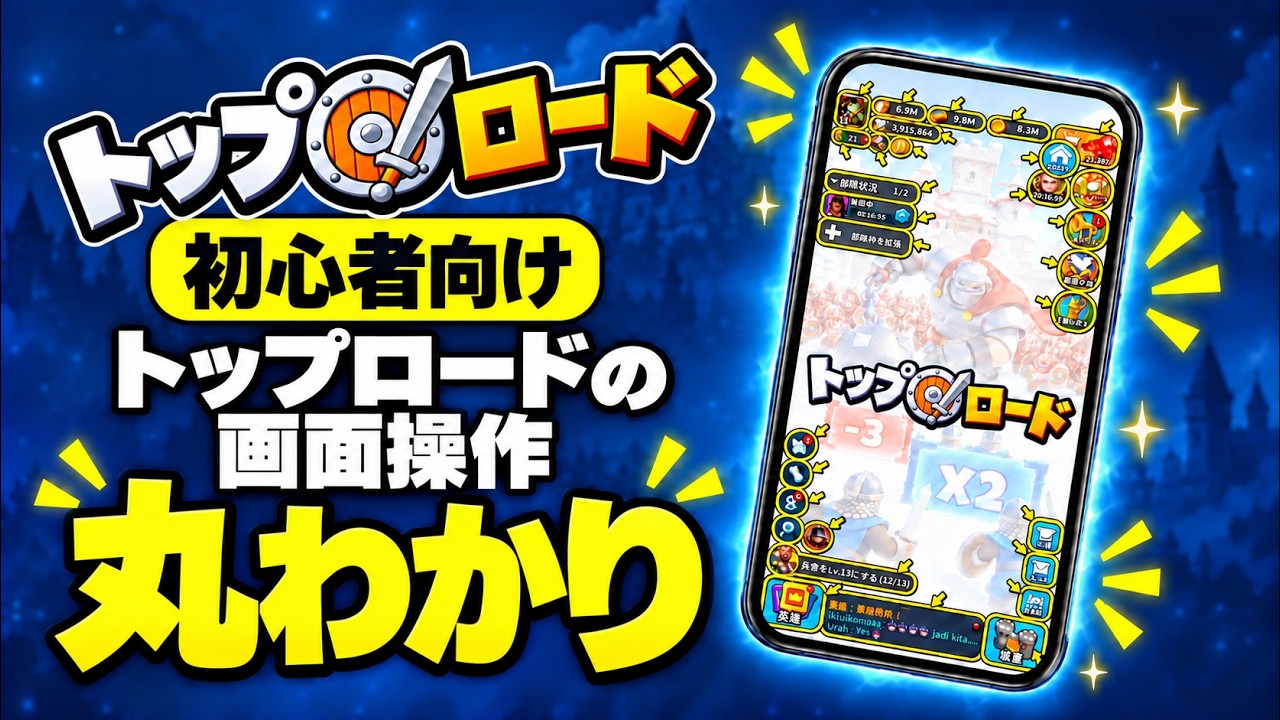
In Top Lords, the primary screen is divided into five functional zones: lord stats in the top left, resources and events in the top right, operational queues on the left edge, primary system docks across the bottom, and map controls in the bottom right. Tapping these icons gives you direct access to city management, timers, and field movements without navigating nested menus.
---
Top-Left: Lord Profile and Status Monitors
The upper-left corner manages account administration, lord progression, and active kingdom enhancements.
| HUD Element | Direct Function | Sub-Menus Accessed |
|---|---|---|
| Lord Avatar | Displays total combat power, account ID, and kill count | Gear equipment, war/development talent trees, titles, and system settings |
| VIP Badge | Shows current VIP tier | Daily VIP point claims, free daily VIP chest, and weekly prestige bundles |
| Buff Tray | Displays active timers for Peace Shields, gathering boosts, and combat buffs | Boost repository to activate shields or military buffs directly |
| Stamina Bar | Tracks current energy reserves | Monster hunt deployment and rally activity limits |
---
Top-Right: Resources, Diamonds, and Event Panels
The top-right corner tracks your economy and active server milestones.
- Resource Gauges: Four meters track your warehouse reserves for Food, Wood, Iron, and Gold. Tapping any meter displays your hourly production rates from internal production buildings and field gathering squads, while also providing a direct shortcut to use consumable resource tokens stored in your bag.
- Diamond Counter: Displays your combined pool of free and paid diamonds. Tapping the adjacent plus-sign icon opens the in-game exchange shop.
- Event Carousel: Positioned beneath the currency counter, these rotating banners link to active server events such as Alliance Duel stages, Race to Ace milestones, limited-time hero recruitment banners, and holiday events. A visible "Claim" flag indicates uncollected daily participation crates, milestone rewards, or leaderboard prizes.
---
Left Sidebar: Production Queues and March Trackers
The left side of the display monitors active construction, research, military training, and field marches.
Queue Bars
Queue bars display real-time countdowns for internal development:
- Hammer Icon: Construction active. Tapping the bar centers the camera on the building site. Tapping the green arrow consumes speed-up tokens directly.
- Flask Icon: Academy research active. Tapping the bar opens the Academy technology tree.
- Helmet Icon: Troop training active across your barracks. Tapping the bar opens unit queues or the speed-up menu.
- Idle Banner: Indicates an open queue slot. Tap immediately to assign idle workers, research projects, or troop drafts.
Task and March Trackers
Directly under the queue bars, the Task Tracker displays active Chapter Quests and Daily Tasks. Tapping this banner automatically redirects you to the designated objective (such as building upgrades, field hunts, or troop recruitment) and claims completed rewards.
Below the task tracker, Active March Bars appear whenever armies leave your city. These bars display real-time movement progress for gathering teams, reinforcements, and offensive rallies. Each active march includes a quick-recall button to cancel the march and retreat your troops before combat initiates.
---
Bottom Dock: Core Management Systems
The bottom navigation bar houses the primary administrative and social menus:
- Heroes Menu: Inspect your unlocked roster, star promotions, skill ranks, and hero equipment. A red notification badge marks pending talent upgrades or available star promotions.
- Alliance Hub: Access alliance technology donations, territory structures, resource and combat help requests, the alliance shop, and active war rallies.
- Bag (Inventory): Organizes stored inventory into specific tabs for consumable resource packs, speed-up tokens, equipment crafting chests, hero shards, and combat items.
- Mail System: Stores battle reports, gathering logs, system updates, and alliance mass-mails. Battle reports provide detailed breakdowns of offensive victories and defensive losses.
- Chat Window: Located at the bottom center to view and send Kingdom chat, Alliance messages, and private direct whispers.
---
Bottom-Right: World Map and Search Radar
Tapping the globe or compass icon in the bottom-right corner switches your display between your inner city view and the Kingdom World Map. When viewing the world map, this button changes into a City Icon, which immediately returns your camera to your base.
The world map mode introduces two field-navigation tools:
- Search Radar (Magnifying Glass): Opens a targeted scanner for wild monsters, corrupted Fang armies, and resource nodes (farms, lumber yards, iron mines, and gold deposits). Adjust the level slider to choose a specific target tier, then press the search button to center the camera on the nearest matching node.
- Bookmark Menu (Flag Icon): Opens your saved map coordinates to track enemy alliance hives, high-level resource clusters, and contested wonder locations.
Free Top Lords Codes
Current active codes and how to redeem them.

James Brown
James focuses on Android gaming on PC, emulator setup, controls, performance tuning, and practical troubleshooting for longer play sessions.
COMMUNITY
Player Comments
146 players commented on this guide.
Nice guide. I am checking the other Top Lords articles next.
This helped me understand resources much better.
This saved me time in the early game.
I tried this today and it worked better than my old setup.