
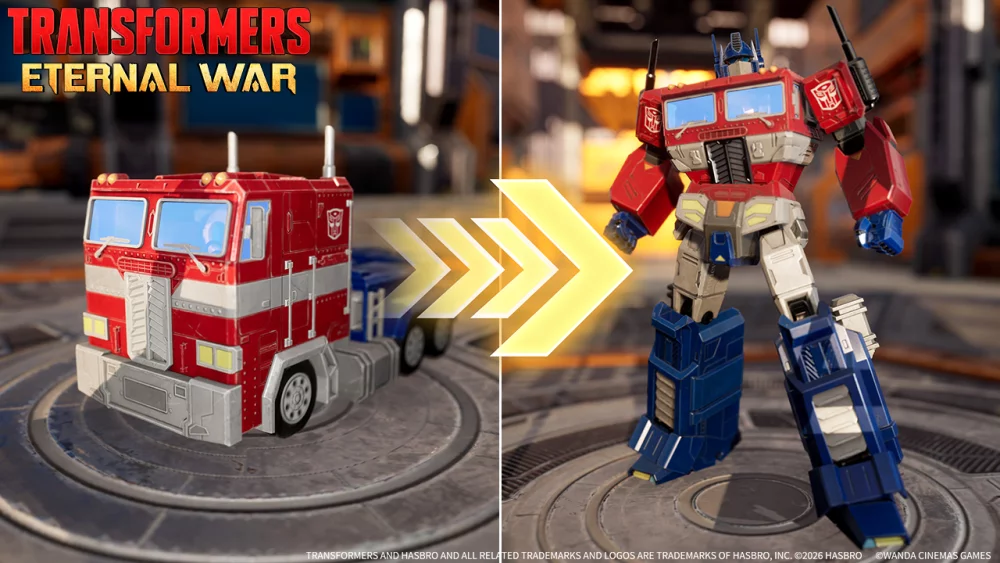
To achieve peak performance in Transformers: Eternal War, you must strike a balance between the game’s high-fidelity character models and your device’s processing capabilities. Because the game emphasizes complex, animated hero rigs, players should prioritize adjusting in-game graphical presets to maintain a high frame rate, which is critical for tactical decision-making in fast-paced combat.
Understanding the Technical Demands of High-Fidelity Models
Transformers: Eternal War is built around a visual engine designed to showcase intricate textures and fluid animations. Unlike standard strategy RPGs, these character models function as dynamic assets that react to environmental lighting and combat state changes. While this creates a premium visual experience, it places a heavy tax on the GPU and thermal management systems of mobile devices.
If you are playing on a device that is more than three years old, you will likely encounter thermal throttling. This occurs when your device generates excess heat, causing the processor to slow down, which manifests as frame drops or "stuttering" during intensive sequences—such as when multiple Autobots and Decepticons activate their ultimate abilities simultaneously.
Expert Recommendation: Do not leave settings on "Auto" or "Ultra" by default. Start at "Medium" and observe the device temperature after 20 minutes of play. If the device is hot to the touch, drop the resolution scale or frame rate cap by one tier to preserve the longevity of your hardware.
Step-by-Step Graphical Optimization
To ensure your combat maneuvers remain precise, follow these steps to calibrate your visual experience:
- Access the Settings Menu: Navigate to the main menu and locate the gear icon (Settings).
- Adjust Resolution/Texture Quality: If the game feels "choppy," lower your Texture Quality first. This reduces the VRAM load, which is often the primary bottleneck for high-fidelity assets.
- Frame Rate Cap: If your device supports it, set the frame rate to 60 FPS rather than "Unlimited." A stable 60 FPS is superior for competitive gameplay compared to an inconsistent 90+ FPS that fluctuates wildly.
- Disable Post-Processing (If available): Features like Bloom, Motion Blur, and Depth of Field add cinematic flair but consume significant GPU cycles. Disabling these can provide a cleaner, more responsive image during the heat of battle.
- Test in Practice Mode: Before diving into high-stakes ranked matches, enter a practice or campaign mission to see how your chosen settings handle multiple character models on screen.
Managing Storage and Performance Footprint
Transformers: Eternal War is a live-service game, meaning its storage footprint will expand as new characters and visual assets are added via patches. A common mistake is installing the game on a nearly full device.
When your device reaches its storage capacity limit, the operating system struggles to manage virtual memory (swap files), which directly impacts the game's ability to load high-resolution textures on the fly. This often results in "pop-in" or long loading screens. Keep at least 5–10GB of free space beyond the game’s current installation size to allow the engine room to cache assets properly.
Combat Readability: Balancing Visuals vs. Strategy
One of the most overlooked aspects of Transformers: Eternal War is "visual noise." Because the characters are highly detailed, it can be difficult to track health bars, ability cooldowns, and enemy telegraphs when four or five hero models are clustered together.
Tactical Tips for Combat Clarity:
- Silhouette Recognition: Memorize the distinct silhouettes of your main squad. In the heat of combat, you should be able to identify a unit by its stance and weapon profile, not by its detailed chest plate textures.
- UI Focus: If you are struggling to maintain focus, shift your eyes from the center of the screen (the character models) to the UI elements (bottom and top bars). The UI provides the actual status of your victory conditions.
- Camera Positioning: Use the "Tactical View" or zoomed-out camera options. While closer shots look better, they limit your situational awareness, making it impossible to see flanking units or incoming area-of-effect (AoE) abilities.
Future-Proofing Your Device Strategy
As the developers continue to push graphical updates to Transformers: Eternal War, you should expect the "minimum requirements" to creep upward. Developers often optimize assets in later patches, but adding new visual effects usually negates those gains.
Proactive Maintenance Checklist:
- Clean Your Cache: After every major content update, clear the game’s cache through your device’s application manager to prevent legacy assets from bloating your storage.
- Monitor Thermal Performance: If the game introduces a "High Performance" mode, only enable it if you are using a cooling accessory or playing in a climate-controlled room.
- Re-evaluate after Patches: If you notice a sudden performance dip after a patch, reset your settings to "Low" and work your way back up. Often, new patches reset certain visual toggles to default settings, which can override your custom optimizations.
Conclusion: Prioritizing Stability Over Fidelity
The visual appeal of Transformers: Eternal War is a core component of the experience, but it should never come at the cost of your tactical execution. By treating the game as a performance-heavy application and managing your device's resources effectively, you ensure that you aren't just seeing the action—you are in total control of it. Focus on maintaining a consistent frame rate, keep your storage clean, and train your eyes to prioritize UI tactical data over character model detail to climb the ranks.

Free Transformers: Eternal War Codes
Current active codes and how to redeem them.

Sarah Williams
Sarah specializes in RPG and collection games, explaining team building, character growth, and beginner-friendly ways to avoid expensive early mistakes.
COMMUNITY
Player Comments
81 players commented on this guide.
This helped me understand heroes much better.
Good guide for Transformers: Eternal War players. The heroes part was useful.
Nice guide. I am checking the other Transformers: Eternal War articles next.
The tips are practical and easy to follow.