
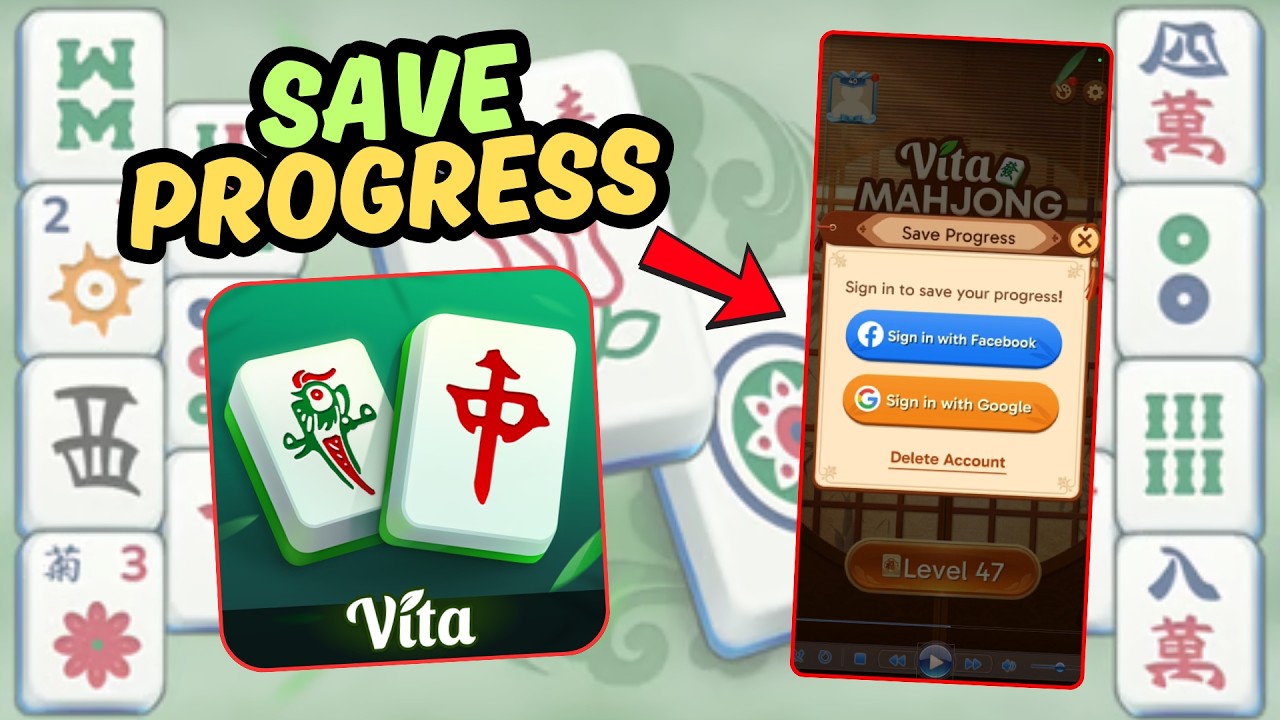
To create an account and save your progress in Vita Mahjong, open the settings menu from the main screen, select the account or profile option, and link the game using Google, Apple ID, or an email address. To delete an account and permanently erase your puzzle records, navigate to the same settings menu, choose the account deletion option, and confirm the prompt.
How to Create an Account and Save Progress
Linking your game to an account synchronizes your cleared stages, streak records, unlocked themes, and booster inventories (Undos, Hints, and Shuffles) to the cloud. This prevents data loss if your mobile device crashes, runs low on local storage, or requires an application reinstall.
Follow these steps to link your profile:
- Launch Vita Mahjong on your mobile device.
- Tap the Settings gear icon on the main screen.
- Select Account, Profile, or Sign In / Save Progress.
- Choose an authentication method:
- Google Account / Google Play Games: Recommended for Android phones and tablets to enable automatic background sync.
- Apple ID / Sign in with Apple: Recommended for iOS devices for direct biometric authentication.
- Email Sign-Up: An independent login method that uses a direct email address rather than an app store ID.
- Grant the requested device permissions to finalize the connection.
How to Confirm Cloud Saving Is Active
After completing authorization, return to the settings menu to verify that the profile synced properly.
- Active Save: The menu displays a "Connected" status, your unique user ID, or your linked email address.
- Incomplete Save: The button still displays "Sign In," "Connect," or "Bind Account." If this occurs, check your internet connection, tap the sign-in button again, and re-authorize the permissions.
How to Permanently Delete Your Vita Mahjong Account
Account deletion clears your personal records and resets your game from the beginning. Deletion is permanent and cannot be undone.
- Open Vita Mahjong and tap the Settings gear icon.
- Select Account, User Center, or Privacy Settings.
- Scroll down and tap Delete Account.
- Review the warning disclaimer outlining the data removal.
- Confirm the request by tapping the confirmation button or typing the requested prompt (such as "DELETE").
- Complete the final prompt. The game will log you out and remove your remote profile records.
Data Removed During Account Deletion
Finalizing the deletion request removes the following stored data:
- Level Milestones: Cleared boards, puzzle scores, and daily challenge records reset to zero.
- Item Inventories: Stored tool supplies, including Undos, Hints, and Shuffles, are permanently removed.
- Customizations: Unlocked tile designs, custom backgrounds, and profile-specific cosmetic unlocks are forfeited.
Troubleshooting Account Errors
If the app stalls on a "Connecting..." screen during setup or deletion:
- Check Network Connectivity: Disconnect and reconnect to Wi-Fi or mobile data to resolve interrupted authorization handshakes.
- Update System Services: On Android, verify that Google Play Services is updated; on iOS, ensure Game Center and Apple ID settings are active.
- Resetting Without Deleting: If your goal is simply to replay earlier puzzle stages without destroying your profile credentials or cloud backups, do not use account deletion. Look for a local progress reset option or clear the app cache instead.
Free Vita Mahjong Codes
Current active codes and how to redeem them.

Sarah Williams
Sarah specializes in RPG and collection games, explaining team building, character growth, and beginner-friendly ways to avoid expensive early mistakes.
COMMUNITY
Player Comments
81 players commented on this guide.
I wish I had read this before upgrading the wrong thing.
This guide answered the exact question I had.
Nice guide. I am checking the other Vita Mahjong articles next.
This helped me understand strategy much better.