
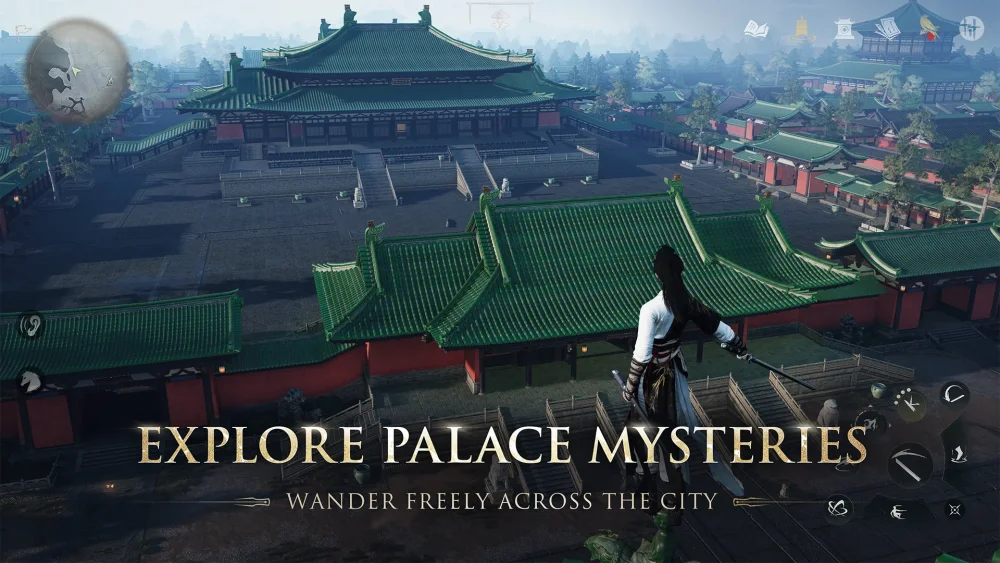
To achieve stable 2K (1440p) resolution at 60fps in Where Winds Meet, you must install the game on a Solid State Drive (SSD) with at least 100GB of available storage space and enable Deep Learning Super Sampling (DLSS) upscaling alongside targeted graphical adjustments.
Storage and Drive Requirements
Before downloading Where Winds Meet, prepare your storage drive to meet its installation demands:
- Storage Space: Reserve approximately 100GB of free space. Keep extra drive overhead available to ensure smooth installation of future updates and patches.
- Drive Type: Install the game strictly on an SSD. Mechanical Hard Disk Drives (HDDs) lack the I/O bandwidth needed to render the open world smoothly, resulting in texture pop-in, extended loading screens, and framerate stutter during movement and combat.
Recommended Graphics Settings for 2K 60fps
To maintain visual quality while locking in a 60fps target at 1440p native resolution, apply the following baseline graphics settings:
| Setting Category | Recommended Option | Performance Impact |
|---|---|---|
| Display Resolution | 2K (1440p) | Standard native output target |
| DLSS Upscaling | Balanced or Quality | Recovers framerate with minimal visual loss |
| Texture Resolution | High | Preserves asset detail |
| Global Illumination | Medium | Saves GPU resources over High |
| Shadow Quality | Medium | Reduces post-processing overhead |
| Volumetric Fog | Medium / Low | Prevents frame dips in dense weather |
| Motion Blur | Low or Off | Enhances visual clarity during rapid movement |
| Draw Distance | Standard | Prevents CPU/VRAM bottlenecks across map regions |
Recommended Optimization Workflow
- Set your display output to 2K (1440p) in the system menu.
- Enable DLSS and set it to Balanced (or Quality if your GPU has additional headroom).
- Lower Shadow Quality and Global Illumination to Medium.
- Set Motion Blur to Low or disable it completely to keep fast combat readable.
Troubleshooting Framerate Drops and Combat Stutter
If you experience sudden performance drops or input latency during high-density combat or seamless world exploration, check the following failure points:
- Skill Effect Dips: Dense particle effects during boss fights or group encounters can heavy-load your GPU. Disable Screen Space Reflections and Bloom in the settings menu to reduce frame drops without sacrificing gameplay readability.
- Region Transition Stutter: If frame rates drop when entering new map areas, lower Draw Distance to Standard or Low. This limits the immediate CPU and VRAM caching load required by the engine when streaming interconnected world assets.
- Driver Compatibility: Verify that your graphics card drivers are updated to the latest available release before launching the game. Up-to-date vendor drivers ensure proper compatibility with the engine's built-in optimization profiles.

Free Where Winds Meet Codes
Current active codes and how to redeem them.

Emily Johnson
Emily writes practical mobile strategy guides with a focus on resource planning, base progression, and the early decisions that shape a long-term account.
COMMUNITY
Player Comments
62 players commented on this guide.
The tips are practical and easy to follow.
Can you add more details about strategy in a future update?
I wish I had read this before upgrading the wrong thing.
I tried this today and it worked better than my old setup.