
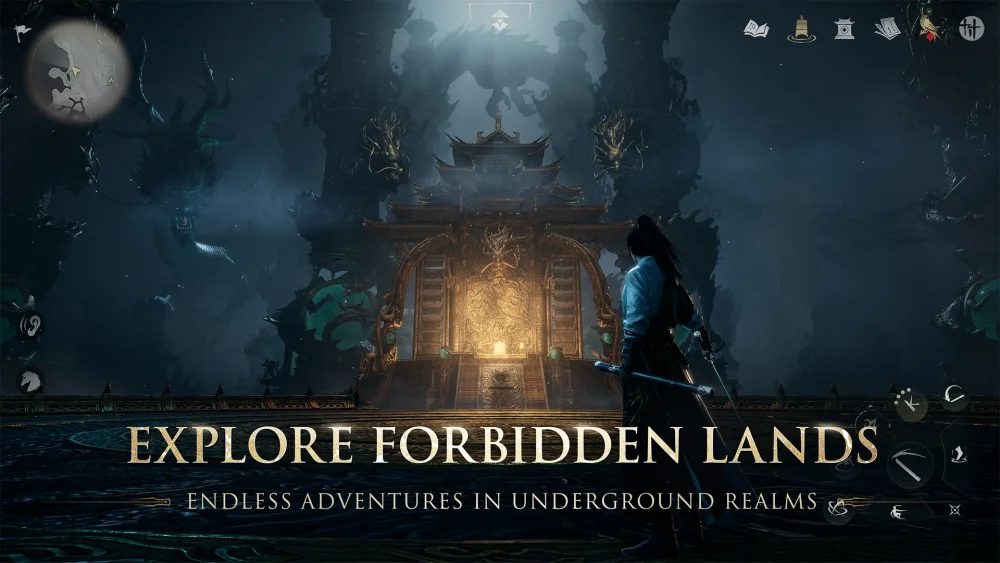
To get the clearest view of incoming attacks and maintain steady control in Where Winds Meet, immediately open your settings menu to widen your camera distance, turn off screen shake, and switch lock-on targeting to your screen center. Default settings place the camera close to your character and automatically jump between targets, which can disorient you during chaotic group fights.
Core Camera and Targeting Adjustments
Adjusting camera and lock-on behavior removes disorienting camera movements and keeps your strikes focused on active threats.
| Setting Option | Default Configuration | Recommended Value | Tactical Benefit |
|---|---|---|---|
| Camera Distance | Medium / Close | Maximum | Expands peripheral vision to track flanking enemies and ranged attacks |
| Screen Shake | Enabled (100%) | Disabled (0%) | Keeps the horizon level during heavy acrobatics, strikes, and deflections |
| Target Priority | Closest Distance | Screen Center / Aim Direction | Directs attacks at the opponent you face rather than nearby minor minions |
| Auto-Switch on Target Defeat | Enabled | Disabled | Stops the camera from whipping toward distant foes when an enemy drops |
| Motion Blur | Enabled | Disabled | Eliminates edge smearing during rapid camera pans to clarify parry windows |
Disabling automatic camera centering is also helpful during traversal and multi-level combat. Centering fights manual camera inputs when navigating vertical terrain or using Qinggong near structures.
Control and Skill Direction Configuration
Beyond camera placement, two control options directly influence how consistently your attacks and defensive reactions land:
- Skill Casting Direction: Set skill execution to follow camera orientation rather than character facing direction. When you backstep or strafe away from an incoming hit, character-facing targeting can cause counterattacks to fire backward into empty space. Camera-oriented casting ensures abilities strike the enemy centered in your view.
- Defensive Keybinds: If playing on mouse and keyboard, bind parry and dodge commands to multi-button mouse thumb switches. This keeps your fingers resting on standard movement and basic attack keys, reducing reaction delay when flashing attack indicators appear.
Graphics Readability and Audio Cues
Fast melee exchanges depend heavily on spotting telegraphs and hearing hit timings. Adjusting visual effects and audio levels keeps those cues readable:
- Turn off Motion Blur: Disabling blur preserves crisp silhouette outlines, making it easier to identify the start of an enemy's wind-up animation.
- Lower Particle and Effect Density: Lowering particle intensity reduces bright energy flares and sword flashes, preventing special effects from masking enemy posture gauges and unblockable attack indicators.
- Prioritize Sound Effects (SFX): Raise sound effect volume relative to background music. Where Winds Meet uses audio chimes for parry windows and distinct wind-up sounds for heavy strikes, giving you an early warning system when foes attack from outside your field of view.
- Lock Mini-Map North: Set the mini-map orientation to a fixed north heading to maintain consistent directional awareness across open-world exploration.
Free Where Winds Meet Codes
Current active codes and how to redeem them.

Sarah Williams
Sarah specializes in RPG and collection games, explaining team building, character growth, and beginner-friendly ways to avoid expensive early mistakes.
COMMUNITY
Player Comments
81 players commented on this guide.
Nice guide. I am checking the other Where Winds Meet articles next.
This helped me understand strategy much better.
The explanation is clear, especially for beginners.
I wish I had read this before upgrading the wrong thing.