
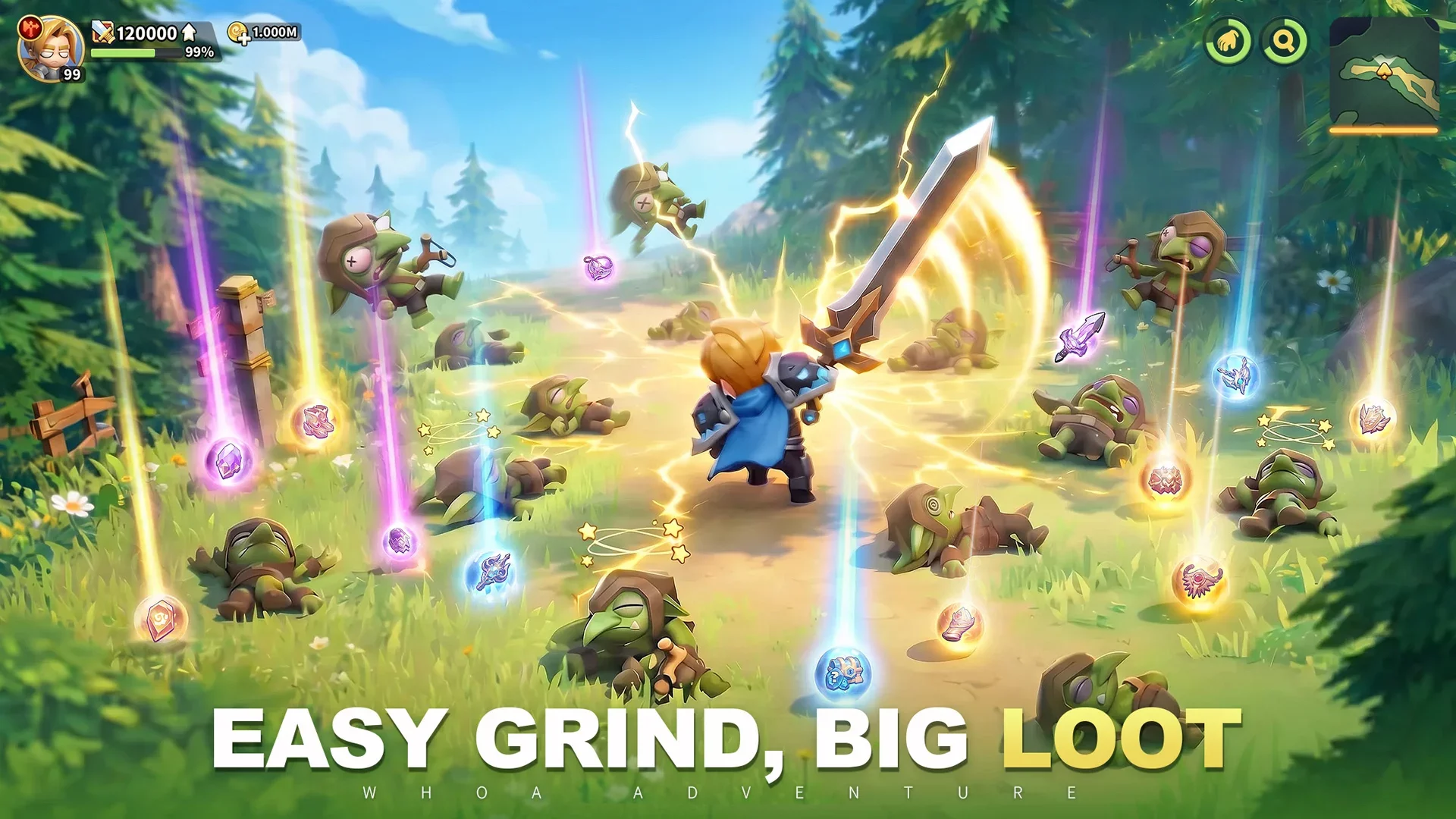
For players jumping into Whoa Adventure, the sheer volume of icons, menus, and notification badges can be overwhelming during the first few hours of play. Mastering the interface early is essential for efficient resource management and preventing missed rewards. This guide breaks down the core menu architecture and how to prioritize your daily navigation.
Understanding the Main HUD
The Whoa Adventure interface is designed to keep you informed of your idle progress while offering quick access to your combat party.
- Top Bar: Displays your primary currencies, including Diamonds and Gold. Always monitor this area for fluctuating resource counts after completing daily tasks.
- Bottom Navigation: This is your command center. It houses your character management, pet party, bag, and shop menus.
- Right-Side Notification Badges: These are critical. Red dots indicate unclaimed rewards or available upgrades. If you see a red dot on your "Hero" or "Pet" icons, address them immediately to ensure your party isn't underpowered for the current stage.
Efficient Menu Navigation
To avoid wasting time, categorize your check-ins into "Combat" and "Maintenance" phases:
| Menu Category | Action Priority | Purpose |
|---|---|---|
| Hero/Party | High | Upgrade levels and equip gear. |
| Pet Menu | Medium | Check for evolution materials or skill upgrades. |
| Bag | Medium | Clear out inventory space and consume upgrade items. |
| Shop/Events | Low | Check for daily freebies or limited-time offers. |
Interface Tips for Smoother Progression
- Don't Ignore the Mailbox: New players often overlook the mailbox in the top corner. Even if you don't receive notifications, check it periodically for system-wide compensation or event rewards.
- Clear the Red Dots: The UI uses red indicators to highlight "bottlenecks"—areas where you have the resources to progress but haven't clicked the button yet. If you are stuck on a boss, clearing these notifications often reveals an unequipped item or a skill upgrade that provides the necessary power boost.
- Use the Quest Tracker: Located on the left side of the screen, the quest tracker is your primary guide for progression. Following these tasks is the fastest way to unlock game features that might otherwise remain hidden in the main menu.
- Manage Your Bag Regularly: Excess loot can clutter your inventory. Use the "Batch" functions if available to sell or dismantle low-tier gear, keeping your inventory lean for high-rarity drops.
Customizing Your View
Whoa Adventure allows for a degree of screen management. If you are playing on a smaller mobile device, prioritize keeping your "Combat" window clear. If you find the UI distracting, focus on the bottom menu tabs rather than the floating event icons on the periphery, which often change based on active server events.
By standardizing your navigation pattern—checking your party stats, then your bag, then your quest log—you will significantly reduce the time spent in menus and increase your actual time spent progressing through the game's various regions.

Free Whoa Adventure Codes
Current active codes and how to redeem them.

James Brown
James focuses on Android gaming on PC, emulator setup, controls, performance tuning, and practical troubleshooting for longer play sessions.
COMMUNITY
Player Comments
102 players commented on this guide.
Good guide for Whoa Adventure players. The strategy part was useful.
The tips are practical and easy to follow.
Can you add more details about strategy in a future update?
This helped me understand strategy much better.