
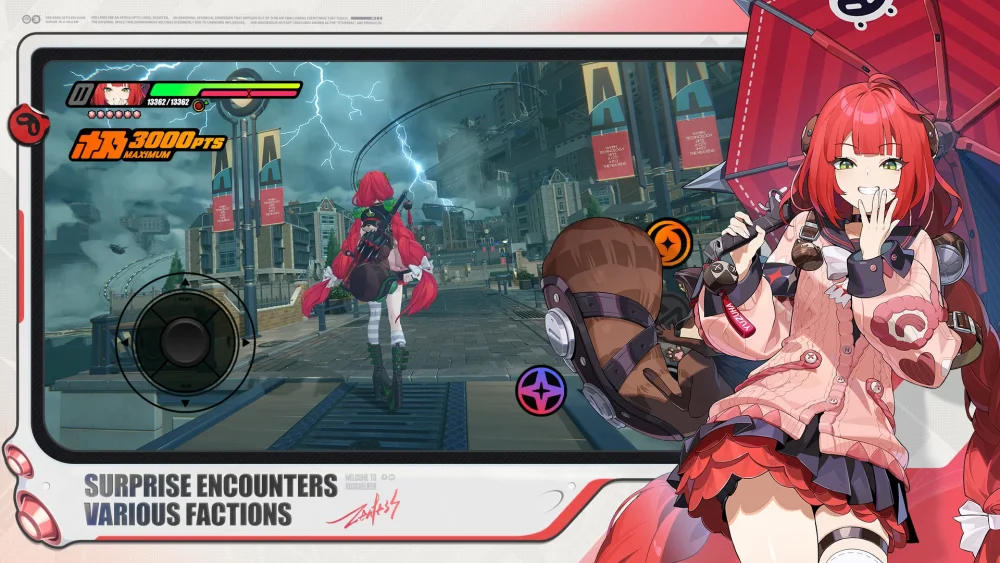
To stabilize your view and react faster in combat, disable automated camera correction, switch target locking to manual toggle, and turn off motion blur. Zenless Zone Zero relies on tight timing for switch parries and evasions, but default settings cause the camera to snap aggressively during high-mobility combos while heavy visual effects obscure enemy attack flashes.
Disable Combat Camera Auto-Tracking
The default camera settings automatically pivot your viewpoint behind whichever enemy you strike and adjust distance based on character movement. During fast dodge counters or multi-agent chain rotations, this automatic swivel jerks your perspective away from off-screen threats and creates blind spots.
Turn off automatic tracking through the following steps:
- Open the Options menu.
- Select the Camera tab.
- Turn off Combat Camera Auto-Rotation.
- Turn off Distance Auto-Adjustment.
Disabling these features gives full directional control back to your right analog stick or mouse. While you must manually adjust the camera during exploration, your perspective remains stable during dodges and counterattacks, making it easier to track aggressive elite enemies.
Switch Target Locking to Manual Toggle
The default targeting system snaps your attacks toward whichever foe is closest to your forward movement. In mixed waves, this often pulls stunners and burst attackers toward minor minions instead of breaking elite shields.
| Target Mode | Recommended Scenario | Primary Advantage | Operational Trade-Off |
|---|---|---|---|
| Manual Lock-On | Elite bosses and single targets | Locks perspective and focuses EX Special Attacks on primary shields | Requires manual unlocking when surrounded by volatile adds |
| Free / Directional Lock | Crowds and swarms of minor minions | Distributes wide cleave attacks across groups using movement input | Can target minor enemies if directional input slips |
Set your Lock-On method to Manual Toggle in the control settings. Lock on manually against dangerous elites or isolated bosses to keep your view centered and ensure all attacks land on the main threat. When clearing large groups of standard enemies, unlock your target to allow wide-cleaving basic combos to hit multiple hostiles without camera restriction.
Adjust Graphics to Clarify Visual Flashes
Defensive reactions depend on split-second visual signals: parryable incoming strikes emit a distinct yellow flash for Defensive Assists, while unparryable heavy strikes glow red, signaling that you must use a standard dodge or Evasive Assist. Post-processing effects can blur these cues during fast combat rotations.
Adjust these display options to improve cue clarity:
- Motion Blur: Set to Off to eliminate visual ghosting during rapid dashes and character switches.
- Bloom & Distortion Effects: Set to Low or Off so bright lighting does not wash out the edges of yellow and red attack flashes.
- Screen Shake: Set to Low to stabilize the frame during heavy impact bursts.
- Frame Rate: Select 60 FPS or higher (or Unlimited on PC) to lower input latency.
Tune Audio and Interface Settings for Assist Cues
Yellow flash attacks are accompanied by a metallic audio chime that triggers slightly before the visual telegraph reaches peak brightness. When off-screen enemies attack, listening for this chime lets you execute a Switch Assist parry without direct line of sight.
Apply these audio and interface adjustments:
- Sound Effects (SFX): Set to 90–100%.
- Background Music (BGM): Lower to 60–70% to keep sound effect cues distinct.
- Damage Numbers: Set to Condensed in interface settings. Detailed damage numbers create floating visual clutter that can hide enemy wind-up animations and obscure your Assist Points gauge.
Calibrate Camera Sensitivity and Input Bindings
Set your horizontal and vertical camera sensitivity between 5 and 7 on standard scaling. Setting sensitivity too low prevents you from tracking enemies that dash across the arena, while setting it too high causes target drift during burst rotations.
Finally, map Dodge and Character Switch to separate, independent buttons or triggers on your controller or keyboard. Keeping these defensive actions distinct prevents accidental character switches when attempting an emergency evasion.
Free Zenless Zone Zero Codes
Current active codes and how to redeem them.

James Brown
James focuses on Android gaming on PC, emulator setup, controls, performance tuning, and practical troubleshooting for longer play sessions.
COMMUNITY
Player Comments
101 players commented on this guide.
This guide answered the exact question I had.
Can you add more details about strategy in a future update?
I tried this today and it worked better than my old setup.
I wish I had read this before upgrading the wrong thing.