
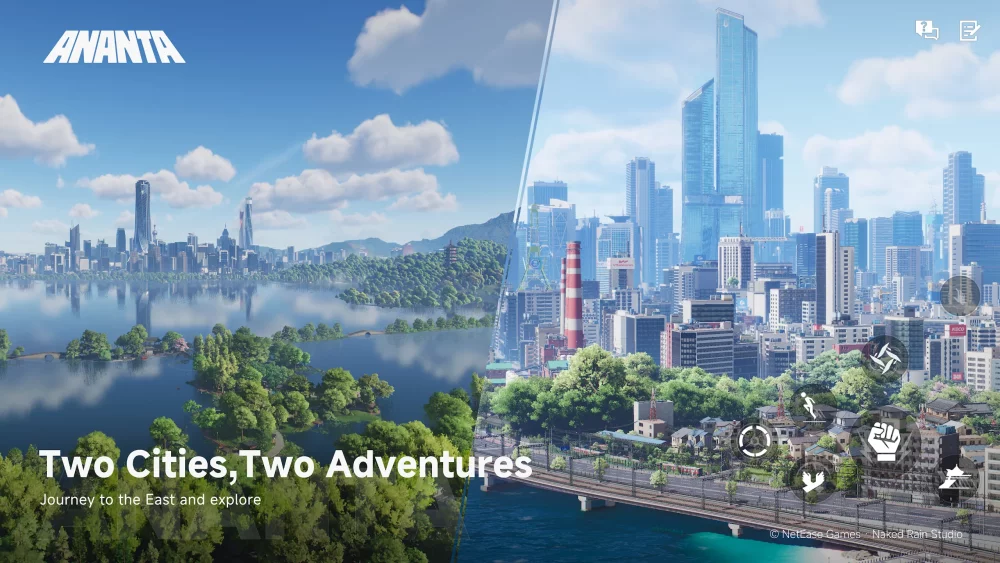
To fix frame drops, stuttering, and thermal throttling in ANANTA, start by establishing a baseline using Native or Balanced resolution scaling before applying heavy visual tweaks. If your system drops frames during active gameplay, locking your frame rate and reducing shadow resolution provides the fastest relief for processing bottlenecks.
Setting Up Baseline Graphics and Upscaling
Before pushing higher graphical presets in ANANTA, test your system's baseline stability in active gameplay rather than static menu screens. High-end upscaling features can mask underlying performance issues while adding GPU overhead.
- Set Scaling to Native or Balanced: Begin with your resolution upscaling mode set to Native or Balanced. Only switch to aggressive performance upscaling presets if your frame rate remains below a playable target.
- Avoid Unsupported Upscaling Versions: Forcing upscaling settings that your GPU does not natively support can cause visual blurriness or ghosting during movement.
- Check Thermal Limits: Test your hardware during active map movement. Stuttering during navigation indicates your system is exceeding its thermal threshold, requiring lower internal render settings.
Resolving Frame Stutters and Streaming Bottlenecks
Map traversal and dense areas place heavy demands on system memory and asset streaming speed. When stuttering occurs during movement, the bottleneck is often linked to system memory or excessive rendering loads rather than raw GPU power.
Use these target adjustments to stabilize performance:
- Lower Shadow Quality: Shadows consume significant processing power. Lowering shadow quality yields the immediate improvement in frame consistency.
- Cap Frame Rate: Limit your frame rate to a stable target, such as 30 or 60 FPS. Capping frames prevents hardware from overheating and prevents sudden thermal throttling.
- Close Background Applications: Shut down memory-heavy background tasks before launching the game to ensure maximum RAM is available for environmental asset streaming.
Managing Post-Patch Graphics Settings
Game updates can introduce unexpected software conflicts with custom configuration files. Whenever ANANTA receives a patch or content update, reset your graphics menu to the Auto or Recommended baseline. Confirm that the game runs smoothly on standard defaults before reapplying manual frame rate caps or custom upscaling preferences.
Free ANANTA Codes
Current active codes and how to redeem them.

James Brown
James focuses on Android gaming on PC, emulator setup, controls, performance tuning, and practical troubleshooting for longer play sessions.
COMMUNITY
Player Comments
32 players commented on this guide.
I tried this today and it worked better than my old setup.
Nice guide. I am checking the other ANANTA articles next.
The tips are practical and easy to follow.
Good guide for ANANTA players. The updates part was useful.