
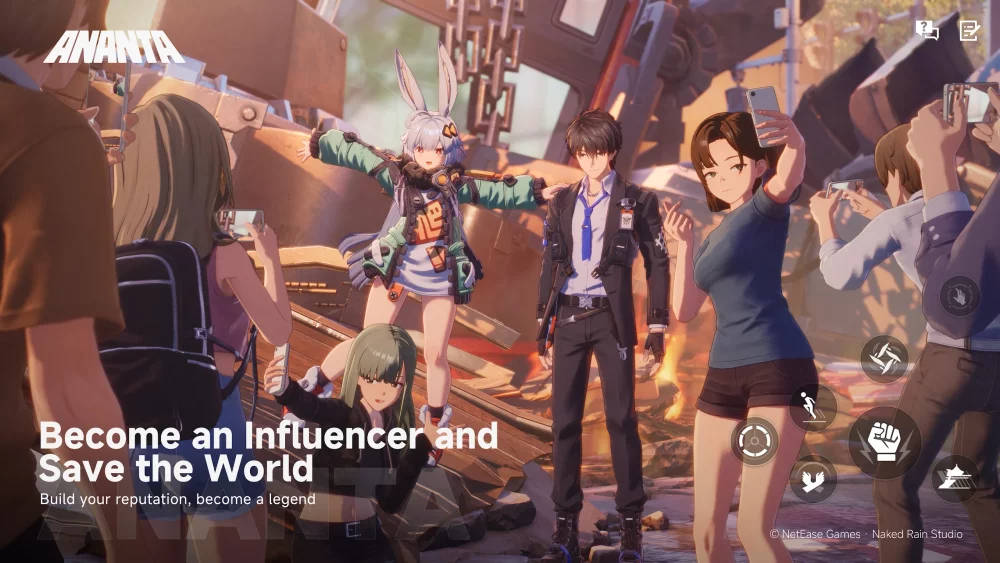
To achieve the best experience in ANANTA during its initial release, players must strike a precise balance between high-fidelity visuals and stable performance metrics. Because ANANTA relies on complex urban geometry and intensive particle-based combat effects, default settings often prioritize spectacle over responsiveness. By adjusting your display resolution, fine-tuning particle density, and managing CPU-bound crowd settings, you can ensure that visual clutter does not impede your ability to track enemy movements or execute precise maneuvers during high-stakes combat scenarios.
Configuring Visual Presets for Competitive Combat
Maximizing your performance in ANANTA begins with understanding how the engine handles its dense urban environments. The game prioritizes high-fidelity geometry, which can lead to significant frame drops if "Ultra" or "High" presets are applied globally. To maintain a competitive edge, players should navigate to the display settings and prioritize lowering global illumination and shadow quality.
While these settings contribute to the game's atmosphere, they are the most taxing on your GPU. For players targeting a consistent 60+ FPS, we recommend the following baseline configuration:
- Global Illumination: Low or Medium
- Shadow Quality: Medium (Essential for identifying tactical layouts without taxing VRAM)
- Texture Quality: High (Assuming you have at least 6GB of VRAM)
- Post-Processing: Low or Off (Reduces visual distortion and chromatic aberration)
- Bloom: Off (Clears up neon-soaked environments, making target silhouettes easier to identify)
By turning off heavy post-processing, you minimize screen blurring, which is vital for spotting small enemy telegraphs against the game's intricate, high-contrast backgrounds.
Implementing Resolution Scaling and Anti-Aliasing
Resolution scaling is your most effective tool for balancing visual sharpness with hardware overhead. If you notice "chugging" or input delay during heavy entity spawns, enabling dynamic resolution scaling allows ANANTA to intelligently adjust pixel count in real-time. This prevents the frame pacing issues often experienced during intense ability rotations.
When selecting an Anti-Aliasing (AA) method, it is crucial to understand the trade-offs:
- FXAA/MSAA: Better for players who prioritize a sharp image. In a game like ANANTA, where detecting minute movement cues across vertical cityscapes is essential, a crisp image is almost always more valuable than perfectly smoothed edges.
- TAA: While TAA provides the smoothest edges, it often introduces a "blurry" look on distant objects. Avoid this if you find yourself struggling to track enemies at long range.
Always test these settings in the game’s training hub before committing to them for longer missions to ensure your system can handle the load during high-intensity combat.
Managing Particle Density and Visual Clutter
ANANTA utilizes an extensive array of particle effects to represent combat impact, supernatural entity movement, and environmental hazards. While visually impressive, these effects can obscure your screen during team-based encounters, potentially masking critical enemy attacks.
Access the "Advanced Graphics" menu and locate the particle density slider. Reducing this setting is a strategic decision: it prevents the screen from becoming cluttered with non-essential sparks or smoke. Additionally, pay attention to these specific settings to improve combat awareness:
- Disable Depth of Field: This setting blurs background objects. Disabling it ensures that distant enemies remain sharp and identifiable.
- Cap Frame Rate: If you have a 60Hz monitor, capping your FPS prevents your GPU from working unnecessarily, which reduces thermal throttling and keeps performance consistent over long sessions.
- V-Sync Toggle: Turn V-Sync off if you are using a G-Sync or FreeSync-compatible monitor. This reduces input latency, which is vital for the timing-based combat mechanics inherent in the game.
Balancing CPU Load and Crowd Density
A common bottleneck in modern simulation-heavy games like ANANTA is the "Density" setting. This determines how many background NPCs and non-essential objects populate the city streets. Because these entities require CPU overhead for pathfinding and logic, players with mid-range CPUs may experience performance dips in densely populated districts.
If you experience stutters while navigating urban hubs, lowering the Crowd Density setting will yield immediate improvements to your minimum frame rates. This does not affect combat difficulty but significantly stabilizes the game's performance in high-traffic zones.
Expert Strategy for Long-Term Optimization
To maintain a competitive edge, treat your technical settings as a living part of your strategy. Before any major mission:
- Update GPU Drivers: New game releases frequently receive "Day One" optimizations from NVIDIA/AMD that specifically address bottlenecks in the lighting engine.
- Monitor Thermal Limits: If your performance degrades after two hours of play, your hardware may be hitting a thermal wall. Use monitoring software to check GPU/CPU temperatures and adjust fan curves if necessary.
- Prioritize Input Latency: In ANANTA, the time between your input and the game’s reaction is paramount. By sacrificing cosmetic flourishes like high-quality shadows and bloom, you gain the visual clarity and input responsiveness required to excel in the game’s most challenging combat scenarios.
By combining these technical tweaks with a disciplined approach to your hardware’s limits, you ensure a fluid experience. This allows you to focus entirely on mastering the intricate combat flow and navigation systems rather than fighting against your own system’s performance limitations.

Free ANANTA Codes
Current active codes and how to redeem them.

Sarah Williams
Sarah specializes in RPG and collection games, explaining team building, character growth, and beginner-friendly ways to avoid expensive early mistakes.
COMMUNITY
Player Comments
36 players commented on this guide.
The tips are practical and easy to follow.
Nice guide. I am checking the other ANANTA articles next.
This guide answered the exact question I had.
I wish I had read this before upgrading the wrong thing.