
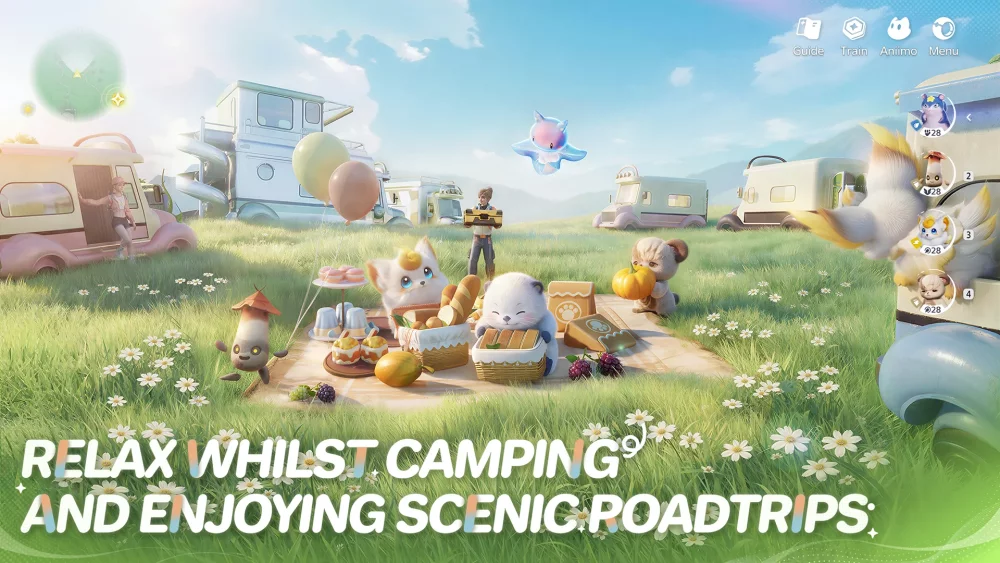
Achieving a smooth, stutter-free experience in the Aniimo beta requires a proactive approach to your technical configuration. Because this early build focuses heavily on showcasing high-fidelity creature models and the expansive, detailed environments of the Idyll continent, optimization is still a work in progress. Players jumping in will quickly find that balancing graphical settings against hardware stability is the key to an enjoyable play session.
By adjusting display parameters and graphics options early on, you can prevent severe frame rate drops during intensive exploration sequences or chaotic creature-catching encounters. This guide breaks down the best settings to tweak, how to manage 4K resolution expectations, and the most effective ways to ensure your journey through Aniimo remains fluid, responsive, and visually stunning.
The Best Graphics Settings for the Aniimo Beta
When you first launch the Aniimo beta, the game may default to graphical settings that heavily favor visual aesthetics over responsiveness. For an open-world creature-catching RPG where precise timing and smooth camera movement matter, a stable 60 FPS (or higher) should be your primary goal.
If you want a baseline configuration that balances the beautiful art style of Idyll with reliable performance, start with these recommended settings:
- Display Mode: Fullscreen (provides the best frame pacing and minimizes input lag).
- Resolution: Your monitor's native resolution (use Render Scaling if performance struggles).
- V-Sync: Off (unless you experience severe screen tearing; capping frames externally is usually better).
- Texture Quality: High (Keep this as high as your GPU's VRAM allows to preserve creature details).
- Shadow Quality: Medium (Shadows are notoriously heavy in the beta; lowering this provides the biggest FPS boost).
- Foliage/Vegetation Density: Medium (Crucial for performance in Idyll's heavily forested biomes).
- Particle Effects: Low to Medium (Prevents major stuttering during combat and elemental attacks).
- Post-Processing: Low (Disabling excessive motion blur and depth of field improves both clarity and performance).
- Volumetric Fog/Lighting: Low (One of the biggest resource hogs in open-world environments).
Starting with this balanced profile ensures you can actually play and test the game comfortably. Once you establish a stable baseline, you can incrementally raise individual settings to see what your specific hardware can handle.
Navigating 4K Resolution and Render Scaling Trade-offs
Many players want to experience the vibrant world of Aniimo in crisp 4K, especially to appreciate the intricate designs and animations of the creatures you collect. However, running an unoptimized beta environment at native 4K places a massive load on even high-end hardware due to the sheer density of environmental assets.
To maintain a consistent experience while playing on a 4K monitor, you must prioritize stable frame rates over absolute maximum visual fidelity. High native resolutions often exacerbate performance bottlenecks, particularly when the engine is loading new zones or rendering multiple complex creature interactions simultaneously.
How to use Render Scaling: If you notice stuttering during travel but want to keep your UI looking sharp on a 4K display, adjusting the Render Scale is the most effective immediate fix.
- Leave your main Display Resolution at 3840x2160 (4K). This ensures that your HUD, quest text, and menus remain perfectly crisp and legible.
- Drop the Render Scale slider to somewhere between 70% and 85%.
- This forces the game to render the 3D world at a lower internal resolution (closer to 1440p) while outputting the 2D user interface at 4K.
This technique reclaims dozens of lost frames without sacrificing the overall readability of the UI, giving you the illusion of a 4K experience with the performance of a much lower resolution.
Optimizing for Creature Encounters and Combat
The core loop of Aniimo revolves around tracking, battling, and catching creatures. These moments are also when your hardware is put under the most stress. Creature interaction zones often feature complex, high-poly animations, detailed fur or scale textures, and sudden bursts of elemental magic that spike GPU usage.
When evaluating your performance, pay close attention to how the game handles the transition from peaceful exploration to active combat. If your frame rate dips the moment a creature unleashes an attack or when you throw a capture device, you need to adjust your Particle Effects and Effect Quality settings.
Elemental attacks—like fire breath, water splashes, or electrical sparks—rely heavily on alpha effects and particle generation. By lowering these specific settings, you ensure that the visual flair of combat doesn't interfere with your ability to react. Input latency is critical when timing a dodge or executing a capture mechanic, and dropping frames at the crucial moment will result in missed opportunities and frustrating gameplay.
Identifying Hardware Bottlenecks During Exploration
Testing the limits of your hardware during the beta is a vital part of the progression experience. As you move through different biomes across Idyll, you will notice variations in how the game engine handles light, geometry, and loading seams. By observing exactly where your system struggles, you can identify which specific display settings need to be modified.
Monitor the following areas to gauge your system's reliability and pinpoint bottlenecks:
- Transition Boundaries: Moving between large map segments or entering dense towns can occasionally trigger loading stutters. This is often a CPU or storage bottleneck. Ensuring Aniimo is installed on a fast NVMe SSD rather than a traditional HDD is mandatory for smooth open-world asset streaming.
- High-Foliage and Forested Areas: If your frame rate tanks when entering a jungle or grassy plain, your GPU is struggling with the geometry of the vegetation. Lowering Foliage Density and Shadow Distance will immediately alleviate this.
- Large Bodies of Water: Water reflections and physics can drain performance. If coastlines or rivers cause lag, look for Water Quality or Screen Space Reflections (SSR) in the settings and turn them down.
- Thermal Throttling: If the game runs perfectly for 20 minutes and then suddenly becomes a choppy mess, your hardware is likely overheating. Cap your frame rate (e.g., at 60 FPS) to prevent your GPU from rendering unnecessary frames and generating excess heat.
Managing Display Fidelity and UI Clarity
Visual settings in the Aniimo beta are designed to highlight the game's unique art style, but the interaction between the user interface and the 3D world is critical for actual gameplay. Navigation, inventory management, and quest tracking all depend on clear text and icon legibility.
If you find that the UI elements appear blurry, misaligned, or difficult to read, you should immediately check your resolution settings. Always prioritize a native resolution setting for your display. If you need better performance, rely on internal render scaling or upscaling technologies (if available in the beta client) rather than changing your desktop or full-screen resolution.
Additionally, consider disabling certain post-processing effects that artificially blur the screen. Motion Blur, Depth of Field, and Chromatic Aberration often consume significant GPU resources without adding core functionality to the user interface. In fact, many players find that turning these features off entirely makes the world of Aniimo look sharper and makes spotting rare creatures in the distance significantly easier.
Optimizing Settings for Long-Term Beta Participation
Because the Aniimo beta is an iterative process, your settings should remain flexible. The developers will likely push hotfixes and patches that alter performance—sometimes improving it, and sometimes introducing new bugs. What works perfectly for a lower-density starting area might cause severe crashes in a bustling player hub or during a late-game, creature-dense quest segment.
Establishing a "balanced" profile that you can revert to after testing higher settings will save you a massive amount of time. Keep a mental note (or a physical screenshot) of your baseline configuration. If a new beta update introduces new environmental assets or lighting engines, you will have a clear reference point for troubleshooting performance regressions.
Ultimately, your goal during the beta is to maintain a consistent visual baseline that allows for comfortable navigation and interaction. Avoid the temptation to push every setting to "Ultra" just to see how the game looks if it results in a slideshow. By prioritizing a steady frame rate and clear visuals, you ensure that you can focus on what actually matters: exploring the vast continent of Idyll, mastering the creature-catching mechanics, and providing valuable gameplay feedback to the developers.

Free Aniimo Codes
Current active codes and how to redeem them.

Sarah Williams
Sarah specializes in RPG and collection games, explaining team building, character growth, and beginner-friendly ways to avoid expensive early mistakes.
COMMUNITY
Player Comments
35 players commented on this guide.
This guide answered the exact question I had.
I wish I had read this before upgrading the wrong thing.
This helped me understand strategy much better.
The tips are practical and easy to follow.