
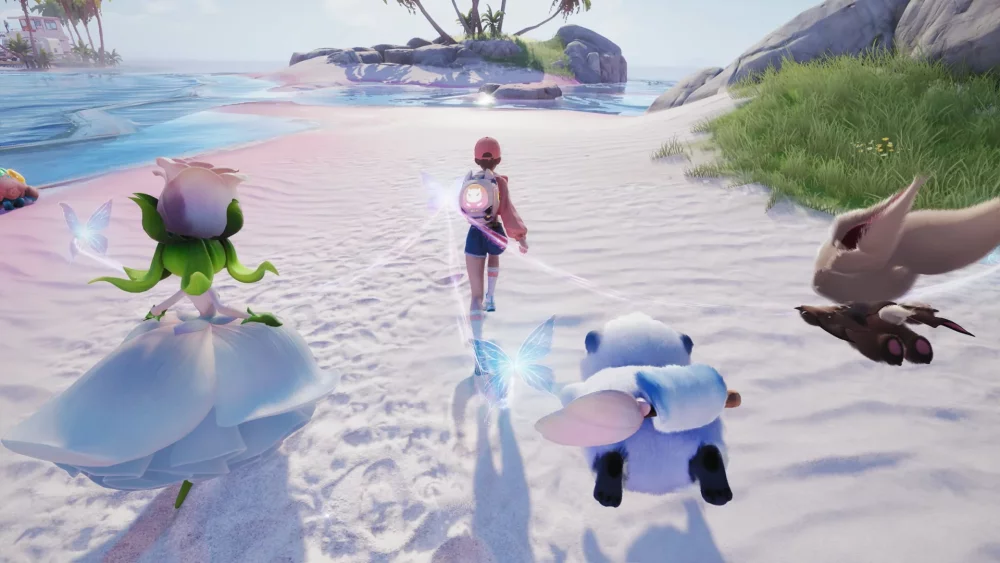
In Aniimo, character creation skin tones appear roughly one to two shades brighter under the character creator’s direct studio lighting than they render in active gameplay. To maintain facial clarity and avoid an overly dark or washed-out look in the open world, pick a preset that is slightly warmer or half a step lighter than your target shade, then contrast it against your hair and clothing colors.
How Overworld Lighting Affects Character Presets
The character creator relies on omnidirectional, high-key studio lighting designed to highlight fine facial geometry. Once you leave character creation and enter open-world environments such as Nimbus Fields, dynamic shaders, weather, and day-night cycles shift your avatar's visible complexion:
- Direct Sunlight: Bright daylight boosts warm undertones, saturating golden, bronze, and tan presets.
- Canopy and Cave Shadows: Dim ambient light deepens mid-tones and dark complexions, causing borderline-dark shades to look substantially darker than they appear in the creator.
- Night Cycles: Low-light gameplay relies on directional rim lighting. Without enough visual contrast between skin and hair, facial features flatten into silhouettes.
If you anticipate spending significant time in shaded forests, dungeons, or night exploration, choose a preset with slightly higher base brightness or warmer undertones to prevent your features from blending together.
Skin Tone Preset Categories
Aniimo uses a fixed palette of curated swatches rather than an unconstrained RGB slider. This fixed system prevents unnatural skin tints and broken surface shaders while providing dedicated undertones across fair, olive, and deep complexions.
| Tone Category | Undertone Profile | Recommended Visual Pairings | Open-World Visibility |
|---|---|---|---|
| Fair to Pale | Cool rose, neutral ivory | Dark, pastel, or vibrant hair; high-contrast armor trims | High visibility in dark zones; prone to glare under intense midday sun. |
| Medium to Olive | Warm golden, neutral bronze | Earth tones, silver, white, and warm primary hair colors | Stable across all weather and light conditions with minimal shifting. |
| Deep to Dark | Rich mahogany, warm espresso | Bright neon, gold accents, white, and light pastel hair | Retains facial contours cleanly; requires lighter hair or gear for low-light clarity. |
Because you cannot manually adjust saturation or brightness values independently of the presets, your final look depends entirely on selecting the closest matching swatch and framing it with contrasting cosmetics.
Balancing Skin Tone with Hair and Outfit Contrast
Third-person exploration and group combat require readable character silhouettes at standard camera distances. Value contrast between your skin, hair, and armor determines how well your avatar stands out:
- Deep Complexions: Avoid pairing dark brown or black hair with dark starting gear. Incorporate white hair, bright highlights, or metallic clothing accents to keep your avatar's head and shoulders clearly defined.
- Pale Complexions: Avoid combining pure white hair with light outfits, as bright sunlight in open fields can wash out your avatar's facial expressions and jawline.
Pre-Finalization Checklist
Cosmetic adjustments after character creation may require dedicated wardrobe menus or in-game currency. Complete these checks before confirming your character build:
- Rotate the camera 360 degrees: Confirm how the creator’s rim light reflects off the jawline, nose bridge, and cheekbones from side angles.
- Cycle starter outfits: Switch between light and dark starter clothing to ensure your skin tone maintains separation against different fabric values.
- Zoom in on facial details: Check that eyebrows, lip tint, and facial markings remain distinct against your selected base tone rather than fading into the skin layer.

Free Aniimo Codes
Current active codes and how to redeem them.

Sarah Williams
Sarah specializes in RPG and collection games, explaining team building, character growth, and beginner-friendly ways to avoid expensive early mistakes.
COMMUNITY
Player Comments
48 players commented on this guide.
I tried this today and it worked better than my old setup.
The explanation is clear, especially for beginners.
Good guide for Aniimo players. The strategy part was useful.
This helped me understand strategy much better.