
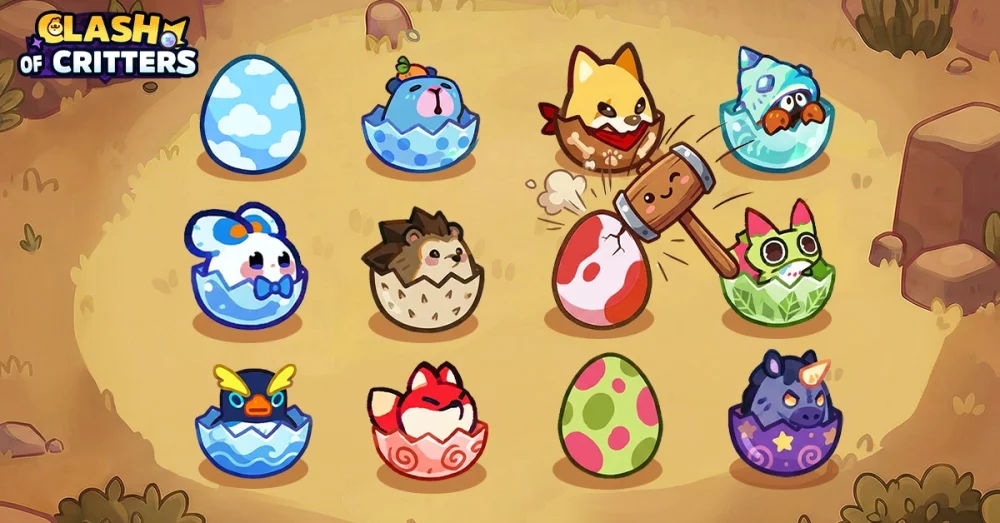
Personalizing your digital presence is a popular way to stand out in the Clash of Critters community, especially when integrating with the broader Roblox ecosystem. Players often look for ways to showcase their unique style while navigating the various challenges and biomes within the game.
Understanding Avatar Integration
In Clash of Critters, your avatar serves as your primary visual identity. Because the game operates within the Roblox platform, your customization options are tied to your global Roblox profile settings. When you equip items or change your look on the main Roblox site, those changes reflect within your character model in the game.
Quick Steps to Update Your Look
To ensure your avatar reflects your preferred style while playing Clash of Critters, follow these standard platform procedures:
- Access the Roblox Avatar Editor: Navigate to the official Roblox website or use the mobile app.
- Select Your Items: Use the "Avatar" tab to equip hats, gear, accessories, or clothing items you have acquired.
- Save Changes: Ensure your modifications are saved to your profile.
- Refresh the Game: If you are currently logged into Clash of Critters, you may need to rejoin the server for the game engine to pull your updated avatar data.
Tips for Avatar Consistency
While customizing, keep these practical points in mind to ensure your character remains functional and recognizable:
- Avoid Overly Large Accessories: In high-intensity combat stages, extremely large or flashy accessories can occasionally obscure your view of the battlefield or make it difficult to monitor your unit’s hitbox.
- Performance Considerations: Extremely high-detail custom items can sometimes impact loading times on lower-end devices. If you experience lag during intense waves, try switching to a simpler avatar configuration.
- Themed Aesthetics: Many players choose to match their avatar’s color palette or theme to their favorite units or Tatari types. Whether you are leaning into an Electric-themed build or a nature-inspired aesthetic, consistent color schemes can help you feel more connected to your current formation.
Troubleshooting Common Display Issues
If your avatar is not showing up correctly within the game, consider the following checklist:
| Issue | Potential Solution |
|---|---|
| Old Avatar Showing | Fully close and restart the Clash of Critters application to force a re-sync. |
| Missing Items | Ensure the items are properly equipped on your main Roblox profile, not just sitting in your inventory. |
| Visual Glitches | Some complex layered clothing may occasionally clip through game-specific armor or items; try equipping simpler base clothing if visual artifacts persist. |
By maintaining a clean and optimized avatar, you can enjoy the social aspects of Clash of Critters while keeping your focus firmly on the tactical challenges that await in the later stages.
Free Clash of Critters Codes
Current active codes and how to redeem them.

Sarah Williams
Sarah specializes in RPG and collection games, explaining team building, character growth, and beginner-friendly ways to avoid expensive early mistakes.
COMMUNITY
Player Comments
152 players commented on this guide.
I tried this today and it worked better than my old setup.
This guide answered the exact question I had.
This saved me time in the early game.
Nice guide. I am checking the other Clash of Critters articles next.