
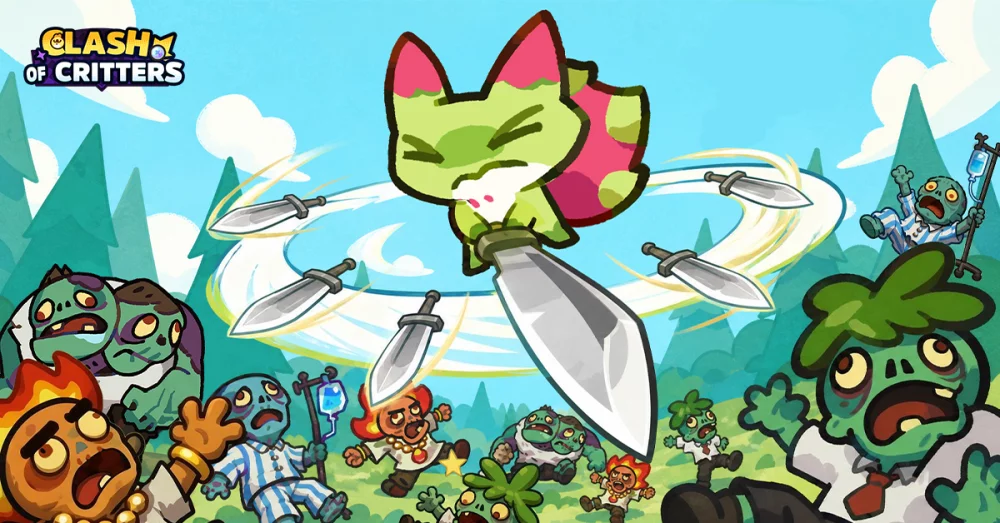
To crush every opponent in Clash of Critters, you must ensure your technical setup is as sharp as your tactical decisions. Running the game on an emulator like BlueStacks requires specific optimizations to prevent input lag and frame drops during intense combat encounters. By fine-tuning your emulator’s resource allocation and display settings, you gain a significant mechanical advantage over players experiencing stuttering or slow reaction times during critical wave clears.
Configuring BlueStacks for Combat Stability
The primary key to dominating in Clash of Critters is maintaining high frame rates during fast-paced battles. When you encounter heavy enemy spawns, the standard emulator settings may struggle, causing critical commands to register slowly.
- CPU and RAM Allocation: Navigate to the BlueStacks "Performance" tab in settings. Assign at least 4 CPU cores and 4GB of RAM to the instance. This prevents memory bottlenecks during long sessions.
- Frame Rate Settings: Enable "High frame rate" in the settings menu. Aim for 60 FPS to ensure your unit placement and special ability triggers are frame-perfect.
- Graphics Engine Mode: Use the "Performance" graphics engine mode with OpenGL or DirectX selected based on your PC's GPU compatibility to keep the rendering load light on your hardware.
Key Mapping for Tactical Precision
Efficiency in Clash of Critters relies on your ability to deploy units and activate abilities instantly. Relying solely on mouse clicks can be slow if you need to manage multiple lanes simultaneously.
- Custom Keybinds: Map your most frequently used unit slots to keys on your keyboard that are easy to reach, such as 1 through 5.
- Macro Usage: If you find yourself performing the same repetitive deployment pattern at the start of every stage, utilize the BlueStacks Macro Recorder. Recording a sequence for standard deployments allows you to focus your attention on responding to enemy movements rather than clicking static buttons.
Managing Instance Performance
Running Clash of Critters on an emulator allows for better visibility and control, but you must keep your instance clean to avoid performance degradation over time.
| Setting | Recommendation | Reason |
|---|---|---|
| Resolution | 1920x1080 | Optimal balance for UI visibility. |
| DPI | 240 DPI | Keeps icons crisp for easier targeting. |
| ASTC Textures | Hardware Decoding | Reduces GPU strain during intense effects. |
Regularly check your BlueStacks instance manager to ensure you aren't running unnecessary background processes that consume system memory. By keeping your emulator environment optimized, you ensure that every tactical decision you make in Clash of Critters is executed without technical interference, helping you maintain a winning streak against even the toughest opponents.

Free Clash of Critters Codes
Current active codes and how to redeem them.

James Brown
James focuses on Android gaming on PC, emulator setup, controls, performance tuning, and practical troubleshooting for longer play sessions.
COMMUNITY
Player Comments
73 players commented on this guide.
This guide answered the exact question I had.
Can you add more details about strategy in a future update?
I tried this today and it worked better than my old setup.
The tips are practical and easy to follow.