
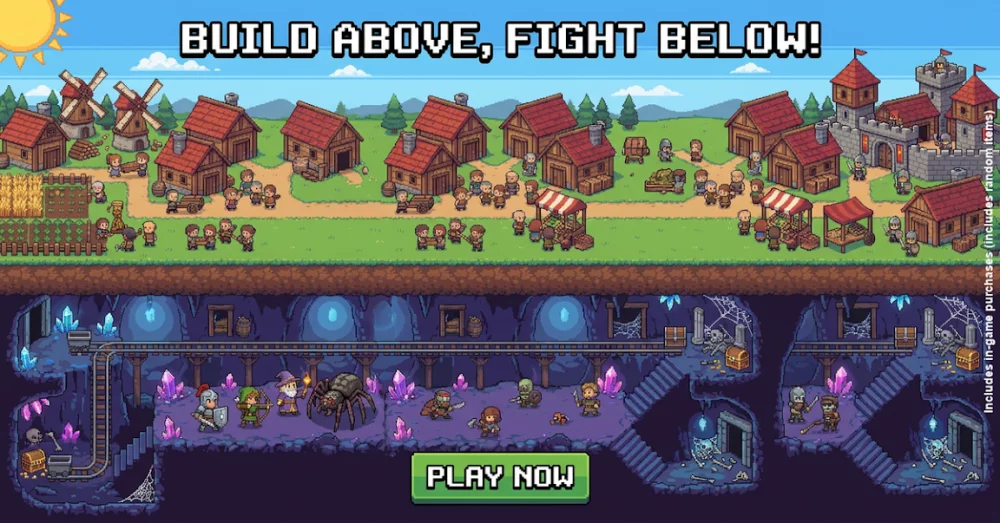
Navigating the interface effectively in Crownstone Survival is essential for managing your resources and character progression without wasting time in menus. By understanding the layout of the HUD and the primary navigation buttons, you can streamline your inventory management and quest tracking during intense sessions. This guide breaks down the core menu elements and how to interact with the screen to maintain peak efficiency while playing on mobile devices.
Understanding the Primary HUD Layout
The heads-up display (HUD) in Crownstone Survival is designed to keep critical survival data visible while minimizing screen clutter. You should prioritize keeping an eye on the top-left and top-right corners of your screen, as these areas house your primary status indicators and currency totals.
- Top-Left Corner: Displays your current level, stamina, and basic character profile access.
- Top-Right Corner: Contains your primary resource counters, including gold and premium currencies.
- Bottom-Right: Features your main action buttons for interacting with the environment, combat, and quick-use items.
- Bottom-Left: Usually reserved for the virtual joystick and movement controls, which remain responsive even during heavy combat encounters.
Efficient Menu Navigation Tips
Accessing your character’s secondary menus quickly is the key to maintaining momentum. Instead of wandering through every tab, memorize the icon locations for the most frequent tasks.
| Menu Section | Primary Function | Best Usage Time |
|---|---|---|
| Inventory | Managing gear and consumables | During downtime or safe zones |
| Quest Log | Tracking active objectives | Between combat encounters |
| Hero Screen | Upgrading abilities and stats | Before starting new chapters |
| Settings | Adjusting graphics and controls | Immediately after initial setup |
Managing Interaction Prompts
Interacting with the world requires precision, especially when multiple objects are clustered together. Crownstone Survival uses dynamic prompts that appear near your character or the object of interest.
- Contextual Buttons: These only appear when you are within range of an interactable object, such as a loot crate or a crafting station.
- Interaction Icons: If an icon appears, tapping it immediately initiates the action without needing to open an additional menu.
- Auto-Pathing: When tracking a quest, look for the highlighted path or the auto-navigation prompt to save time moving between objectives.
Optimizing Screen Controls for Combat
If you find that the UI is obstructing your view during combat, check the settings menu to adjust control sensitivity or UI transparency. Ensuring your fingers do not block the active combat area is vital for avoiding enemy attacks. If you are struggling with accidental button presses, consider remapping your layout if the game version allows, or practicing the specific placement of your movement thumb to keep the action area clear.

Free Crownstone Survival Codes
Current active codes and how to redeem them.

Sarah Williams
Sarah specializes in RPG and collection games, explaining team building, character growth, and beginner-friendly ways to avoid expensive early mistakes.
COMMUNITY
Player Comments
146 players commented on this guide.
The tips are practical and easy to follow.
I wish I had read this before upgrading the wrong thing.
This saved me time in the early game.
Good guide for Crownstone Survival players. The heroes part was useful.