
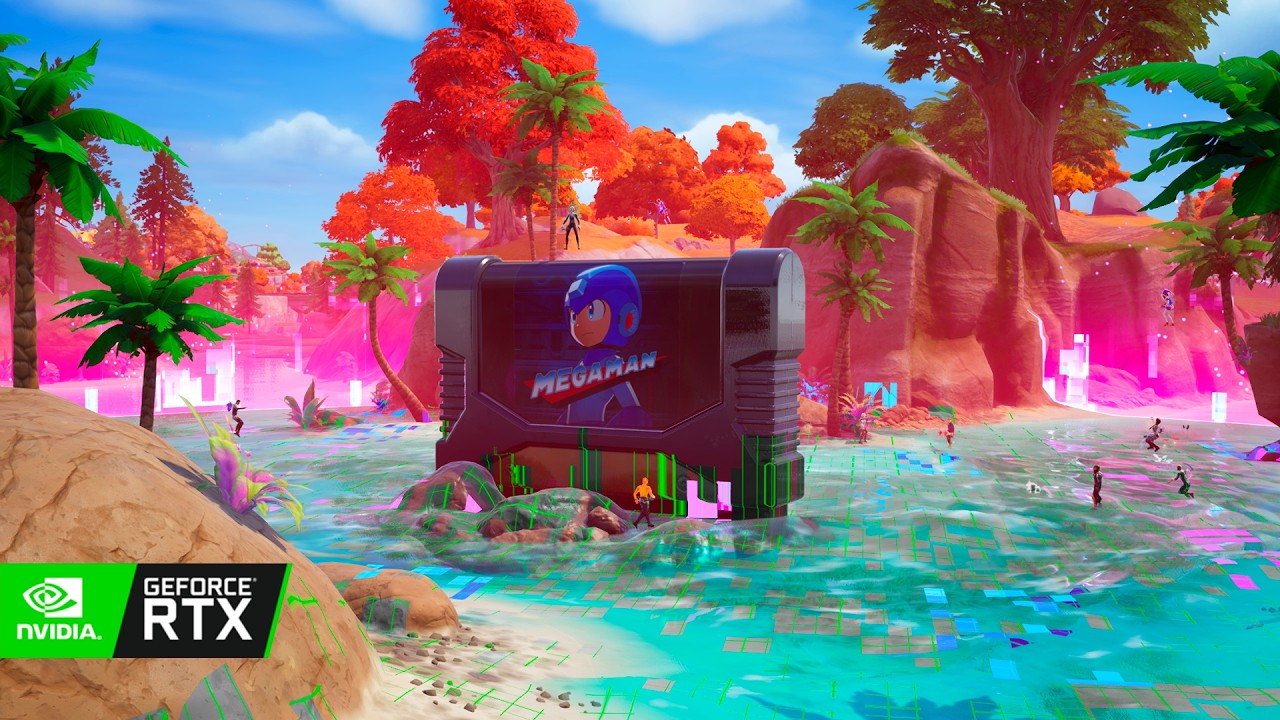
Participating in a Fortnite live event is a unique, one-time experience that often pushes the game engine to its absolute limits. Because these events feature bespoke particle effects, massive environmental shifts, and thousands of players interacting simultaneously, they are significantly more demanding than a standard Battle Royale match. To ensure you don't miss a single frame of the action, you must prioritize system stability over visual fidelity. This guide provides the technical blueprint for preparing your hardware and connection for the next major Fortnite spectacle.
The Performance-First Philosophy: Why Frames Matter
During Fortnite live events, your GPU and CPU are tasked with rendering assets that don't exist in the standard loot pool. When the game triggers a massive cinematic sequence, your system may experience sudden spikes in resource usage.
If you attempt to run the event at 4K resolution with "Epic" settings, your frame rate will likely fluctuate wildly, leading to stuttering during the most important narrative beats. Aim for a consistent 60 FPS rather than high-resolution textures. A steady, fluid frame rate ensures that your input latency remains low and the event’s visual storytelling remains coherent. If you find your frame rate dropping below 60, prioritize these adjustments:
- Shadow Quality: Set to "Low" or "Off." Shadows are the most taxing visual setting and offer the least benefit during cinematic events.
- Global Illumination: Lowering this setting significantly reduces the load on your GPU during high-intensity lighting sequences.
- Resolution Scaling: If you are still seeing frame drops, lower your 3D resolution scaling to 90% or 85%. This provides a massive performance boost with minimal impact on overall image clarity.
Activating Performance Mode for Maximum Stability
For players on mid-range or aging hardware, "Performance Mode" is the gold standard for Fortnite live events. This mode strips away complex geometry and non-essential lighting effects, allowing the game engine to focus entirely on the event’s core mechanics.
To enable this, navigate to your Video Settings in the game menu, scroll to the Advanced Graphics section, and select Performance - Lower Graphical Fidelity. Restart your game to apply the changes. By sacrificing some aesthetic polish, you ensure the highest possible probability of a smooth, uninterrupted experience from start to finish.
Hardware Management and Thermal Control
Large-scale events cause your PC or console to run hotter than usual due to the sustained load. To avoid thermal throttling—where your system intentionally slows down to prevent overheating—take these proactive steps:
- Clear Background Processes: Close web browsers, Discord overlays, and streaming software. Even if these apps seem idle, they consume RAM and CPU cycles that your computer needs to sync with the Fortnite server.
- Driver Updates: Ensure your GPU drivers (NVIDIA/AMD) are up to date. Developers often release driver patches specifically to optimize for the latest Fortnite update and its associated events.
- Temperature Check: If you are on a laptop or a desktop with poor airflow, ensure your fans are unobstructed. If your hardware thermal throttles, you will experience sudden, massive frame drops regardless of your in-game settings.
Strategic Timing: Avoiding the Server Login Queue
The most common mistake players make is trying to log in five minutes before the event starts. During major Fortnite events, player concurrency hits all-time highs, which can lead to login queues, connection timeouts, or "Server Full" errors.
- The 30-Minute Rule: Log into the game at least 30 to 45 minutes before the scheduled start time.
- Stay in the Lobby: Once you are in, avoid jumping into high-intensity matches. Instead, stay in the lobby or enter a low-population Creative map. This keeps your game client stable and connected without forcing your computer to process the high-data traffic of a full Battle Royale lobby.
- The Countdown: If the game provides a specific "Event" playlist, join it exactly when it becomes available. These specialized playlists are designed to handle the load better than the standard modes.
Troubleshooting Connectivity During the Event
Live events are server-side occurrences. If you experience "rubber-banding" or visual lag, it is almost always a network issue rather than a graphical one.
- Use Ethernet: Never rely on Wi-Fi for a major live event. A wired connection offers the stability required to maintain a sync with the server.
- Don't Restart: If the event appears to freeze, do not close the game. Closing the client will force you to the back of the login queue, and you will almost certainly miss the remainder of the event. Wait for the server to resync.
- Audio Sync: If the audio cuts out, it is often a sign of server strain. Keep the game running; the audio usually resumes once the server stabilizes the data stream.
Post-Event Analysis and Replay Strategy
Once the event concludes, the map often changes permanently. You should use the Fortnite Replay Mode to capture the event from multiple angles. Since you were likely focused on surviving or just watching the spectacle, you may have missed environmental details or lore hints embedded in the background.
Reviewing your replay allows you to:
- Spot Map Changes: Identify new POIs or altered terrain layouts before the rest of the player base.
- Analyze Lore: Look for subtle visual clues that hint at the next season’s theme.
- Content Creation: Capture high-quality cinematic shots for your own content, as the built-in replay tool allows you to manipulate camera angles that you couldn't access during the live, frantic moments of the event.
By preparing your hardware, optimizing your settings for performance, and managing your connection, you turn a potential technical headache into a seamless, immersive experience that lets you enjoy Fortnite exactly as the developers intended.
Free Fortnite Codes
Current active codes and how to redeem them.

Sarah Williams
Sarah specializes in RPG and collection games, explaining team building, character growth, and beginner-friendly ways to avoid expensive early mistakes.
COMMUNITY
Player Comments
117 players commented on this guide.
The explanation is clear, especially for beginners.
This helped me understand updates much better.
Nice guide. I am checking the other Fortnite articles next.
This saved me time in the early game.