
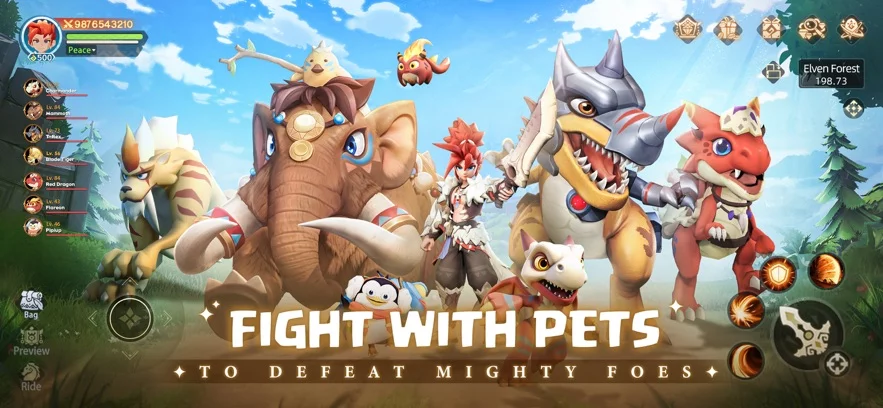
Managing your digital wallet is essential for players looking to progress efficiently in Huntopia. Whether you are aiming to unlock premium resources, speed up your upgrades, or acquire exclusive items, understanding the top-up process is the first step toward optimizing your account.
This guide covers the practical steps for topping up your Huntopia account using MyCard, ensuring you can manage your transactions securely and efficiently.
Why Use MyCard for Huntopia?
MyCard is a widely used payment platform for many mobile titles in the region. For Huntopia players, utilizing this service provides a standardized way to handle currency transactions. Using a dedicated payment portal often simplifies the process of tracking your spending and ensures that your credits are applied correctly to your character account.
Step-by-Step Top-Up Process
To successfully add currency to your Huntopia account, follow these general steps:
- Access the Official Portal: Navigate to the official Huntopia top-up page. Always ensure you are using the official URL provided by the developers or the authorized MyCard landing page to avoid third-party scams.
- Select Your Server and Character: Input your correct server information and character ID. Double-check these details, as transactions are typically non-refundable and tied to the specific account ID you provide.
- Choose Your Payment Method: Within the MyCard interface, select your preferred payment method. MyCard supports various options, including credit cards, bank transfers, and prepaid cards.
- Enter Card Information: If using a MyCard point card, enter the card number and password accurately. If using an online payment method, follow the prompts provided by your financial institution.
- Confirm the Transaction: Once the payment is processed, return to the Huntopia main screen. Credits usually appear in your in-game wallet almost immediately.
Troubleshooting Common Top-Up Issues
If your currency does not appear in your account after a few minutes, follow these troubleshooting tips:
- Wait for Sync: During peak hours, servers may take a few minutes to sync the transaction. Log out and log back into the game to force a refresh.
- Check Transaction History: Verify your email or bank statement to confirm the transaction was marked as "Successful" or "Completed."
- Verify Account Details: Ensure you did not accidentally top up an account on a different server.
- Contact Support: If the currency has not arrived after an hour, contact the official Huntopia customer support team. Have your Transaction ID (from the MyCard receipt) and your Character ID ready to expedite the process.
Security Best Practices
When dealing with digital payments, your account security should be a top priority. Keep these tips in mind:
| Security Tip | Why It Matters |
|---|---|
| Use Official Channels Only | Prevents phishing and account theft. |
| Never Share Your Password | No official support representative will ever ask for your game password. |
| Keep Receipts | Proof of purchase is required if you ever need to dispute a missing transaction. |
| Enable 2FA | If your game account is linked to a social or email platform, ensure Two-Factor Authentication is active. |
By following these procedures, you ensure that your investment in Huntopia is handled safely, allowing you to focus on your progression and character development without payment-related disruptions.
Free Huntopia Codes
Current active codes and how to redeem them.

Sarah Williams
Sarah specializes in RPG and collection games, explaining team building, character growth, and beginner-friendly ways to avoid expensive early mistakes.
COMMUNITY
Player Comments
97 players commented on this guide.
The explanation is clear, especially for beginners.
This saved me time in the early game.
I tried this today and it worked better than my old setup.
This guide answered the exact question I had.