
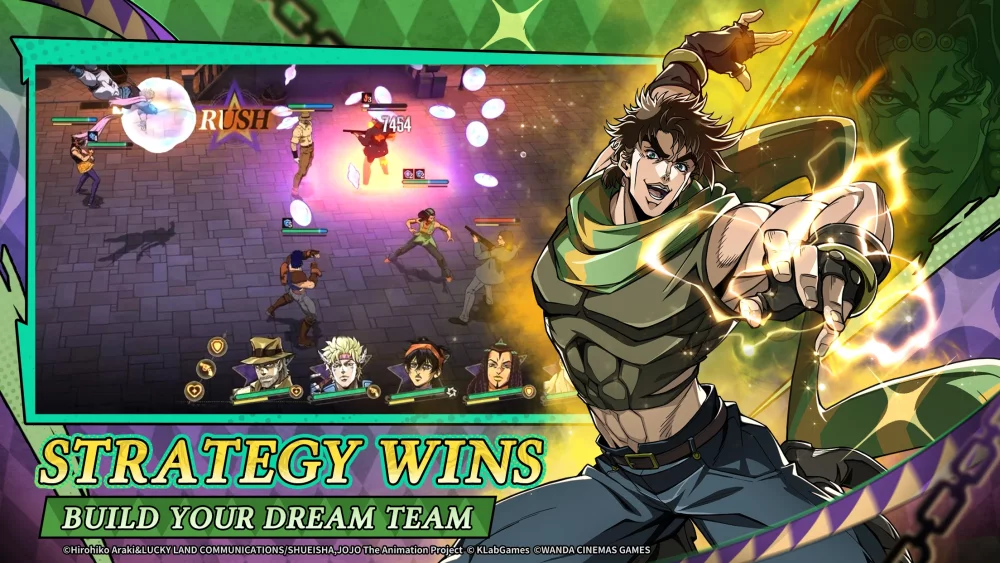
To achieve peak efficiency in JoJo's Bizarre Adventure: GS, players must master the specific layout of the combat interface and the responsiveness of character inputs. Understanding how the screen presents critical data—such as ability cooldowns, Stand status, and health bars—is the first step toward executing complex combos under pressure. This guide breaks down the visual hierarchy of the screen and explains how to interpret the UI elements to maintain total control during high-intensity battles.
Understanding the Combat UI Hierarchy
The combat interface in JoJo's Bizarre Adventure: GS is designed to prioritize rapid information processing. By keeping your eyes on the central and lower regions of the screen, you can track both your offensive potential and defensive status simultaneously.
- Central Status Cluster: Displays current character health and Stand energy levels. Keep this in your peripheral vision to monitor when your Stand is ready for a specialized ability.
- Command Input Zone (Lower Right): This is the heart of your offensive strategy. The buttons are mapped to standard attacks, unique Stand abilities, and ultimate cinematic finishers.
- Targeting Indicator: Positioned above the enemy, this UI element changes color or shape to signal when an opponent is vulnerable to a counter-attack or a break-state combo.
Optimizing Input Responsiveness
Input delay can be a major factor in competitive matches. To ensure your commands are executed with frame-perfect precision, focus on the following tactical adjustments regarding your touch-screen interaction:
- Anchor Your Thumbs: Maintain a consistent grip on the lower corners of your device. This reduces the distance your thumbs need to travel to hit the ability cooldown icons.
- Anticipate Cooldowns: Do not wait for the ability icon to light up. Watch the circular progress bar around the icon; as it nears completion, prepare your thumb for the input to minimize the latency between availability and activation.
- Gesture Consistency: Certain abilities require specific directional swipes. Practice these in the training suite to ensure the game registers your intended move, as erratic swipes can lead to accidental basic attacks instead of specialized Stand strikes.
Interface Layout Table
| UI Element | Primary Purpose | Tactical Priority |
|---|---|---|
| Health Bar | Survival monitoring | High |
| Stand Meter | Ability activation | Critical |
| Ability Icons | Executing combos | Critical |
| Enemy HP/Status | Identifying weaknesses | Medium |
| Input Feedback | Confirming successful hits | Medium |
By aligning your visual focus with these UI zones, you can reduce the mental load during combat, allowing you to react instinctively to your opponent's movements rather than hunting for buttons on the screen. Always prioritize the input zone during high-stakes exchanges to ensure your character performs the intended move without interruption.

Free JoJo's Bizarre Adventure: GS Codes
Current active codes and how to redeem them.

James Brown
James focuses on Android gaming on PC, emulator setup, controls, performance tuning, and practical troubleshooting for longer play sessions.
COMMUNITY
Player Comments
34 players commented on this guide.
I wish I had read this before upgrading the wrong thing.
I tried this today and it worked better than my old setup.
This guide answered the exact question I had.
The tips are practical and easy to follow.