
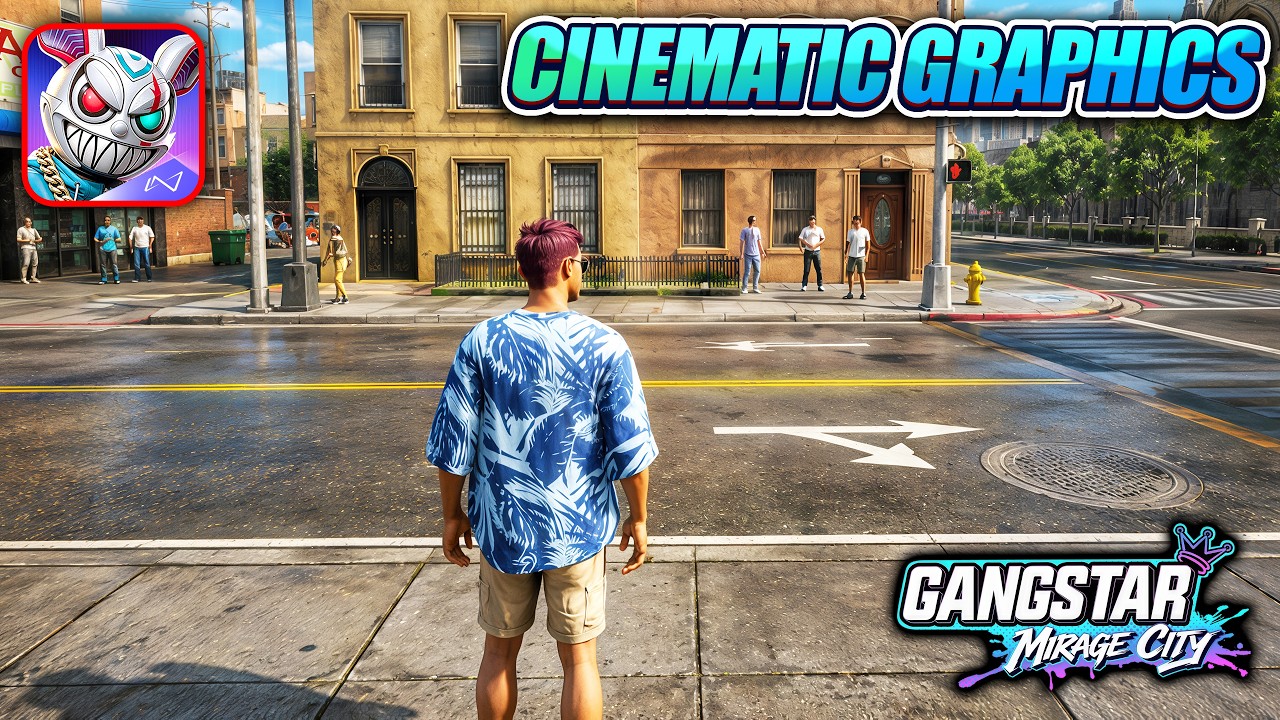

To achieve the best visual experience in Gangstar Mirage City, players must strike a precise balance between the game’s ambitious cinematic engine and the thermal limitations of modern mobile hardware. As an open-world action RPG, the game demands high processing power to render its detailed cityscapes, real-time reflections, and complex lighting. Whether you are playing on a flagship device like the iPhone 16 Pro Max or a mid-range Android phone, optimizing your settings is the key to maintaining a fluid, immersive experience.
Understanding the Graphics Engine Mechanics
Gangstar Mirage City utilizes a sophisticated graphics pipeline that emphasizes dynamic lighting and high-density geometry. The game’s "cinematic" feel is largely derived from its use of screen-space reflections (SSR) and advanced shadow mapping.
When you navigate the streets of Mirage City, the game engine is constantly streaming high-resolution assets to keep the urban environment sharp. Unlike static mobile games, this open-world sandbox requires the GPU to process not just your immediate surroundings, but a vast distance of architecture and traffic. Understanding that your device must manage these calculations in real-time is the first step toward effective optimization.
Step-by-Step Graphics Calibration
To find your "sweet spot" for performance, follow these steps to configure your display settings:
- Start with the Preset: Begin by setting the game to "High" or "Ultra" to see how your device handles the baseline load.
- Adjust Resolution Scaling: If you experience frame drops, lower the resolution scale slightly before touching texture quality. This maintains the sharpness of assets while significantly reducing the load on your GPU.
- Tweak Shadow Quality: Shadows are the most GPU-intensive feature. If you notice stuttering during high-speed chases, drop shadows from "Ultra" to "High." The difference is often negligible in motion but provides a massive boost to frame stability.
- Manage Draw Distance: In an open-world game, draw distance dictates how much of the city is rendered at once. If you are playing on a device that tends to overheat, lowering this setting reduces the number of assets the CPU needs to track.
- Enable/Disable Bloom and Post-Processing: While these effects make the game look "cinematic," they can cause blurriness or performance dips. Toggle these off if you prefer a sharper, more responsive combat experience.
Strategic Optimization for Combat and Traversal
Combat encounters in Gangstar Mirage City rely on fluid character animations and responsive controls. To ensure your combat remains competitive and visually satisfying, prioritize "Effects Quality." This setting controls the intensity of explosions, muzzle flashes, and environmental destruction.
During intense missions, particle effects can clutter the screen and drop your frame rate. If you find yourself struggling to track enemies during a firefight, set "Effects Quality" to "Medium." This keeps the combat readable without sacrificing the overall look of the character models or the city environment. For traversal, keeping "Texture Filtering" high is essential; it ensures that the ground and building surfaces don’t look blurry when you are driving at high speeds.
Managing Thermal Throttling and Battery Life
One of the most common issues in high-fidelity mobile gaming is thermal throttling. When your device gets too hot, the internal chipset automatically slows down to prevent damage, causing your frame rate to plummet regardless of your in-game settings.
- Avoid Charging While Playing: Charging your phone generates significant heat. If possible, play on a full battery to keep the device cooler.
- Remove Heavy Cases: Thick protective cases act as insulators, trapping heat against the phone’s chassis. Remove your case during long gaming sessions.
- Use External Cooling: For dedicated players, a clip-on mobile phone cooler is an excellent investment. By keeping the rear of the device cool, you prevent the frame rate drops that occur when the game engine tries to compensate for heat.
- Background Cache Management: Close all other background applications before launching Gangstar Mirage City. Freeing up your RAM allows the game to stream assets more efficiently, reducing the likelihood of "pop-in" or stuttering.
Advanced Visual Tweaks: The Cinematic Edge
If your device is powerful enough to handle the highest settings, you can push the cinematic potential of Gangstar Mirage City further:
- HUD Customization: Enter the settings menu and check for options to hide HUD elements. Playing without the mini-map or health bars provides an unparalleled, movie-like experience for exploration and recording gameplay.
- Time-of-Day Observation: Test your settings during both day and night cycles. Nighttime, with its neon lights and complex reflections, is the ultimate test for your settings. If you experience "ghosting" or frame drops at night, it is a clear indicator that your reflection settings are too high for your current hardware.
- Camera Sensitivity: Adjust your camera sensitivity to be slightly lower for cinematic traversal. This creates smoother panning motions that mimic professional camera work, making your gameplay footage look more professional.
Summary of Optimization Decisions
| Setting | Performance Impact | Visual Impact | Recommendation |
|---|---|---|---|
| Shadow Quality | High | High | Keep at "High" for best balance. |
| Texture Quality | Medium | High | Keep at "Ultra" if RAM permits. |
| Resolution Scale | Very High | Very High | Lower this first if frames drop. |
| Particle Effects | Medium | Medium | Lower during combat heavy sessions. |
| Draw Distance | High | Medium | Lower for thermal stability. |
By systematically adjusting these settings and managing your device's physical temperature, you can ensure that Gangstar Mirage City remains both a visual spectacle and a responsive, high-performance experience. Remember that the best settings are those that provide a consistent frame rate, as a smooth 60 FPS (or even a stable 30 FPS) is always superior to a stuttering high-resolution image.

Sarah Williams
Sarah specializes in RPG and collection games, explaining team building, character growth, and beginner-friendly ways to avoid expensive early mistakes.
COMMUNITY
Player Comments
93 players commented on this guide.
Can you add more details about strategy in a future update?
I tried this today and it worked better than my old setup.
I wish I had read this before upgrading the wrong thing.
Good guide for HOT players. The strategy part was useful.