

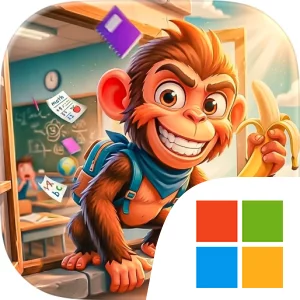
Play Monkey School Chaos Prank Game on Windows PC
Download the official Monkey School Chaos Prank Game Windows PC client and learn how to install and play the game on PC, with controls, system requirements, and practical tips.

Download Monkey School Chaos Prank Game Official Windows PC Client
Official Windows PC client provided by LDPlayer.
About the Official Monkey School Chaos Prank Game PC Client
Developer: Uzair Arshad
The core gameplay loop is straightforward but depends on careful timing. First, explore the school environment and read the layout of the area around you. Classrooms may offer enclosed spaces and interactive objects, hallways can create routes between different parts of the school, and playgrounds provide another kind of open setting in which to look for opportunities. Once you have a sense of where you are and what can be used, move into position, trigger the prank, and react to the unpredictable outcome. Every level is described as bringing its own creative challenges, interactive objects, and surprises, so success comes from testing the environment and adjusting your approach rather than treating every encounter exactly the same way. Avoiding detection is just as important as causing the intended distraction: a prank is only useful if the monkey can get away from the consequences. On PC, the larger display helps you read the school’s spaces at a glance, making it easier to distinguish classroom entrances, hallway routes, playground openings, and potential hiding or approach paths before you commit to an action. Keyboard-and-mouse controls are also well suited to the game’s moment-to-moment precision. Keyboard movement can help you guide the disguised monkey through tight routes or quickly retreat after a prank, while the mouse can make selecting and examining interactive objects more direct. That combination is especially useful when you need to scan an area, choose the right object, and act before the situation changes. The result is a game centered on exploration, stealth, and playful problem-solving: move through the school, study each level’s possibilities, use the environment to create comic disruptions, and stay one step ahead of anyone who might catch the monkey in the act.
Screenshots
How to Download and Install the Official Monkey School Chaos Prank Game PC Client
- Download and install the official Windows client distributed by LDPlayer.
- Open the app and sign in with your Google Play account.
- Search for Monkey School Chaos Prank Game in the app store.
- Install the game and finish the first-launch download.
- Use the same game login if account sync is available.
Why Play Monkey School Chaos Prank Game on PC?
Menus, maps, resources, and combat details are easier to read on a desktop display.
Keyboard and mouse input makes repeated actions and long sessions more comfortable.
Desktop play avoids phone battery drain during longer farming sessions.
Keep guides, codes, and notes open alongside the game on PC.
Controls and Performance
These three settings solve most common issues when playing on PC.
Map navigation, skill use, and repeated resource actions first.
Lower resolution or graphics quality if crowded scenes lose frames.
Link your account before switching devices so progress can be restored safely.
Monkey School Chaos Prank Game Official PC Client FAQ
Can I play Monkey School Chaos Prank Game on PC?
Yes. Download the official Windows PC client distributed by LDPlayer and play with a larger screen, keyboard, and mouse controls.
Is Monkey School Chaos Prank Game better on PC than mobile?
Playing on PC can make longer sessions, detailed menus, and resource management more comfortable, while mobile is still convenient for quick check-ins.
Will my Monkey School Chaos Prank Game progress sync on PC?
Progress depends on the sign-in options supported by the game. Use the same linked Google, Facebook, Apple, or game account on both devices.
Why does Monkey School Chaos Prank Game lag on PC?
Lag can be caused by limited RAM, demanding graphics settings, outdated client files, or background apps. Lower the graphics settings and keep the PC client up to date.
DOWNLOAD STARTED
Your download is starting
Check your browser Downloads if it does not appear.
Official PC client for Windows, distributed by LDPlayer.
Download again