
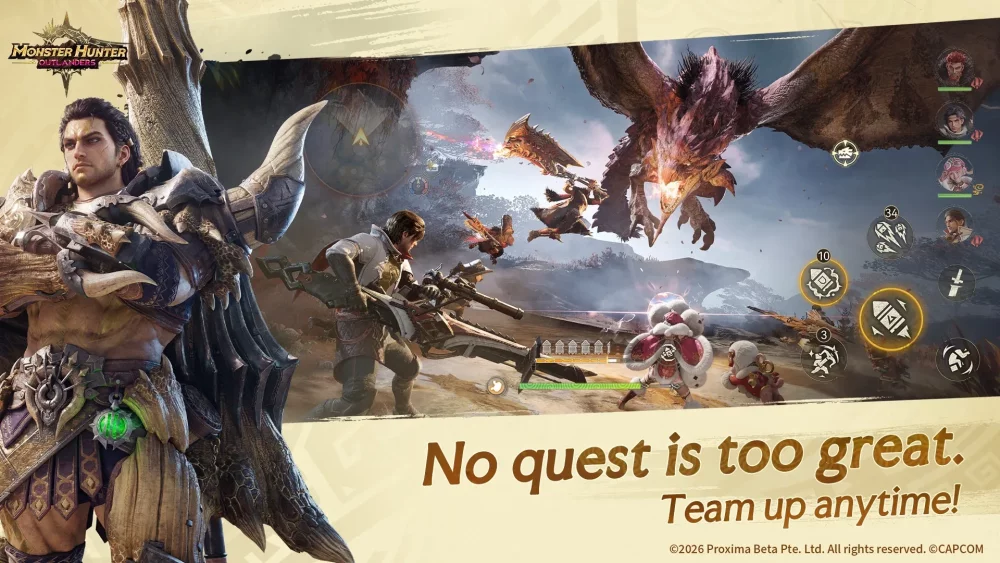
To use a physical controller in Monster Hunter Outlanders, connect your gamepad to your iOS or Android device through system settings before opening the game. Pre-pairing ensures the client detects the hardware input mode at startup instead of defaulting strictly to the on-screen touch overlay.
Connecting and Pairing Your Controller
Monster Hunter Outlanders supports standard Bluetooth gamepads and direct mobile clamp devices. Establish your connection at the system level first. If you pair a controller while the game is already open, the engine may fail to register hardware inputs during combat or hub navigation. If inputs do not register, shut down the app completely and restart it with the controller powered on and connected.
| Controller Type | Connection Method | Key Advantage | Hardware Consideration |
|---|---|---|---|
| Xbox Wireless / DualSense | Bluetooth | Standard grip ergonomics and trigger resistance | Requires a separate phone stand or mount clip |
| Mobile Clamp (Backbone / Kishi) | Direct USB-C / Lightning | Direct connection without wireless latency | Thick device cases can prevent complete port insertion |
| Third-Party Gamepads | Bluetooth HID Mode | Wide platform availability | Must support standard X-input protocols |
Combat Action Button Layout
Using a physical controller binds core hunting actions to tactile switches, freeing your screen from visual obstruction while keeping your thumbs positioned for camera movement and evasion.
- Movement: Left analog stick controls hunter movement, allowing directional micro-adjustments around monster hitboxes.
- Camera Orientation: Right analog stick handles 360-degree camera rotation.
- Primary Attack and Combos: Bound to the primary face button (Square on PlayStation / X on Xbox).
- Evade and Dash Roll: Assigned to the bottom face button (Cross / A) for rapid defensive maneuvers.
- Special Action and Weapon Skills: Mapped to the right shoulder button or right trigger (R1/R2 or RB/RT), allowing you to hold weapon skills without lifting your thumb from camera orientation.
- Aim-Down-Sights (ADS): Held with the left trigger (L2 or LT) to raise the aiming reticle for ranged weapons.
Heavy Bowgun Aiming and Sensitivity Calibration
Ranged weapons, especially the Heavy Bowgun, rely heavily on analog sticks for smooth tracking across monster weak points. Touchscreen swipe gestures can lead to erratic reticle jumps, making sensitivity calibration in the settings menu necessary.
- Set standard camera sensitivity higher: Increase general camera turn speed so you can track sudden monster leaps, charges, or aerial repositioning.
- Lower ADS sensitivity: Reduce aim sensitivity roughly 15% to 20% below your standard camera speed. This lower threshold stabilizes your crosshairs, preventing over-aiming when locking ammunition clusters onto heads, wings, or elemental break zones.
Managing Touch-Only Menus
During testing phases, controller integration primarily applies to active field combat and navigation. User interface screens do not feature full digital directional pad support.
Keep your mobile device within reach for touch inputs outside of hunts. Menu screens—including inventory management, gear crafting benches, event reward claims, and banner menus—require direct taps on your screen. Once your hunter loads into the field environment, switch back to the gamepad for real-time movement and weapon controls.
Free Monster Hunter Outlanders Codes
Current active codes and how to redeem them.

Sarah Williams
Sarah specializes in RPG and collection games, explaining team building, character growth, and beginner-friendly ways to avoid expensive early mistakes.
COMMUNITY
Player Comments
146 players commented on this guide.
This helped me understand strategy much better.
This guide answered the exact question I had.
Nice guide. I am checking the other Monster Hunter Outlanders articles next.
I tried this today and it worked better than my old setup.