
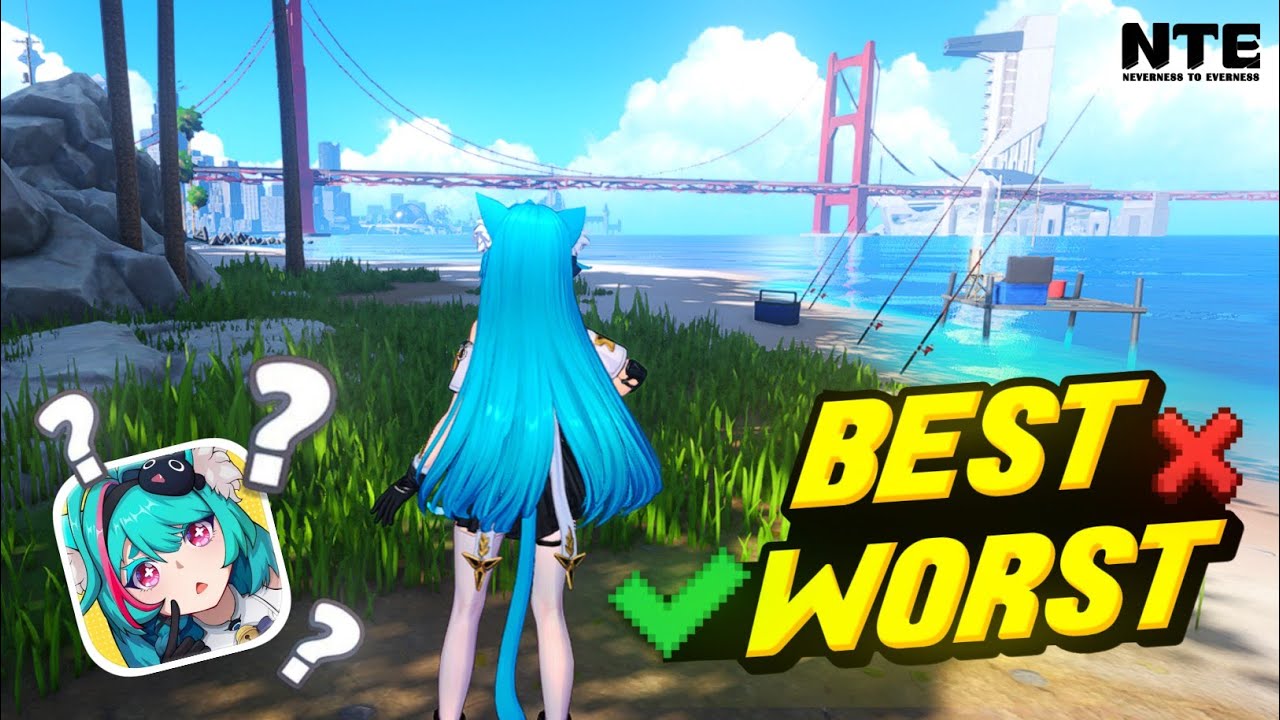
NTE: Neverness to Everness is an ambitious, visually dense open-world RPG that pushes modern mobile hardware to its limits. Because the game features high-fidelity assets and complex neon-lit urban environments, the default "Auto" settings often fail to account for the unique thermal and processing constraints of individual mobile devices. To ensure a smooth experience during high-stakes Anomaly commissions and open-world traversal, players must prioritize manual optimization.
By adjusting your graphical profile, you can shift the balance from a stutter-prone "Ultra" experience to a stable, fluid, and responsive gameplay session. This guide details how to configure your settings, manage thermal throttling, and ensure your device remains capable of handling the supernatural mysteries of Hethereau.
Assessing Performance Hurdles in Hethereau
The primary technical challenge in NTE: Neverness to Everness is the game’s rendering engine, which is optimized for high-end visuals. When you first step into the city of Hethereau, the density of NPC models, dynamic lighting effects, and volumetric fog creates a heavy load on both the GPU and CPU.
When you first launch the game, do not immediately head into combat. Spend your first few minutes moving through the urban center. If you experience "micro-stuttering" (small, frequent hitches in movement) or input lag when triggering abilities, your hardware is likely struggling with the default graphical overhead. Recognizing these signs early is crucial; playing through performance bottlenecks can lead to missed dodge windows and failed combat rotations.
Step-by-Step Graphical Optimization
The "Auto" preset in NTE: Neverness to Everness often errs on the side of visual fidelity over performance. To achieve a stable frame rate, you must manually override these settings:
- Navigate to Settings: Open the main menu, go to "Settings," and select the "Graphics" tab.
- Resolution Scaling: If you are experiencing drops, set this to 720p or 900p. Reducing the internal render resolution is the single most effective way to lower GPU strain without significantly impacting the look of the UI.
- Frame Rate Cap: If your device cannot maintain a locked 60 FPS, set the frame rate limit to 45 or 30 FPS. A consistent 30 FPS provides a better, more predictable combat experience than a fluctuating 40–55 FPS.
- Shadows and Bloom: Lower "Shadow Quality" to Medium. Bloom and post-processing effects often cause the most noticeable frame rate dips in the glowing city streets of Hethereau.
- Disable Motion Blur: Motion blur can mask frame pacing issues but often contributes to visual fatigue and input latency. Turning it off improves clarity during fast-paced combat.
Managing Thermal Throttling and Battery Life
NTE: Neverness to Everness is a "heavy" app that will naturally generate significant heat. Most mobile devices utilize thermal throttling to protect internal components; when the chip gets too hot, the system automatically slows down processing speed, causing your frame rate to plummet during gameplay.
- Avoid Charging While Playing: Charging your device generates its own heat. Combining this with the game’s processing load creates a "thermal runaway" scenario. Play on a full battery rather than while plugged into a wall.
- Use a Mobile Cooler: If you are a dedicated player, investing in a clip-on mobile cooling fan can physically dissipate heat from the back of your device, allowing it to maintain higher performance for longer sessions.
- Ventilation is Key: Avoid playing on soft surfaces like beds or couches, which trap heat. Using a hard, flat surface allows your device to dissipate heat more efficiently.
- The "Reset" Rule: If your device becomes uncomfortably hot, take a 5–10 minute break. This not only protects your battery’s long-term health but allows the processor to cool down, resetting your performance baseline for the next session.
UI Responsiveness and Input Latency
In NTE: Neverness to Everness, combat requires precise timing. When your device is struggling to render complex environments, the touch-screen interface may exhibit "ghost touches" or input delay. This is often an indicator that the CPU is overwhelmed.
If you find that your character isn't reacting to your inputs, follow these steps:
- Simplify the Scene: Lower the "Crowd Density" or "View Distance" settings if available. This reduces the number of background calculations your device must perform.
- Clear Background Apps: Close all other background applications before launching the game to ensure the entirety of your device’s RAM is dedicated to NTE: Neverness to Everness.
- Test in Combat: After making changes, enter a combat instance or a dense area of Hethereau. If the input feels "snappy" and responsive, you have found the right balance between visual quality and performance.
Expert Strategies for Long-Term Stability
To keep your gameplay experience consistent as you progress deeper into the story, keep these expert tips in mind:
- Monitor Update Patches: Game developers often push optimization patches. After a significant update, your custom settings might reset or behave differently. Always check your graphics menu after a major game patch.
- Prioritize Stability Over Visuals: While Hethereau is a beautiful city, NTE: Neverness to Everness is fundamentally a combat-driven RPG. High settings might look great in screenshots, but a steady 60 FPS (or 45 FPS) will always result in a higher win rate and a more enjoyable experience.
- Device-Specific Adjustments: Not all mobile devices are created equal. If you are using a mid-range device, do not be afraid to set all graphical sliders to "Low." Modern mobile games are designed to look impressive even at low settings through high-quality textures and art direction; you lose very little by sacrificing post-processing effects for a smooth frame rate.
By following these optimizations, you ensure that your device remains a reliable tool for exploring the supernatural mysteries of NTE: Neverness to Everness. Remember, the best settings are the ones that allow you to react to the game’s challenges without being hindered by hardware limitations.

Free NTE: Neverness to Everness Codes
Current active codes and how to redeem them.

Emily Johnson
Emily writes practical mobile strategy guides with a focus on resource planning, base progression, and the early decisions that shape a long-term account.
COMMUNITY
Player Comments
40 players commented on this guide.
Nice guide. I am checking the other NTE: Neverness to Everness articles next.
I tried this today and it worked better than my old setup.
The tips are practical and easy to follow.
I wish I had read this before upgrading the wrong thing.