

Download Pop Epoch Official Windows PC Client
Official Windows PC client provided by LDPlayer.
About the Official Pop Epoch PC Client
Developer: Nexwave Tech Limited
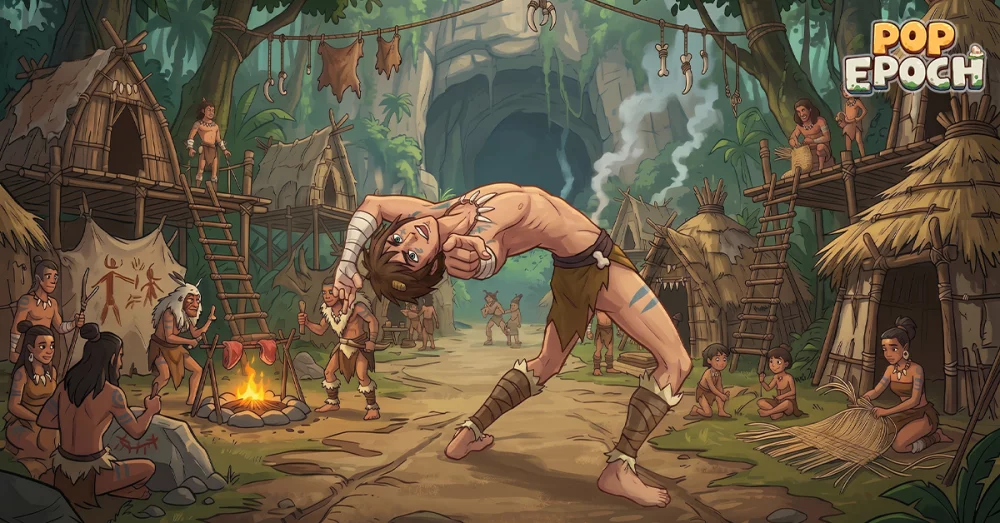
The strategy broadens as Pop Epoch introduces notable figures and military forces into the same long-term plan. Archimedes, Shakespeare, Joan of Arc, and Socrates are among the iconic personalities you can encounter, and forging alliances with them lets you harness their unique skills and wisdom. These figures provide another layer to the progression system, giving your decisions an emphasis beyond raw production or technological advancement. At the same time, a formidable military remains central to maintaining progress. You command infantry, cavalry, and other forces to defend your realm, conquer foes, and preserve its dominance across time, so expansion and protection must be considered alongside research and resource management. On PC, the larger display is especially useful when you are weighing several parts of that plan at once: keeping the needs of production and industrial expansion in view while considering research priorities, military readiness, and the next stage of your epoch. Keyboard-and-mouse input also suits the game’s deliberate decision-making, making it easier to select construction or production choices, review strategic options, and issue commands to infantry and cavalry with precise pointer control. Those advantages matter during repeated management actions as well as moments when an approaching conflict demands a quick shift from economic planning to defense. Whether you are developing a primitive tribe, pursuing groundbreaking technology, arranging alliances with historical legends, or committing forces to conquer rivals, the core loop is a continual effort to turn limited resources and carefully chosen innovations into lasting historical momentum.
Screenshots
How to Download and Install the Official Pop Epoch PC Client
- Download and install the official Windows client distributed by LDPlayer.
- Open the app and sign in with your Google Play account.
- Search for Pop Epoch in the app store.
- Install the game and finish the first-launch download.
- Use the same game login if account sync is available.
Why Play Pop Epoch on PC?
Menus, maps, resources, and combat details are easier to read on a desktop display.
Keyboard and mouse input makes repeated actions and long sessions more comfortable.
Desktop play avoids phone battery drain during longer farming sessions.
Keep guides, codes, and notes open alongside the game on PC.
Controls and Performance
These three settings solve most common issues when playing on PC.
Map navigation, skill use, and repeated resource actions first.
Lower resolution or graphics quality if crowded scenes lose frames.
Link your account before switching devices so progress can be restored safely.
Pop Epoch Official PC Client FAQ
Can I play Pop Epoch on PC?
Yes. Download the official Windows PC client distributed by LDPlayer and play with a larger screen, keyboard, and mouse controls.
Is Pop Epoch better on PC than mobile?
Playing on PC can make longer sessions, detailed menus, and resource management more comfortable, while mobile is still convenient for quick check-ins.
Will my Pop Epoch progress sync on PC?
Progress depends on the sign-in options supported by the game. Use the same linked Google, Facebook, Apple, or game account on both devices.
Why does Pop Epoch lag on PC?
Lag can be caused by limited RAM, demanding graphics settings, outdated client files, or background apps. Lower the graphics settings and keep the PC client up to date.
DOWNLOAD STARTED
Your download is starting
Check your browser Downloads if it does not appear.
Official PC client for Windows, distributed by LDPlayer.
Download again