
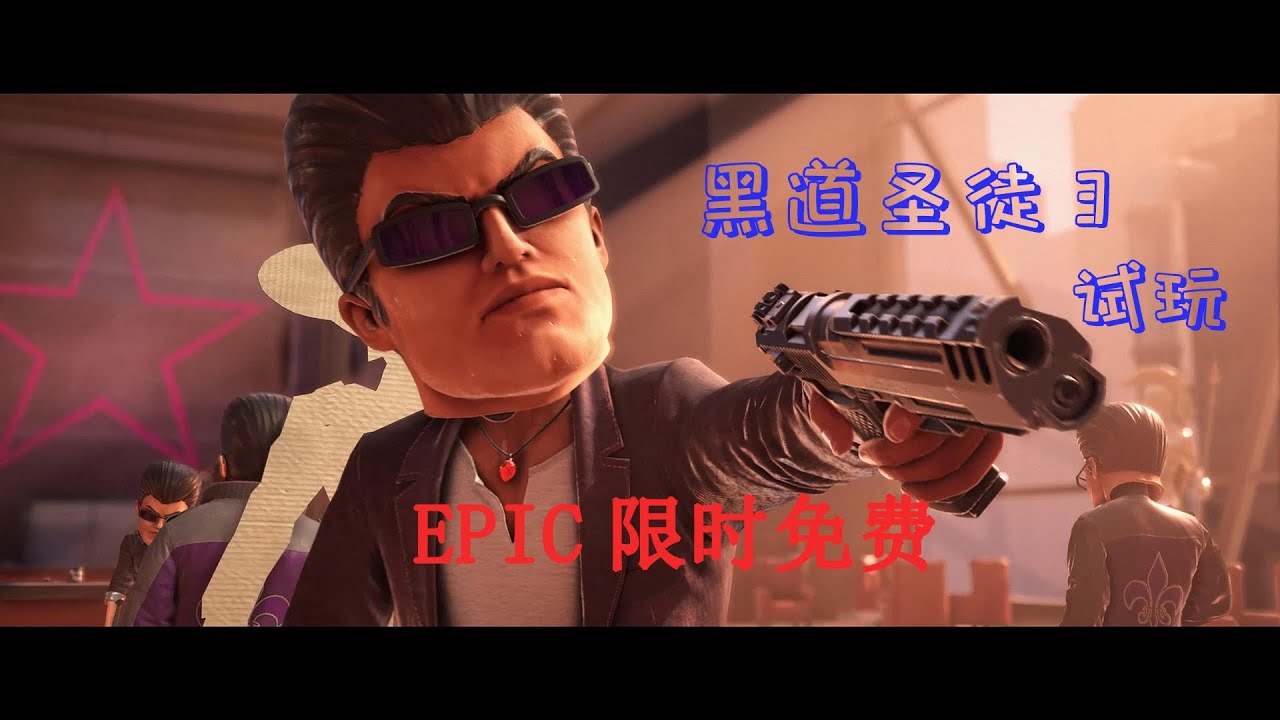
To achieve maximum visual fidelity in Saints Row: The Third, set your display resolution to 3840x2160 (4K) in the Display menu and turn all core graphics options to their highest available preset. If high-density firefights or heavy street traffic cause frame rate instability, lower resource-heavy post-processing options before reducing your base resolution.
Setting Display Resolution to 4K
- Open the game options and navigate to the Display menu.
- Change your native resolution output to 3840x2160.
- Confirm the selection to clean up jagged edges across character models, vehicles, and background geometry.
- If your display hardware encounters severe frame rate drops at native 4K, enable a dynamic resolution scaler (if supported by your hardware) to maintain performance without dropping base screen output.
Configuring Graphical Presets and Key Settings
To utilize enhanced global illumination, shadow casting, and high-detail character assets, adjust options within the graphics menu:
- Overall Preset: Set the master graphical preset to Maximum or Ultra.
- Shadow Quality & Ambient Occlusion: Keep these on their highest values to maximize environmental depth and light interaction across street facades and dark alleyways.
- Texture Quality: Set to Ultra to display high-resolution textures on character clothing, skins, and vehicle wraps.
Note on System Memory: Running textures at Ultra requires sufficient VRAM. If you experience stuttering or delayed asset rendering while driving quickly between city districts, lower Texture Quality by one step to free up memory while retaining ambient lighting quality.
| Setting | Targeted Value | Impact & Priority |
|---|---|---|
| Resolution | 3840x2160 | Highest baseline impact on sharpness; foundation for visual setup. |
| Graphics Preset | Maximum / Ultra | Enables full lighting engine, shadow casting, and asset detail. |
| Shadow Quality | Ultra / High | High GPU load; primary target to drop slightly for better combat stability. |
| Ambient Occlusion | Max | Enhances visual depth; minor-to-moderate performance impact. |
| Texture Quality | Ultra | High VRAM usage; lower if stutter occurs when moving across city districts. |
| Motion Blur & Depth of Field | Low / Off | Stylistic post-processing; disable first to gain performance with zero asset quality loss. |
| Anti-Aliasing | Medium / High | Cleans remaining edge artifacts; trim down to gain extra frames. |
Balancing Performance for Combat and Driving
When high-intensity action causes screen stutter, follow this optimization order to recover frame rates without degrading overall geometric detail:
- Turn off or lower Motion Blur and Depth of Field: These post-processing effects consume system resources without adding geometric clarity. Disabling them improves responsiveness in combat.
- Reduce Anti-Aliasing: Lowering AA settings yields immediate frame rate gains while maintaining native 4K sharp edges.
- Scale back Shadow Quality: Reduce shadow casting from Ultra to High if intense traffic or heavy explosions drop frame rates during missions.
- Lower Output Resolution: Drop display resolution below 3840x2160 only as a final resort if framerates remain unstable after tweaking post-processing and shadow settings.

Free Saints Row: The Third Codes
Current active codes and how to redeem them.

Michael Smith
Michael covers live-service games, events, reward systems, and efficient daily routines, turning frequent updates into clear actions for players.
COMMUNITY
Player Comments
49 players commented on this guide.
The tips are practical and easy to follow.
This guide answered the exact question I had.
Good guide for Saints Row: The Third players. The strategy part was useful.
This saved me time in the early game.