
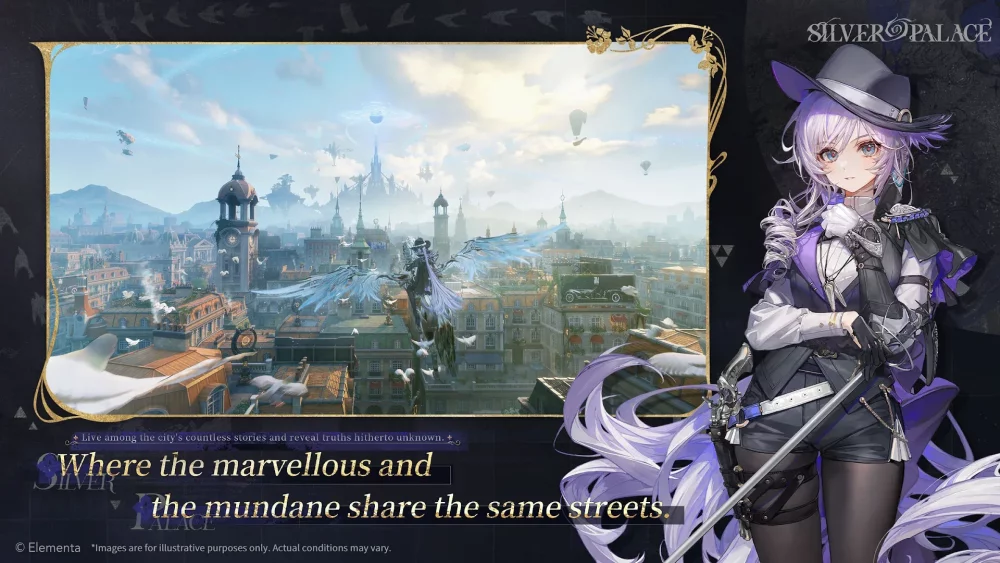
To master SilverPalace, you must first navigate its dense interface and optimize your settings to match the high-fidelity anime-style open world. By adjusting your audio-visual configuration and familiarizing yourself with the primary menu structure early, you can reduce visual clutter and improve your reaction time during intense combat segments. This guide focuses on the essential settings required to streamline your progression and ensure your UI supports your playstyle during the current Closed Beta Test.
Essential Settings for Visual Clarity
The visual presentation in SilverPalace is highly detailed, but default settings often prioritize cinematic flair over competitive performance. Navigating the settings menu allows players to toggle post-processing effects and resolution scaling, which are critical for maintaining a stable frame rate during rapid traversal. High-density environments in the game often feature complex lighting and particle effects that can obscure navigation markers; reducing these elements in the graphics tab helps maintain clear sightlines across the urban landscape.
Adjusting your field of view (FOV) and camera sensitivity is the first step toward effective exploration. In the settings menu, players can fine-tune camera tracking to prevent disorientation during fast-paced vertical movement. If you find the camera struggles to keep up with your character during combat encounters, increasing the sensitivity—but capping the acceleration—will allow for smoother transitions when pivoting to target enemies or searching for hidden objectives within the map.
Navigating the Primary HUD and Menus
Understanding the layout of the primary menu is vital for rapid resource management and hero deployment. The interface is designed to house critical information such as inventory, character growth screens, and the quest log, all accessible via the main HUD. Learning the hotkeys or the specific menu path to reach your character screen ensures you can apply upgrades, equip items, or adjust skill sets without spending unnecessary time navigating through multiple sub-menus during active missions.
Efficiency in SilverPalace is tied to how quickly you can access the "Identity" or "Team" menus. Players should customize their quick-access bar to prioritize the most frequently used functions, such as inventory management or map navigation. By organizing these elements, you can monitor your current character status and mission objectives at a glance, allowing you to react to changing combat conditions or environmental puzzles without pausing the immersion of the open world.
Optimizing Audio Cues for Combat Strategy
Audio design in SilverPalace serves as more than just an aesthetic layer; it provides essential cues that signal incoming enemy attacks and environmental shifts. Accessing the audio settings allows you to balance master volume against specific sound effects, which is crucial for hearing subtle audio indicators during boss battles. If you rely on sound to time your parries or identify off-screen threats, prioritizing "Effect Volume" over background music is a standard optimization strategy used by high-level players.
Furthermore, checking your audio output settings ensures that spatial awareness is maintained. In an open-world setting, spatial audio is key to identifying the direction of enemy footsteps or dialogue triggers in crowded areas. Players should verify that their audio device settings match their hardware configuration, as incorrect channel mapping can lead to missed cues during investigative sequences or high-speed traversal, effectively limiting your ability to react to potential ambushes or interactive world events.
Managing Performance During Beta Progression
As SilverPalace is currently in its Closed Beta phase, performance stability may vary based on your hardware. The settings menu provides a "Performance" toggle that monitors real-time usage metrics. Using this to identify frame drops during heavy combat—such as when multiple hero abilities are triggered simultaneously—is a proactive way to avoid input lag. If you experience stutters, lowering the shadow detail or texture filtering via the graphics menu is the most effective way to restore fluidity without sacrificing key visual clarity.
Trade-offs are inevitable when balancing graphical fidelity against performance. While high settings provide the intended visual experience, they may tax your system during intensive boss encounters or crowded urban areas. Players should prioritize a consistent frame rate over visual flair, as the mechanical precision required for the game’s combat systems demands immediate responsiveness. Regularly checking for updates in the settings menu will also ensure you remain compatible with the latest beta patches, which frequently optimize performance for diverse system configurations.
Advanced UI Customization and Shortcuts
Once you have the core performance and audio settings dialed in, take the time to explore the advanced UI customization options within SilverPalace. Many players overlook the ability to toggle specific HUD elements on or off. If you are a veteran player who prefers a cleaner screen, disabling non-essential mission trackers or secondary combat text can significantly reduce visual noise.
Additionally, master the controller or keyboard mapping menu early. SilverPalace allows for extensive remapping of skill activations and movement commands. By mapping your character’s most powerful "Ultimate" or "Signature Move" to a button that doesn't require you to move your thumb off the primary movement stick (or away from WASD), you ensure that your character stays mobile even while unleashing high-impact attacks. This muscle memory is the difference between a successful combo chain and being caught in a recovery animation during a boss's telegraph window.
Troubleshooting Common Menu Issues
In the event that you encounter a bug within the menus—common during the SilverPalace CBT—the first step is to verify your game files through the launcher. If menus become unresponsive or fail to render, check if you have any background applications, such as overlays (Discord, Steam, or NVIDIA), interfering with the game’s input capture.
If you find that your settings are not saving between play sessions, ensure that the SilverPalace configuration file is not set to "Read-Only" in your local directory. Manually navigating to the game's install folder and checking the properties of the configuration file can often resolve persistent issues where custom keybinds or graphic settings revert to default upon rebooting the application. By maintaining a clean configuration, you ensure your SilverPalace experience remains consistent, allowing you to focus entirely on exploring the world and mastering its complex combat systems.

Free SilverPalace Codes
Current active codes and how to redeem them.

James Brown
James focuses on Android gaming on PC, emulator setup, controls, performance tuning, and practical troubleshooting for longer play sessions.
COMMUNITY
Player Comments
39 players commented on this guide.
This saved me time in the early game.
Can you add more details about strategy in a future update?
Nice guide. I am checking the other SilverPalace articles next.
Good guide for SilverPalace players. The strategy part was useful.